
You can use Alfabet instructions to alter the display of datasets resulting from Alfabet queries or native SQL queries.
If instructions may be combined with native SQL, a tab for the definition of instructions will be available in text editors and the report assistant. If the tab is not available, then it is not permissible to define instructions with native SQL for the respective configuration.
When writing an Alfabet query directly in a text editor, all instructions are written in a section that starts with Instructions and ends with EndOfInstructions:
- Instructions
- any of the instructions specified below;
- any of the instructions specified below;
- EndOfInstructions
When writing a native SQL query directly in a text editor, the instructions must be separated from the native SQL query with the comment /* Alfabet Instructions */:
- /* Alfabet Instructions */
- any of the instructions specified below;
- any of the instructions specified below;
However, in the Alfabet Query Builder and in the tabs for instructions definition in combination with native SQL, the instructions are defined without the delimiters Instructions and EndOfInstructions.
Please consider the following when defining instructions:
- To define instructions, the Show properties of the Alfabet query must be defined as an XML element. When using the Alfabet Query Builder, this is automatically done.
- It is not allowed to use whitespaces in the instruction outside of string specification of the delimiter.
- It is not allowed to use line breaks within the instruction.
- Each instruction must end with a semi-colon.
- You can specify multiple instructions in the same Instructions section.
- When defining instructions, you must specify column names to identify the columns that the instruction applies to. For information about the column names resulting from Alfabet query and native SQL query definitions, see the section ATO: Defining Column Names and Captions. Alternatively, instructions can refer to columns by their index number. For more information see ATO: Referencing Columns in Instructions by Index Number.
- Instructions are executed in the order that they are specified. This can be crucial for the instruction definition (for example, if an instruction refers to a column that has been renamed by an instruction that is executed earlier). An exception to this rule is the coloring of cells in the report via ColorAssignment and RowColorAssignment instructions. The ColorAssignment instruction supersedes the RowColorAssignment independent from the order of specification. If you define the GroupBy_Ex instruction in combination with instructions that are assigned to rows in a report, for example to define link assignment or coloring of cells or rows, the GroupBy_Ex instruction must be defined first and the instruction for formatting of the rows must defined after the GroupBy_Ex instruction.
-
When defining native SQL queries the following sequence of execution of a native SQL query must be considered when defining the native SQL query:
- Alfabet parameters in the Alfabet query are translated to corresponding native SQL code and a result set is created.
- Alfabet instructions are executed on the result set. This may influence the availability and display of columns in the result table.
- The first column in the result table after the execution of instructions is not displayed.
To specify instructions in the Alfabet Query Builder or the Instructions tab of the SQL query editor of Alfabet Expand:
- Go to the Instructions tab.
- Click the New Instruction button, select the sub-menu containing the instruction and select the instruction from the drop-down list.
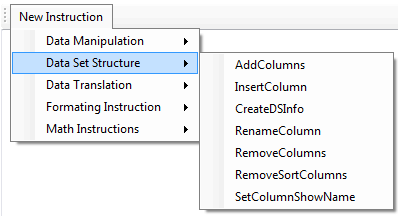
- Either an example instruction will be written in the text editor or an editor will open. If the example is written in the text editor, change the example as needed. If an editor opens, enter the required values in the editor controls.

|
We're working on it. Stay tuned! |
| Instruction | Description |
|---|---|
| Data Manipulation | |
| GroupBy | Allows an expandable report table by grouping results to be built. |
| JoinColumns | Displays multiple Show properties in one row of the report. |
| CreateRefImage | This instruction is for use in configured Data Table reports only. It adds the ability to navigate to the object profile of an object represented by a cell to all cells of a defined column in the configured report. |
| RemoveEmptyRows | Removes empty rows from the report table.
This instruction is only required if the report is an expandable report table built with the GROUPBY_EX instructions and if the root level of the report shows objects with no subordinate search results. |
| SetClassCaption | Displays the class caption of the object class of the displayed objects in a defined column of the report. The REFSTR of the objects must be included in the query result dataset to execute the SetClassCaption instruction. |
| GetClassSettingInfo | Displays the name of the object class icon and the foreground and background color defined for an object class in the relevant class settings in defined columns of the report. |
| SetClassCaptionByRow | Displays the class caption of the base object class in the report in a defined column of the report. |
| SetClassNameByRow | Displays the class caption of the base object class in the report in a defined column of the report. |
| SetClassName | Displays the class name of the object class of the displayed objects in a defined column of the report. The REFSTR of the objects must be included into the query result dataset to execute the SetClassName instruction. |
| SetRowCategories | Creates categories based on values in a column of the result data set. The categories can be used to configure buttons in the toolbar of the report to be active for objects belonging to defined categories only. |
| SetRowReference | Defines an object class that was added to the result data set via a JOIN to be processed as the base object class of the result data set. For example, the Navigate button directs the user to the object profile of the selected class instead of the object profile of the FIND object class. |
| SetStereotypeCaption | Displays the caption of the object class stereotype of the displayed objects in a defined column of the report. Alternatively, the stereotype icon can be displayed next to or instead of the caption. The dataset resulting from the query must include the information about the stereotype name to execute the SetStereotypeCaption instruction. |
| SetStereotypeIndex | Defines the column in a dataset that lists the stereotype of an object. This instruction is exclusively used in custom selectors to create selectors that display only objects of a defined stereotype. When the search results are displayed in the explorer, the information provided in the column defined in the instruction is used to filter results by stereotype. |
| SortBy | Defines the sorting of rows in the report overwriting the sort behavior determined by the database. This instruction is required to sort values in a column that is the result of a JoinColumns instruction and the column displays objects from multiple object classes. |
| ReplaceServerVariable | Replaces the content of a defined column with the value of a server variable defined in the server alias of the Alfabet Web Application. |
| ReplaceValues | Replaces defined strings in the cells of a column in the dataset with replacement values defined per original string in the instruction. Only complete return values of the type string or text are replaced. |
| RetrieveIDOCPath | Triggers export of attachments specified in the result dataset to a temporary runtime folder. The path information is written into the result dataset. |
| JoinURLLink | If a configured report contains a link to an URL, this instruction can be used to display any text instead of the target URL specification as link text. |
| Data Set Structure | |
| AddColumns | Adds multiple columns to the dataset. The instruction must be combined with a SetColumnShowName instruction or a CreateDSInfo command to display the columns in the report output. |
| InsertColumn | Inserts a single column to the dataset. The instruction must be combined with a SetColumnShowName instruction or a CreateDSInfo command to display the columns in the report output. |
| CreateDSInfo | Redefines the complete dataset displayed to the user on the Alfabet interface when opening the report. The number and order of columns, and the column captions in the report are re-configured. |
| RenameColumn | Changes the column name. |
| RemoveColumns | Removes defined Show properties from the report.
Some instructions require the setting of defined Show properties for technical reasons. The RemoveColumns command is designed to hide these technical show properties from the result table. |
| RemoveSortColumns | Prevents sorting by the user for columns in the report. This instruction can only be used for reports based on an Alfabet query that display a grouped data set. |
| SetColumnShowName | Changes the column caption after execution of instructions.
This instruction is designed for use in native SQL queries. It is not required in Alfabet queries. |
| SetFreezeHeader | Freezes one or multiple columns in a tabular dataset of a configured report. These columns will then stay visible during horizontal scrolling. |
| Data Translation | |
| TranslateEnums | Enumeration, object state, and status values are translatable in Alfabet, but the translated values are not used per default in configured reports. The instruction triggers the translation of enumerations, object states, and statuses for defined columns of the configured report. The values are then displayed in the translation for the culture selected by the user viewing the configured report. |
| TranslateIndicators | Indicator range values are translatable in Alfabet, but the translated values are not used in configured reports by default. The instruction triggers translation of indicator range values for defined columns of the configured report. The values are then displayed in the translation for the culture selected by the user viewing the configured report. |
| TranslateTimeStatus | lifecycle status values are translatable in Alfabet, but the translated values are not used in configured reports by default. The instruction triggers translation of lifecycle status values for defined columns of the configured report. The values are then displayed in the translation for the culture selected by the user viewing the configured report. |
| SetTranslatedValue | For object class properties for which data translation is enabled in Alfabet, translated values are automatically displayed in reports based on an Alfabet query in the language currently used to display the user interface. For native SQL queries the change to the current language must be included in the report with the instruction SetTranslatedValue. |
| Formating Instruction | |
| CellColorAssignment | Defines the coloring of the cells in a result table for cells matching a defined search condition. |
| Convert2Boolean | Displays String , Integer and Real values as Boolean in the report. |
| ConvertBoolean2String | Displays defined strings instead of True or False for Boolean values in the report. |
| Convert2Posix | Displays Date and DateTime values in POSIX format. |
| LinkAssignment | Adds a link to a view in Alfabet to each cell of a defined column of the report. The link target can be an object profile, an object cockpit, a graphic view or a configured report. |
| EditLinkAssignment | Adds a link to an editor or wizard to each cell of a defined column of the report. The editor can be opened at a defined tab and the wizard can be opened at a defined wizard step. |
| DynamicLinkAssignment | Adds a link to a view, editor or wizard to each cell of a defined column of the report. The information which view, editor or wizard shall open is dynamically defined via the query the instruction is defined for. |
| PictureAssignment | Defines a substitution or amendment of the return value in a cell with an icon from the icon gallery when the cell matches a defined search condition. The icon can be 22x22, 30x30, or an icon in the the free size icon gallery. |
| RowColorAssignment | Defines the coloring of the rows in a result table for the cell in a defined column matching a defined search condition. |
| SetColumnDateSubType | Defines whether information of the data type DateTime is displayed as date only or date and time without defining an output format. The output format is then defined by the language settings of the user interface. |
| SetColumnFormat | Sets the output format for date and time information to a defined format. This format is used independent from the language settings of the user interface. |
| SetColumnsAlignment | Displays content of cells in defined columns in the result table with a different alignment as the default. The cell content can be defined as left, right, or center aligned. |
| FontStyleAssignment | Defines the formatting of the text in the cells in a result table for cells matching a defined search condition. Text can be formatted as italic, bold or underlined. |
| FontStyleColorAssignment | Defines the formatting of the text as well as the coloring of the cells in a result table for cells matching a defined search condition. Text can be formatted as italic, bold or underlined. |
| SetDynamicWebLink | Provides the ability to open a dynamic web link for an object selected in the configured report via a button interaction. |
| SetObjectIcon | Display the icons assigned to objects in a cell of a tabular configured report. |
| Math Instructions | |
| CreateColumnSum | For a defined column of the data type Integer or Real all values in the query output are counted up. The resulting sum is displayed in an additional row added at the bottom of the data set. Optionally, a caption for the additional row can be defined for display in one of the other columns of the data set. |
| CreateRowSum | Calculates the sum per row of multiple values of the type Real or Integer displayed in selected columns of the dataset. A new column must be added to the dataset for display of the result. |
| NTile_Weighted | This instruction groups the results in the dataset according to the ascending order of values in a defined column of the data type Integer or Real. The number of groups can be defined in the instruction. The groups are represented by numbers, with 1 being the group with the lowest values. Each group is assigned the same number of results. If the number of results can not be divided equally among the groups, the first group(s) have a higher count. A new column of the data type Integer or Real must be added to the data set to display the results. |