
- In the Alfabet Query Builder, click the base class in the main area.
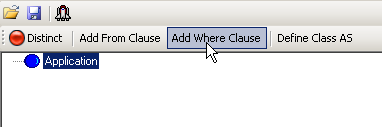
- In the toolbar, select Add Where Clause. In the Alfabet Query Builder, the parameter Where is written below the base class and the node And is written below the parameter Where.
- In the Alfabet query, click And . The buttons in the toolbar change to the available types of WHERE clauses.
- In the toolbar, select Property. The Properties Browser opens
- Drag an obect class property to the lower pane of the Properties Browser and click OK. The object class property is displayed in the Alfabet query nested below the WHERE clause.
- In the Alfabet query, click the property in the WHERE clause. The buttons in the toolbar change to the available operators for the selected object class property type.
- In the toolbar, select an operator. A dialog box will open for all operators except the operators IS NULL and IS NOT NULL.
- In the dialog box, enter the value that the selected object class property should have and click OK. The condition is displayed in the WHERE clause in the Alfabet query.
- Click the Test Query
 button. The list of all found objects of the base class is displayed in a separate table.
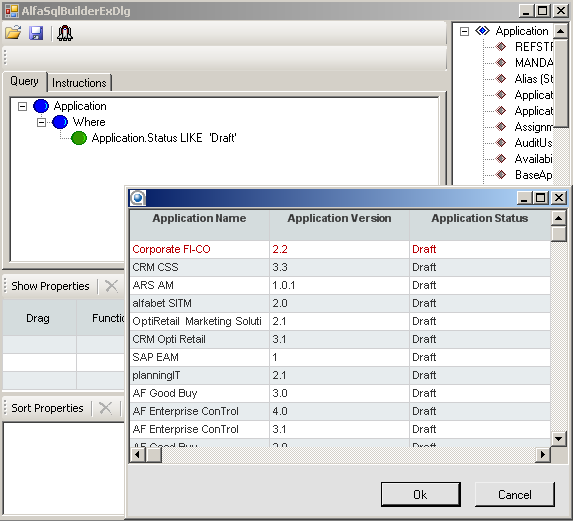
For example, the WHERE condition specifies that the object class property Status (Release Status) of the object class Application is Draft.
- WHERE
- Application.Status LIKE ’DRAFT’
The resulting report now shows only applications that are in the release status Draft:
Compare property values with other property values
You can define a WHERE clause that checks whether the value of an object class property is identical to the value of another object class property. In the , the object class property you want to define as a value for the operator in the WHERE clause cannot be specified in the dialog box used to specify values for WHERE conditions.
To compare two properties in the Alfabet Query Builder:
- In the Query tab of the Alfabet Query Builder, define a WHERE clause with an object class property in the usual way:
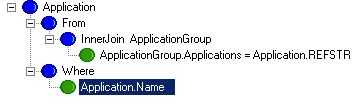
- Select the object class property that you want to compare the defined object class property with in the object class property selector pane of the Alfabet Query Builder and drag it to the object class property name specification in the WHERE condition. The two properties are compared with the '=' operator.
- To change the operator, click the WHERE condition and select the operator from the toolbar. The dialog box to enter a value opens.
- Leave the fields in the dialog box empty and click OK. The operator in the WHERE condition has changed.
Define multiple WHERE clauses
You can add multiple WHERE conditions to the WHERE clause of an Alfabet query. When you do so, you must specify in the WHERE clause whether the WHERE conditions are AND or OR related:
AND: Returns True when all expressions are true.
OR: Returns True when at least one expression is true.
More than two WHERE conditions can be related with each other in an AND or OR relationship.
You can combine multiple AND and OR conditions hierarchically. For example, you can define that condition A and either condition B or condition C should apply.
All WHERE conditions of an Alfabet query are written in the same WHERE clause. It is not allowed to specify multiple WHERE clauses in an Alfabet query.
In the Alfabet Query Builder, the relation And is automatically added to the WHERE clause upon definition of the first WHERE condition.
When you close and re-open the Alfabet Query Builder while a single condition is defined, the And node is removed from the Alfabet query. If you want to add another condition, you can re-establish the And node or create an Or node:
- In the Query tab of the Alfabet Query Builder, click the condition in the WHERE clause.
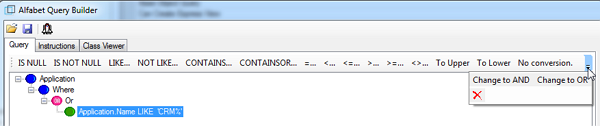
- In the toolbar, select Change to AND to add an And relation or Change to OR to add an Or relation.
If a high number of operators is available for the condition, you might not see the options Change to AND and Change to OR in the toolbar because there is not sufficient space to display all options. Click on the small field on the right of the toolbar to open a drop-down menu with the menu options that were hidden.
You can do one of the following to build a hierarchy of related conditions:
- To add a condition to an And or Or node, click the node and select Property from the toolbar.
- To add a subordinate condition to an And or Or node, click the node and select AND or OR from the toolbar.
- To change an And node to an Or node, click the node and select Change to OR from the toolbar.
- To change an Or node to an And node, click the node and select Change to AND from the toolbar.
- To delete an And node, an Or node, a condition or the complete WHERE clause from the Alfabet query, click the respective node and select Delete
 from the toolbar.