
In the Alfabet Query builder, a JOIN is a sub-clause of a FROM clause. An Alfabet query can have only one FROM clause. The FROM clause must include all defined JOINS.
A JOIN consists of a specification of the type of join, the object class to join, and the definition of the condition on which objects are joined. The most common condition defines that the joined object class must either reference the base class or be referenced by the base class via an object class property establishing a reference or reference array.
- In the Alfabet Query Builder, click the base class of the Alfabet query.
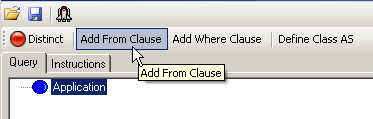
- In the toolbar, select Add From Clause.
The Select Class dialog box opens.
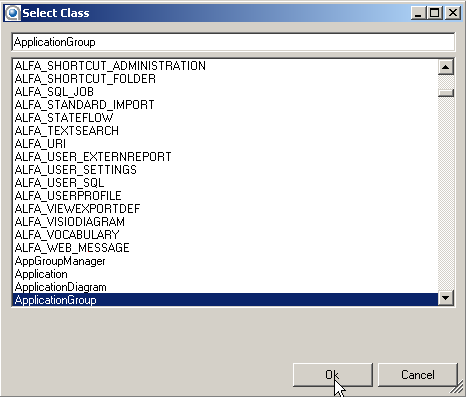
- In the dialog box, select the class that you want to add and click OK. An InnerJoin referencing the selected object class is added to the Alfabet query
- If you do not want to specify an InnerJoin , click the Change button in the toolbar and select the required type of JOIN in the drop-down list.
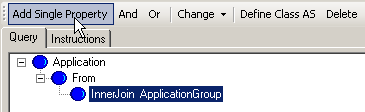
- In the toolbar, select Add Single Property. The Properties Browser opens
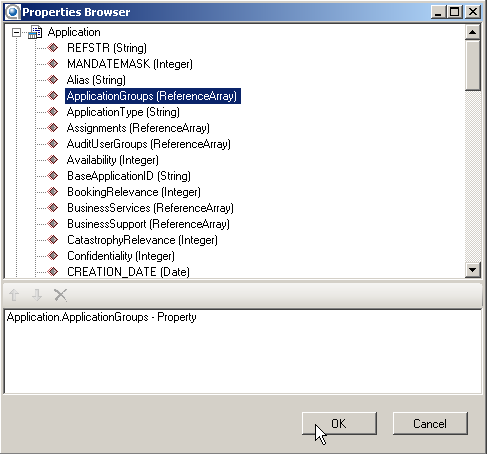
- In the Properties Browser, expand the object class properties of the object class with the object class property referencing the other object class. In the example, this is the object class Application . Select the object class property specifying the reference and drag it to the lower pane of the Properties Browser.

The object class property establishing the reference is not necessarily an object class property of the base class or an object class already joined to the Alfabet query. It can also be a property of the object class that you want to join referencing an already joined class.
For the example given, it would also be possible to select the object class property Applications of the class ApplicationGroup that you currently want to join and specify that it has to contain the REFSTR of the application.
It is also possible to specify JOIN s by comparing object class properties of two object classes in JOINs without one object class property referencing the other object class.
If you do not know which object class property references which object class, go to the Class Viewer tab in the Alfabet Query Builder.
The base class of your Alfabet query is displayed in the top center of the graphic. On the left, all object classes referencing the selected base class via one or multiple of their object class properties are listed in blue boxes. The object class property that establishes the reference is displayed in a white box between the object classes. On the right, all object class properties of the selected object class that store references to other object classes are listed. The target object classes are listed in the blue boxes on the right.
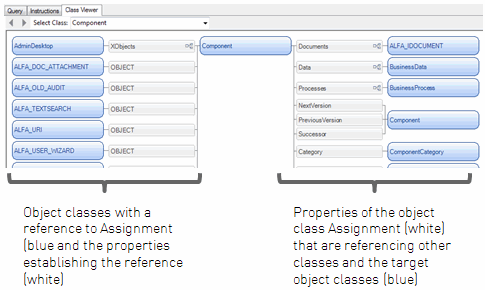
When you double-click a referenced object class in the graphic, a new tab opens that displays the references of this object class to other object classes.
You can select another object class whose references you want to see in the Select Class field.
The arrow
 buttons next to the Select Class field allow navigation to previously shown object class relations.
 - Click OK to save your selection. The object class property is displayed in the Query tab in the Alfabet Query Builder.
- Click the object class property name. The toolbar displays all available operators for the object class property's data type.
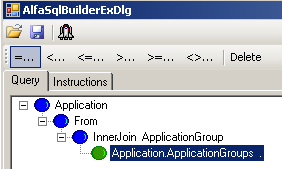
- From the toolbar, select an operator. The Properties Browser opens.
- In the Properties Browser, expand the properties of the object class that is referenced by the object class property displayed in the JOIN . In the example, this is ApplicationGroup . Select the referenced object class property and drag it to the lower pane of the Properties Browser. In the example, this is the REFSTR property of the class ApplicationGroup.
- Click OK to save your selection. The object class property is displayed in the Query tab of the Alfabet Query Builder.
- If you want to display object class properties of the joined class in the query results, add the desired object class properties to your show properties.
- Click the Test Query
 button. You will see the selected object class properties of your joined object class in the report. Test whether the results are as expected. If this is not the case, you should check whether you have chosen the wrong type of JOIN or whether results must be filtered by another WHERE condition that specifies a condition for an object class property of the joined object class.
When you want to join a second class to the Alfabet query, you can click From in the Alfabet query displayed in the Alfabet Query Builder and directly select the type of JOIN . All JOIN s are written to the same FROM clause.
You can change the conditions for the selected property later. Click the condition and carry out one of the following procedures: To change the operator, select the new operator in the toolbar. If the value of the condition is an object property, the operator will be changed and the toolbar will be cleared. To see the toolbar buttons again, you must click the condition again. If the condition is a string or parameter, the dialog box for the condition value will open after selecting the new operator and you can change the value.
- To change the condition value, you must proceed differently for comparisons with object properties vs. string values or parameters.
- If you want to change an object property, drag the new property from the property selector window to the condition.
- If you want to change a property value that is a string, select the current operator in the toolbar. The dialog box for the value specification opens and allows to edit the value.
It is not possible to delete an intermediate JOIN in a query with two or more JOIN s. For example, if a query joins class 1 to the base class, class 2 to class 1 and class 3 to class 2, the JOIN of class 2 to class 1 cannot be deleted.
In the example, the object class property Status of the object class Application is deleted from the Show properties section because it is no longer required and the object class property Name of the class ApplicationGroup is added:
