
If an object class is joined to the base class by means of multiple joins, and the Show properties do not include data about all of the object classes in the JOIN , the results may display multiple rows with identical data. In some cases, the results can be limited to rows with differing content by using a DISTINCT clause in the specification of the base class.
For example:
The Alfabet query finds all business functions that are related to ICT objects. However, business functions are not directly related to ICT objects. Business functions use business services that are provided by applications. Therefore, business functions that use business services by applications that are assigned to an ICT object are the relevant business functions that are related to the ICT object.
The Alfabet query must therefore join three object classes: Application, BusinessService and BusinessFunction. In the example above, ICT objects, applications assigned to the ICT object, and the business functions that use business services of the applications are displayed in the results.
Some business functions use business services from more than one application assigned to an ICT object. As a result, the report contains rows that only differ in the data about the application:
- ALFABET_QUERY_500
- FIND
- ICTObject
- InnerJoin Application ON Application.ICTObject = ICTObject.REFSTR
- InnerJoin BusinessService ON Application.REFSTR = BusinessService.Object
- InnerJoin BusinessFunction ON BusinessService.Function = BusinessFunction.REFSTR
- QUERY_XML
- <QueryDef>
- <ShowProperty Type='Property' ClassName='ICTObject' Name='ID' />
- <ShowProperty Type='Property' ClassName='ICTObject' Name='Name' />
- <ShowProperty Type='Property' ClassName='Application' Name='ID' />
- <ShowProperty Type='Property' ClassName='Application' Name='Name' />
- <ShowProperty Type='Property' ClassName='BusinessFunction' Name='LevelID' />
- <ShowProperty Type='Property' ClassName='BusinessFunction' Name='Name' />
- <SortProperty Type='Property' ClassName='ICTObject' Name='ID' />
- <SortProperty Type='Property' ClassName='ICTObject' Name='Name' />
- <SortProperty Type='Property' ClassName='BusinessFunction' Name='LevelID' />
- <SortProperty Type='Property' ClassName='BusinessFunction' Name='Name' />
- </QueryDef>
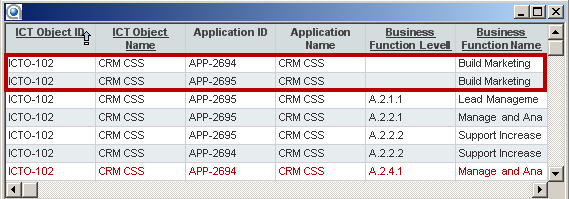
If the report displays only data about the ICT object and the business function, you will see a report with rows displaying identical data. The difference in the data set (in this case, the application providing the business service used by the business support) is not visible:

To solve the problem of the duplicate display of data in a scenario as described above, the Alfabet query must have a DISTINCT option in the specification of the base class. DISTINCT specifies that the resulting report should contain only rows displaying distinct objects. .
For example, if the Alfabet query specified in the example above contains a DISTINCT option and no Show properties for applications:
- ALFABET_QUERY_500
- FIND
- DISTINCT ICTObject
- InnerJoin Application ON Application.ICTObject = ICTObject.REFSTR
- InnerJoin BusinessService ON Application.BusinessServices = BusinessService.REFSTR
- InnerJoin BusinessFunction ON BusinessService.Function = BusinessFunction.REFSTR
- QUERY_XML
- <QueryDef>
- <ShowProperty Type='Property' ClassName='ICTObject' Name='ID' />
- <ShowProperty Type='Property' ClassName='ICTObject' Name='Name' />
- <ShowProperty Type='Property' ClassName='BusinessFunction' Name='LevelID' />
- <ShowProperty Type='Property' ClassName='BusinessFunction' Name='Name' />
- <SortProperty Type='Property' ClassName='ICTObject' Name='ID' />
- <SortProperty Type='Property' ClassName='ICTObject' Name='Name' />
- <SortProperty Type='Property' ClassName='BusinessFunction' Name='LevelID' />
- <SortProperty Type='Property' ClassName='BusinessFunction' Name='Name' />
- </QueryDef>
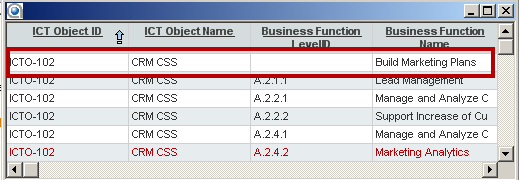
The resulting report shows only lines with different content:
- In the Alfabet query language, DISTINCT forces the display of different objects in each row. This behavior is different from the use of DISTINCT in SQL, where DISTINCT refers to different object properties.
For example, if you find applications with the DISTINCT option and you only display the name of the application in the report, you may see rows that look identical regardless of the DISTINCT setting, because the Name property is not unique for applications. Two applications can have the same name as long as they have different versions.
- Also, DISTINCT is only applied to the base class of the Alfabet query. If your Alfabet query does not contain any Show properties for the base class, DISTINCT will not have any effect.
To add DISTINCT to the base class definition in the Alfabet Query Builder:
- In the Query tab of the Alfabet Query Builder, click the base class. In the toolbar, the Distinct button is displayed with a red light, which means that DISTINCT is not selected:
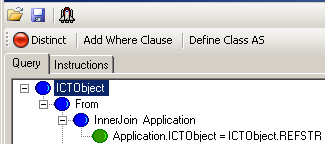
- In the toolbar, click the Distinct button. The button now displays a green light which means that DISTINCT is selected.

To add DISTINCT clause to the base class definition in the Alfabet query language, write DISTINCT between FIND and the name of the base class:
- ALFABET_QUERY_500
- FIND DISTINCT Application