
Join roles
An object of the object class Role is created each time a responsibility is defined for an object based on a preconfigured role type.
Role types define the type of responsibility a user or organization has for an object in the Alfabet database. Role types are configured in the Reference Data functionality of the Configuration module of Alfabet . They are then assigned to object classes in the Class Configuration functionality.
In the Responsibilities page view of an object, the user can now create a role by defining a responsibility for either a user or an organization. In the editor for the role definition, the responsible user or organization and the role type that defines the type of responsibility for the object is defined.
The Alfabet query language offers an easy way to include information about responsible users or organizations defined for roles in the results of an Alfabet query. Roles can be specified in the Show properties in an XML definition. The role is automatically interpreted in the XML definition and the name of the responsible user or organization is returned in a separate column per role type.
Nevertheless it might be necessary to use JOINs to display the responsible users and organizations defined for roles in reports:
- If the output of the report shall not include the name of the responsible users/organizations, in a separate column per role type. For example, you might want to display users and organizations in different columns, or you might want to add a column showing the role type and a second column showing the responsible for the role type for the object.
- If the output of the report is to be sorted by the user/organization that is responsible for the role. It is not possible to include the role output in the Sort properties without JOINs.
In the Alfabet class model, the relation between the role type, the object, and the responsible person or organization is only specified in the database table for the class Role:
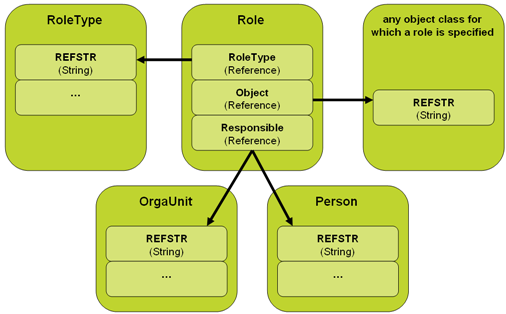
To include information about roles in the Alfabet query results, you must first join the class Role to the Alfabet query. You can then join all other involved object classes with a relation to the class Role.
The property Responsible of the class Role can reference two object classes: OrgaUnit and Person . Therefore you must join both object classes in the Alfabet query to find all roles defined for an object.
For example, to display information about the roles that are defined for objects of a defined object class:
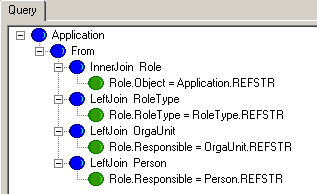
- Create a JOIN to the class Role that finds all roles with a reference to objects of the base class in the property Object . Create an inner JOIN to include only objects with defined roles in the report or a left JOIN to find all objects of the base class:
- Create a JOIN to the class RoleType that finds all role types that are referenced in the RoleType attribute of the roles found in your Alfabet query. You can use a left JOIN or an inner JOIN. Both results are identical because each role must have a role type defined:
You can now add the Name property of the role type to your Show properties.
- Create a left JOIN to the class Organization that finds all organizations that are referenced in the Responsible attribute of the roles found in your Alfabet query. You must define a left JOIN to also display applications with responsibilities defined for users instead of organizations. If you are interested in only organizational responsibilities, you can define an inner JOIN , but then applications without any roles defined will not be included in the Alfabet query results.
You can now add the Name property or any other properties of the responsible organization to your Show properties.
- Create a left JOIN to the class Person that finds all users that are referenced in the Responsible attribute of the roles found in your Alfabet query. You must define a left JOIN to also display applications with responsibilities defined for organizations instead of users. If you are interested in only user responsibilities, you can define an inner JOIN , but then applications without any roles defined will not be included in the Alfabet query results.
You can now add the Name property or any other properties of the user to your Show properties.
The resulting Alfabet query will appear as follows:
Join indicators
Configure evaluation metrics You can define evaluation types that bundle a set of indicator types in order to evaluate objects in Alfabet . The evaluation types are assigned to object classes in the Class Configuration functionality. Users can set indicator values for example in data workbenches, property groups of content areas, and the Evaluations view. An object of the object class Indicator is created each time a value is entered for an indicator type.
The Alfabet query language offers an easy way to include information about indicators in the results of an Alfabet query. Indicators can be specified in the Show properties in XML definition. The indicator is then automatically interpreted in the XML definition and the name of the values are returned in a separate column per indicator type.
Nevertheless it might be necessary to use JOINs to display indicators in reports:
- If the output of the report shall not display a separate column per indicator type. For example, you might want to display one column for the indicator type and one for the value defined for the indicator type.
- If the output of the report shall be sorted by indicator value. It is not possible to include the indicator output in the Sort properties without JOINs.
In the Alfabet class model, the value defined for an object's indicator type is only specified in the database table for the class Indicator . The class Indicator specifies the object and the indicator type that each value was defined for and the evaluation type that the indicator type is assigned to:
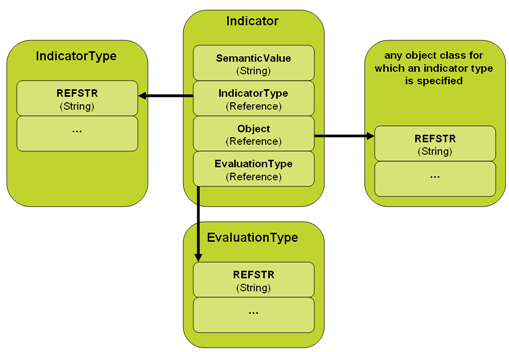
To include information about indicators in the Alfabet query results, you must first join the class Indicator to the Alfabet query. You can then join all other relevant object classes via a relation to the class Indicator.
For example, to display information about the values of a specific indicator type that is defined for objects of a defined object class:
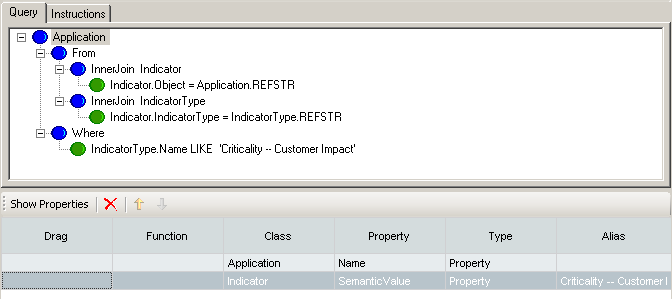
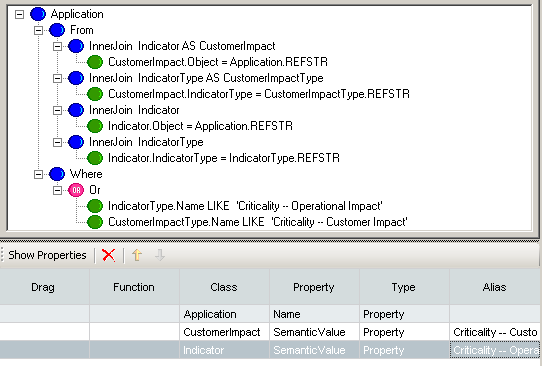
- Create a JOIN to the class Indicator that finds all Indicators with a reference to objects of the base class in the property Object . Create an inner JOIN to include only objects with defined indicators in the report or a left JOIN to find all objects of the base class:
- Create a JOIN to the class IndicatorType that finds all Indicator types that are referenced in the IndicatorType property of the indicators found in your Alfabet query. You can use a left JOIN or an inner JOIN. Both results are identical because each indicator must have an indicator type defined:
- Add a WHERE condition to your Alfabet query that defines that the Name property of the indicator type must correspond to the name of the indicator for which you want to display values in the report.
- Define the property Name of the object and the property SemanticValue of the indicator as Show properties and change the column caption to the name of the indicator.
The resulting Alfabet query will appear as follows:
If you want to show the values of more than one indicator type and add one column to your report for each indicator type, you must join the class Indicator two times to your report and specify an alias name for one of the indicators. The same applies to the indicator type JOIN.
Join architecture objects
For value nodes, projects and demands, the affected architecture is not defined as a property of the value node, project and demand, but with a special object class ValueNodeArch , DemandArch and ProjectArch respectively. The class ValueNode is used to describe the relation to the affected architecture in the following example. The relation between projects or demands and their affected architecture follows the same rules.
An object of the object class ValueNodeArch is created each time a user adds an architecture element to the affected architecture of a value node stereotype. The relation between the value node and the architecture object is neither stored in the database table of the value node nor in the database table of the architecture object. The relation between the a value node and its affected architecture is only specified in the database table for the class ValueNodeArch:
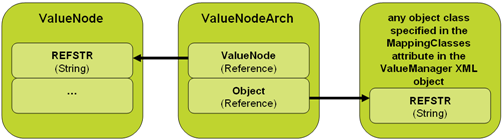
To include information about the affected architecture of a value node or the impacting value nodes assigned to an object in the Alfabet query results, you must first join the class ValueNodeArch to the Alfabet query. You can then join all other involved object classes with a relation to the class ValueNodeArch:
- Value nodes are based on value node stereotypes. To limit the search results to value nodes of a certain value node stereotype only, you must include a WHERE statement.
- The property Object of the class ValueNodeArch can reference objects of any object class that are defined in the MappingClasses attribute for a value node stereotype in the XML object Value Manager . To create a JOIN to the affected architecture, you must add a JOIN to all involved object classes to the Alfabet query.
For example, an Alfabet query shall find all objects of the affected architecture for a value node of the stereotype Architecture Requirements that has the following stereotype definition:
- <ValueStereotype
- Name='Architecture Requirements'
- Level='5'
- MappingClasses='Domain,BusinessProcess,OrgaUnit,MarketProduct'
- Picture='ArchitectureRequirement'/>
In the Alfabet query, you must define the following:
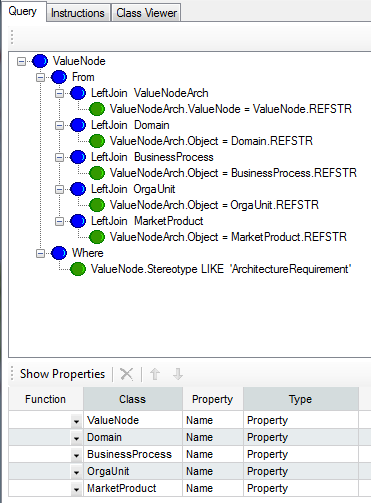
- Define ValueNode as the base class.
You can now add the name of the value node to your Show properties.
- Add a WHERE clause to the Alfabet query that defines that the Stereotype property of the value nodes must have the value 'Architecture Requirements'.
- Create a JOIN to the class ValueNodeArch that finds all value node arcs. Create an inner JOIN to include only value nodes with defined affected architecture in the report or a left JOIN to find all value nodes.
- Create a JOIN to each of the object classes defined as MappingClasses in the stereotype definition of the value node. The JOIN condition must define that the object class is referenced by the object class property Object of the object class ValueNodeArch . You can use a left JOIN or an inner JOIN. Both results are identical because each value node arch must have an object defined.
You can now add the names of the object classes to your Show properties.
The resulting Alfabet query will appear as follows:
Join lifecycle phases
In the Alfabet database, the lifecycle definition and lifecycle phases for an object are stored as objects of the object class TimeStatus . Each TimeStatus object provides information about the start date, the end date and the lifecycle status of the lifecycle phase stored in the object as well as a reference to the object that the lifecycle phase is defined for in the property Owner . The lifecycle status can be any of the names of the lifecycle phases defined for the object class in the XML object ObjectLifeCycleManager in Alfabet Expand.
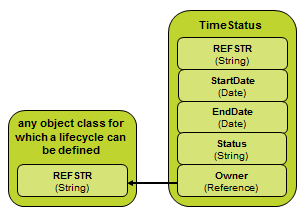
To include information about the lifecycle of an object in the Alfabet query results, you must first join the class TimeStatus to the Alfabet query.
For example, a report shall display the start and end dates for the evaluation , pilot and production lifecycle phases for applications:
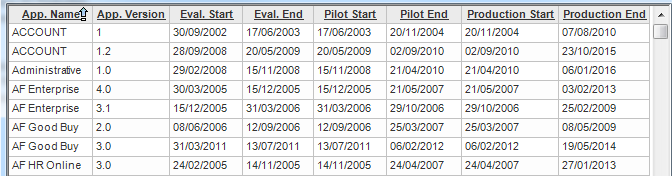
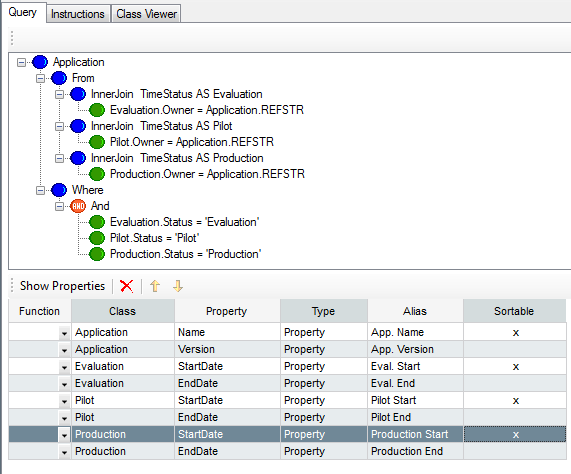
Each lifecycle phase (production , pilot and evaluation ) corresponds to one object of the class TimeStatus . Therefore each row displays information about three different objects of the same class. this means that the Alfabet query must include three JOIN s to the same object class, using an alias for the object classes . WHERE clauses must be added to define which value of the object class property Status a TimeStatus object must have to be displayed in the respective row.
The resulting Alfabet query will appear as follows in the Alfabet Query Builder:
Join stereotypes
The concept of object class stereotype has been implemented for many object classes. Object class stereotypes are sub-types of an object class which differ in name and in the range of functionalities available for them. The object class stereotype definition also includes the structure of the stereotypes in the hierarchy.
On the user interface, the caption of the object class stereotype is used instead of the caption of the object class. For example, the caption of the object view displays the object class stereotype caption and not the object class name. But in the Alfabet database, all objects of an object class are stored in the same database table regardless of their object class stereotype.
When a user creates an object class stereotype, the information about the configuration applied to the object is stored in the object class property Stereotype . The value of the property Stereotype is the value of the attribute Name of the corresponding stereotype configured in the relevant XML object.
To find objects of a specific object class stereotype, you must add the object class for which the object class stereotype is defined to the Alfabet query either as the base class or in a JOIN , and you must restrict the search results to the object class stereotype in a WHERE clause.
For example, to find projects of the project stereotype StatementOfWork:
- FIND
- Project
- WHERE Project.Stereotype LIKE ’StatementOfWork’