
All object class properties that can be selected as Show properties are listed in the object class property selector in the right pane of the Alfabet Query Builder. The object class property selector lists all object class properties of all object classes that are included in the Alfabet query as a base class or in a JOIN. You can select the following:
 |
Object class properties of the object class. When you select an object class property, the value of the object class property is displayed in the results. |
 |
Role type assigned to the object class in the Configuration module in Alfabet. When you select a role type, the name of the user to which the role is assigned for the object is displayed in the results. The name of the user is displayed as Name followed by First Name. |
 |
Indicator types assigned via evaluation types to the object class in the Configuration module in Alfabet. When you select an indicator type, the value for the indicator is displayed in the results. |
Show object class properties
To define the Show properties in the report, click the object class property in the object class property selector and drag it to the Show Properties pane. This pane now displays the selected property in a table that has the following columns:
- Function: If a function is defined that shall be applied to the Show properties prior to display, it is written into this column of the Show Properties section. For example, the function SUM returns the sum of a set of numeric values. Calculation of aggregated values is described in a separate section..
- Class: Displays the name of the object class the object class property belongs to.
- Property: Displays the name of the object class property.
- Type: Displays whether the added Show property is an object class property, an indicator, or a role.
- Alias: If an alias is defined for the Show propery, it is displayed in this column. An alias can be defined to alter the standard column caption in the tabular output of the Alfabet query.
- Sortable: Click a cell in this column to sort the data in the column of the result dataset alphanumerically. By default, objects are displayed in the order of their appearance in the database. This means that the oldest objects come first. If the query is defined for a tabular report, users can change the sort order sorting the data in any column of the dataset.
- Show As Icon: This field is only relevant for properties of the TypeIndicator . If an indicator is added to the Show Properties, the field in the Show As Icon column displays a checkmark by default. If a checkmark is displayed and an icon gallery is defined for the indicator, the indicator is displayed as icon in the tabular output of the Alfabet query.
Show indicator values
In Alfabet, indicators for evaluation of objects are based on evaluation types, which are grouping indicators, indicator types defining how an indicator can be set. The evaluation types are assigned to object classes. When a user sets an indicator value or an indicator value is automatically calculated, depending on the indicator type definition, an indicator object is created. The indicator object stores the information about which object the indicator is defined for, which evaluation type and indicator type it is based on, and which value is set.
Information about the values set for indicators can be added to an Alfabet query directly in the XML definition of Show properties without using JOINs to the involved object classes.
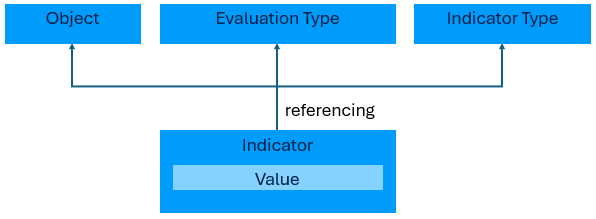
The XML definition generates one column in the output for each indicator type. The search returns the value of the indicator for the current object. Display of values depend on the indicator type definition. If an icon gallery is assigned to the indicator, the icon representing the indicator value is displayed. Otherwise the display depends on the Range and Hide Number settings of the indicator:
- If a Range definition exists in the indicator type definition, the display depends on the setting of the property Hide Number of the indicator type. If Hide Number is activated, only the string defined after the hyphen is displayed, while the complete definition including the numeral and the hyphen is displayed if Hide Number is deactivated.
The semantic value following the hyphen in the Range definition of an indicator type is translatable and will be displayed in the language of the cultures currently selected by the user if a translation is provided. The Range definitions are included into the vocabularies for interface string translation of Alfabet without the numeral part and the hyphen.
- If a Range definition does not exist, the value of the indicator is displayed as follows:
- If the value contains only numerals, the numeric value will be displayed in a form appropriate to the specified culture.
- If the value contains no numerals or a mixture of non numerical characters and numerals, the value is displayed as a string.
The assignment of indicator types to user profiles is not taken into consideration by the XML definition of indicators in Alfabet queries.
- Click an indicator in the object class property selector and drag it to the Show Properties section of the Alfabet Query Builder. The columns Class, Property and Type are automatically filled and an X is automatically defined in the column Show As Icon.
If the object class supports stereotype definition, the object class property selector displays all indicators assigned to the object class and to any of the defined stereotypes. If you are defining a query that finds objects of a given stereotype, you may see indicators in the list that are not applicable for the stereotype for which you define the Alfabet query.
- By default the indicator is represented by icons an icon gallery is assigned in the Visualization tab of the indicator's editor. If you want to display semantic values instead, click in the Show As Icon cell to remove the X.
- If the indicator is not defined for the base class of the Alfabet query, but for an object class added with a JOIN to the Alfabet query:
- Drag the REFSTR property of the selected object class from the object class property selector to the Show Properties section.
- Select the Instructions tab of the Alfabet Query Builder and enter:
- REMOVECOLUMNS('ObjectClassName.REFSTR')
The REFSTR property defined in the show properties is not displayed in the results table.
If you want to hide REFSTR columns for multiple object classes, the columns can be added to the command in comma-separated format:
- REMOVECOLUMNS('ObjectClassName.REFSTR','ObjectClassName.REFSTR')
Whitespaces are not allowed in the command.
The XML definition of Show properties for indicators is not always applicable:
- If you want the indicators in the Alfabet query results to be displayed in another form than the one predefined for XML definitions of Show properties of the type Indicator. For example, if the indicators of all indicator types shall be listed in one column and their corresponding indicator types shall be listed in another column.
- If you want to sort the results by indicator. The definition of Sort properties is not possible for XML definitions of Show properties for indicators.
- If you want to restrict the display of indicators to indicator types assigned to the user profile that the user is currently logged in with. The assignment of indicator types to user profiles is not taken into consideration by the XML definition of Show properties for indicators.
- If you want to define an Alfabet query instruction that colors the cell depending on the value of the indicator.
- If you define a query for a configured report displaying a chart.
For this configurations you must add the indicator to the query via JOINs and define the indicator value as a normal Show property.
Show role owners
An object of the object class Role is created each time a responsibility is defined for an object based on a preconfigured role type.
Information about which user/organization is responsible for a specific role for an object can be added to the result dataset of an Alfabet query directly via the Show properties without using JOINs to the involved object classes.
The Show property for a role generates the following output:
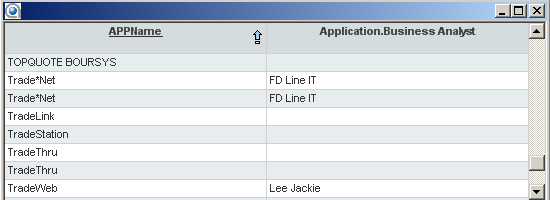
- One column is added to the report showing the responsible users/organizations for the role per object.
- If multiple users/organizations defined for a role have the same role for an object, one row is added to the report for each responsible user/organization.
- Base class objects with no role defined are displayed in the report and the report column is left empty. This corresponds to a left JOIN of the object class Role to the base class.
- Responsible organizations and responsible users are displayed in the same column.
- For responsible organizations, the name of the organization is displayed. For responsible users, the name and first name of the user is displayed.
If you want to change the information that is displayed about the responsible users/organizations in the rows of the report, you can edit the underlying XML definition of the show property in a text editor. All other changes require the definition of JOINs.
The display of roles as Show properties is not always applicable:
- If you want to define the Alfabet query as an XML attribute value. Specification of a query in an XML attribute is, for example, required for the definition of treemap and layered diagram reports, wizards, workflows and computation rules. Show properties are defined in the underlying Alfabet query code in an XML element. Therefore, the query is not suitable for use as an XML attribute value.
- If you want the role responsibilities in the Alfabet query results to be displayed in another form than the one predefined for Show properties of the type Role. For example, if the users/organizations defined for all roles shall be listed in one column and the role type of the role shall be listed in another column.
- If you want to sort the results by responsible user/organization. You cannot add roles to sort properties.
- If you want to define an Alfabet query instruction that colors the cell dependent on the availability of a role on the object.
If you want to add information about a role to the Alfabet query results without using the XML definition, you must join the relevant object classes and define their object class properties via Show properties.
- Click a role in the object class property selector and drag it to the Show Properties section of the Alfabet Query Builder, The columns Class, Property and Type are automatically filled.
If the object class supports object class stereotype definition, the object class property selector displays all role types assigned to the object class and to any of the defined object class stereotypes. If you are defining a query that finds objects of a given object class stereotype, you may see role types in the list that are not applicable for the stereotype that you are specifying in the Alfabet query.
- Optionally, enter a string in the Alias column to alter the standard column caption in the tabular output of the Alfabet query. By default, the column caption is 'ObjectClassName RoleTypeName'.
- If the role is not defined for the base class of the Alfabet query, but for an object class added with a JOIN to the Alfabet query:
- Drag the REFSTR property of the selected object class from the object class property selector to the Show Properties section.
- Select the Instructions tab of the Alfabet Query Builder and enter:
- REMOVECOLUMNS('ObjectClassName.REFSTR')
The REFSTR property defined in the Show properties is not displayed in the results table.
If you want to hide REFSTR columns for multiple object classes, the columns can be added to the instruction in comma-separated format:
- REMOVECOLUMNS('ObjectClassName.REFSTR','ObjectClassName.REFSTR')
Whitespaces are not allowed in the instruction.
Sort the results in the dataset
Sort the columns in the result dataset. The columns are displayed in the order they are defined in the Show Properties section. To change the position of a column in the result data set, click the respective row in the Show Properties section of the Alfabet Query Builder and use the Up  and Down
  buttons in the toolbar of the Show Properties section to change the position in the list.
Sort the rows in the result dataset. Sort properties define the subset of Show properties that are relevant for alphanumerical sorting of the results in the result table during execution of the Alfabet query. The results are first sorted in ascending order based on the first Sort property definition. All rows having an equal value are then sorted according to the second criteria, and so on. The user can click any column header of a tabular report to change the sort order of the rows in the report.
In the Show Properties section of the Alfabet Query Builder, click the cell in the Sortable column for each property that shall be used for sorting. The sort results are listed in the Sort Properties section.