Save all, tagged, or selected types of configuration objects
- In the menu bar in Alfabet Expand, select Meta-Model > Create Configuration Meta-Model Update File. The AMM editor opens.
- In the General tab, select the location to store the information in the Select Output File field.
- Provide a meaningful name and description for the update performed by the AMM file when applied to the target database in the fields Name and Description. The name and description are displayed in the Update Meta-Model dialog box when the AMM file is used to update the configuration in a database. It allows the person performing the update to be informed about the content of the configuration in the AMM file.
- In the Meta-Model Content tab, select the configuration that you want to add to the AMM file:
- Save Configuration: Select the checkbox to save custom object classes, custom enumerations, and property groups defined in the Meta-Model tab as well as all customer defined configuration objects in the Presentation, Functions, and Surveys tabs in Alfabet Expand.
- Save Reports: Select the checkbox to save the content of the Reports root node of the explorer in the Reports tab in Alfabet Expand.
- Save Workflow Templates: Select the checkbox to save the content of the explorer of the Workflow tab of Alfabet Expand.
- Save ADIF Schemes: Select the checkbox to save the content of the explorer of the ADIF tab in Alfabet Expand.
After the target database is updated by means of the AMM file, all ADIF import schemes in the target database that have the Auto-Run attribute set to True will be automatically executed.
- Save Event Templates: Select the checkbox to save the event templates defined in the Reusable Elements tab in Alfabet Expand.
- Save Reusable Elements: Select the checkbox to save the resource bundles for the generic Open API integration interface, user interface groups, user interface themes, and global filter parameters defined in the Reusable Elements tab in Alfabet Expand.
User interface themes are added to the AMM files without subordinate elements via the Save Reusable Elements option. You must add the user interface themes via the Reference Data tab individually to take over the styling within the user interface theme.
- Save Data Workbenches: Select the checkbox to save the content of the Data Workbenches tab in Alfabet Expand.
- Save Diagrams: Select the checkbox to save the custom diagram definitions and custom diagram item templates defined in the Diagrams tab in Alfabet Expand.
Icons are not automatically saved if they are included in a diagram item template and the diagram item template is stored in the AMM file. If your configuration includes icons that are not available in the target database, make sure to also select Save Icons.
- Save Publications: Select the checkbox to save the content of the Publications tab in Alfabet Expand.
- Save Database Views: Select the checkbox to save the database views defined in the Meta-Model tab in Alfabet Expand.
When the configuration is restored to the target database, all database views in the target database that are created based on a Database View configuration object will be recreated, even if Save Database Views is not checked. The solution designer should then check whether the creation of database views was successful.
- Save Culture Settings: Select the checkbox to save the content of the Cultures and API Cultures explorer nodes of the Meta-Model tab in Alfabet Expand.
- Save Icons: Select the checkbox to save the icons uploaded to the icon gallery.
- Save Translation: Select the checkbox to save the custom translation of strings displayed in the Alfabet user interface that are customized via the Translation Editor in Alfabet Expand.
When the translation includes the caption and description of configured reports, the Update Translation functionality available in the Report root node in Alfabet Expand must be executed on the target database after update with the AMM file.
- Select the following options, if applicable for your configuration:
- Include Configuration Name and Version: Select the checkbox if you want the configuration name and version defined in the attributes of the Environment node of the Admin tab to be stored as configuration name and version in the meta-model of the target database.
- Replace Entire Existing Configuration: Select the checkbox if you want the configuration in the AMM update file to overwrite an existing configuration in the target database during the Update Meta-Model action. If the checkbox is not selected, the configuration in the AMM update file is merged with the configuration in the target database.
If the Replace Entire Existing Configuration checkbox is selected, the configuration of the target database will be deleted prior to saving the configuration in the AMM file to the target database. All customer configurations that are part of the configuration of the target database but not part of the configuration saved in the AMM file will be lost. The replacement mechanism deletes all parts of the configuration including the parts that are not selected to be part of the AMM update. The Replace Entire Existing Configuration checkbox should only be selected for AMM files when the parts of the configuration to be replaced have been selected.
Reference data is not deleted prior to applying the configuration stored in the AMM file.
Cultures in the target database are removed except for the primary culture (en-US), the default culture and the configuration culture. Any settings in the AMM file about the default culture or the configuration culture are ignored and the settings in the target database are maintained.
If you want to replace only part of the configuration (for example, the configuration of workflows only), it is recommended that you use the solution tagging option.
- Automatically Migrate Affected Workflows: This checkbox is only selectable if you have included workflow template configuration in the AMM file. Select the checkbox if you want the workflow templates to be automatically migrated to the target database.
Migration of workflows is currently only described in the workflow documentation of Alfabet 10.15.
- Only Include Objects with the Following Tags: The box lists all solution tags available in the current configuration . If you do not select any checkboxes, all configuration parts selected in the Meta-Model Content tab are saved without taking solution tagging into account. If you select one or multiple checkboxes, only solution objects which are both marked with a selected tag and are of a configuration object type selected in the Meta-Model Content tab are included in the AMM file. If solution tagging is not available for a configuration object type that is selected, all objects of that type will be saved independent of selected tags.
For example, the configuration includes 20 configured reports and 5 publications.
You have tagged two configured reports and two publications with a tag PublicationReports and selected this tag in the Only Include Objects with the Following Tags field.
In addition, you have selected the Save Reports checkbox, but you have not selected the Save Publications checkbox.
The AMM file will include the two tagged configured reports. It will not include any other configured reports because they are not tagged. It will not include any tagged or untagged publications because publications were not selected for upload.
- Exclude Objects with the Following Tags: The box lists all solution tags available in the current configuration . Objects are included in the AMM file if the configuration object type they belong to has been selected in the Meta-Model Content tab and they are not tagged with any selected tag in this field.
- Provide comma-separated tags to find objects to be removed: Enter the name of a solution tag or a comma-separated list of multiple solution tag names to delete all public (customer-defined) configuration objects tagged with the specified tag name(s) from the target database prior. This option is useful if a tagged configuration has been changed in a way that includes the deletion of objects. The obsolete objects can be removed from the target database as well.
Make sure that all objects required for the tagged solution are available in the AMM file when setting this option. All objects with the solution tag not included in the AMM file will be deleted from the target database.
If the tag name(s) that shall be used to remove objects is also used in the database you are currently connected with to tag configuration objects, you can select the tag name(s) from a multi-select combo-box instead of typing them in the field. Click the button on the right of the field to open the multi-select combo-box and select the checkbox of all tags in the current configuration for that all configuration objects shall be deleted in the target database prior to import of the configuration objects in the AMM file.
- In the Reference Data tab, select configuration relevant object data to add it to the AMM file. Independent of the setting of the Replace Entire Existing Configuration field in the Meta-Model tab, they are always merged with the existing configuration in the target database.
Select the type of object in the Select Class field and click the cell in the Save column of the table for all configuration objects of the selected type that are to be saved to the AMM file:
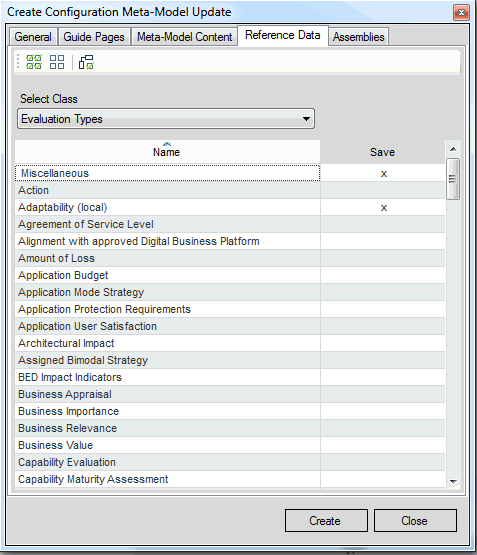
To save all configuration objects or user profiles currently displayed in the table to the AMM file, click the Check All
 button. Click the Uncheck All
  button to clear the selection of all objects in the table.
Select the Check Dependent Objects
 button to select objects that depend on other objects that you have currently selected in the list. When you click the button, the dependent objects will be automatically selected:
- For each evaluation type currently selected in the list, the following dependent objects are also selected:
- all prioritization schemes to which the evaluation type or any of the indicator types assigned to the evaluation type are assigned
- all IT portfolios to which the evaluation type or any of the indicator types assigned to the evaluation type are assigned
- all diagram views to which any of the indicator types assigned to the evaluation type are assigned
- class configurations to which the evaluation type is assigned
- For each prioritization scheme currently selected in the list, the following dependent objects are also selected:
- all IT portfolios to which the prioritization scheme is assigned
- class configurations to which the prioritization scheme is assigned
- For each IT Portfolio currently selected in the list, the following dependent objects are also selected:
- class configurations to which the IT portfolio is assigned.
- For each evaluation type currently selected in the list, the following dependent objects are also selected:
- Click the Create button to generate the AMM update file. A message will be displayed once the AMM has been successfully created.