Tag configuration objects per configuration project
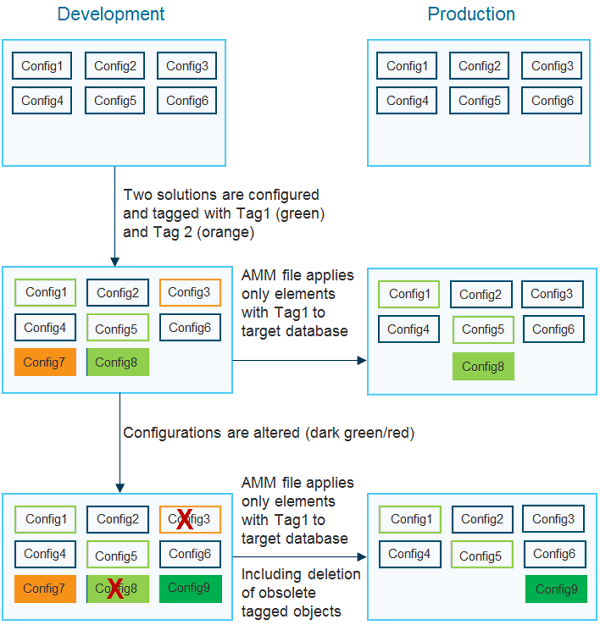
You can mark configuration objects with one or multiple tag names to define which solution configuration project the configuration is relevant for. This is useful to ease the selection of meta-model objects for deployment because you can search for a defined solution tag. The main reason for tagging, however, is to identify the objects that are part of a selected configuration when the configuration must be changed.
For example, a company-specific process requires the maintenance of custom attributes for an object class. The custom attributes defined for the process as well as the custom editor, the custom reports, and the workflow designed for the process are all tagged with the name of the process. After the solution is complete and successfully migrated to the production environment, an additional custom attribute was required as well as modification of the custom editor and the design of a completely different workflow.
During redesign in the development database, the solution designer is able to identify which objects might be affected by searching for the relevant solution tags. After changing the configuration, the production database must be updated. The solution designer selects all configuration objects tagged with the process name to upload to the AMM file.
During update of the production database, these objects will be updated. But in the case of the workflow template, the update is not sufficient because the old workflow template for the solution is not updated but deleted and replaced by a new workflow template with a different name. The solution designer can now configure the AMM file to trigger automatic deletion of all configuration objects tagged with the process name from the target database prior to writing the configuration stored in the AMM file to the database. In this way, the old workflow will be deleted from the target database, and the new workflow template will be added.
In addition to applying a tag to configuration objects, you can also alter the attribute Version of an object each time a reconfiguration is done to specify for which version of a feature this configuration is done. The Version attribute is part of the Tech Info specification for a configuration object.
Solution tags can be added to single objects while the object is configured or to a bundle of configuration objects during selection of the configuration objects for upload to an AMM file.
To avoid errors caused by misspelling solution tag names, the tag name will be defined only once the first time it is applied and is then selected from a selector for all subsequent tagging actions. The names of the solution tags are case-sensitive.
Instead of setting the tags for each individual configuration object or a bundle of configuration objects manually, you can configure Alfabet Expand to mark all new or changed configuration objects with a default tag. This ensures that all objects are correctly tagged. The default tag can be changed prior to starting the configuration of the next feature. If you change an existing configuration object that is tagged with a tag different to the selected default tag, the default tag is added to the list of tags for the configuration object. Existing tagging is not overwritten. The default tag setting is removed when you log out from Alfabet Expand
Once objects are tagged, you can create a AMM file including only the tagged objects. For objects marked with the default tag, a simple one click mechanism is available to create a AMM file that contains only configuration objects tagged with the default tag and merges these objects into the configuration of the target database.
If you want to delete obsolete tagged objects in the target database, make sure that the AMM file contains all objects currently tagged with the tag name and enter the name of the tag in the field Provide comma-separated tags to find objects to be removed of the AMM file editor. It is recommended that you use this mechanism if you want to only replace (rather than merge) the configuration of reports, workflows or ADIF schemes.
You cannot remove changes to the class model (such as custom object classes and object class properties) with this mechanism.
-
- Select the configuration object that you want to tag in the relevant Alfabet Expand explorer.
- In the attribute window of the configuration object, expand the Tech Info section.
- Open the editor of the Tags attribute.
- In the toolbar, click the Rescan Tags
 button to update the display of available tags in the list.
 - If you want to add a new tag to the list, click the New Tag
 button, enter a name for the tag in the Name field of the input dialog window and click OK. The names of the solution tags are case-sensitive.
 - Select the one or more checkboxes for the listed tags to apply the tags to the configuration object.
You can only select or clear tags via the tag editor. If you try to write content directly to the field or delete the field content, an error message will be displayed informing you that the field content is invalid. To correct this error, click Cancel in the error message. The old content will be displayed and can be altered via the editor.
- Click OK to close the dialog.
-
- In the Alfabet Expand menu bar, select Meta-Model > Find Meta-Model Objects for Deployment. A new Meta-Model Objects editor opens in the center pane between the explorer window and the attribute window.
- In the toolbar, click the Refresh Find Results
 button.
 - All customer configured configuration objects are displayed in the Meta-Model Objects editor, sorted by category. The number of selectable objects in each category is displayed in front of the category name. To view the objects in a category, expand the category by clicking the
 sign in front of the category header. Alternatively, you can expand all categories by clicking the
  in the first column header.
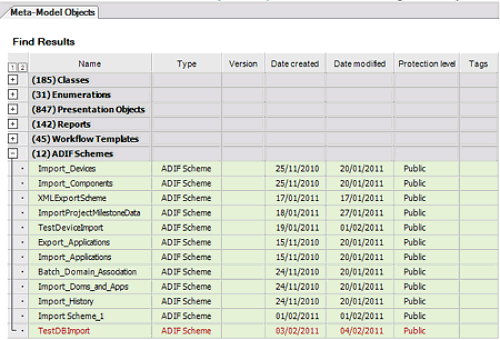
- Select the objects that you want to alter the tag setting for in the Find Results table. You can select several objects in the table at the same time by holding down the CTRL key while selecting.
Optionally, you can use the search functionality of the Meta-Model Objects editor to limit the display of objects in the table to objects matching a defined search condition.
- Do one of the following to alter the tag setting of the selected objects:
- To tag all selected objects, click the Set Tag(s) option in the toolbar to open the Meta-Model Tags window and click the Rescan Tags button to update the display of available tags in the list.
If you want to add a new tag to the list, click the New Tag
button, enter a name for the tag in the Name field of the input dialog window and click OK. The names of the solution tags are case-sensitive.Select one or more of the listed tags to apply the tags to the selected configuration objects.
- To remove selected tags from the selected objects, click the Select Tags To Be Removed
 button in the toolbar of the Find Results table. In the Meta-Model Tags window that opens, select the tags that you want to delete from the selected objects and click OK to save your changes.
 - To remove all tags from the selected objects, click the Remove All Tags from Selected Objects
 button in the toolbar of the Find Results table.
- To tag all selected objects, click the Set Tag(s)
-
- In the toolbar of Alfabet Expand select Meta-Model > Set Current Tag.
- If you want to add a new tag to the list, click the New Tag button, enter a name for the tag in the Name field of the input dialog window and click OK. The names of the solution tags are case-sensitive.
- In the list of tags, click the link that you want to set as default tag to all new and changed configuration objects.
The selection is removed when the user logs out of Alfabet Expand. If the selection shall be used again in the new session, the selection has to be repeated.
Within the current session, you can revert to working without a default tag by selecting None from the list.
- Click OK to close the window.