Save selected configuration objects
You can select individual configuration objects, save them to an AMM file and merge them to the configuration of the target database. You cannot overwrite the complete configuration of a target database with an AMM file that you created from a selection of available configuration objects. You can only decide for each added object class whether the configuration is merged or replaced.
The selected configuration objects can be tagged with a solution tag prior to adding them to the AMM file. With solution tags you can categorize the elements according to configuration projects, identify the elements via search mechanisms, and delete the elements from the target database.
- In the menu of Alfabet Expand, select Meta-Model > Reread Meta-Model to ensure that the locally cached version of the Meta-Model is consistent with the Meta-Model saved in the Alfabet database.
- In the menu of Alfabet Expand, select Meta-Model > Find Meta-Model Objects for Deployment. A new pane Meta-Model Objects opens between the explorer window and the attribute window.
- In the toolbar, click the Refresh Find Results
 button. All configuration objects are displayed and sorted according to category in the Find Results table.
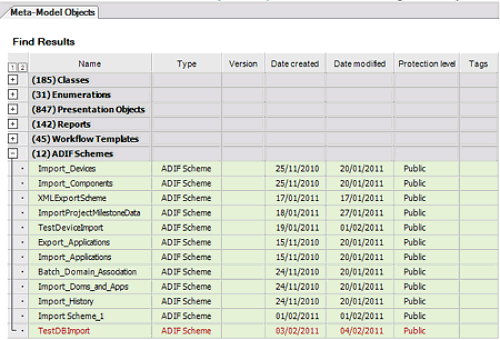
Note the following about working with the Find Results table:
- The number of selectable objects in each category is displayed in parentheses behind the category name.
- Click the
 sign in front of the category header to expand the category. Alternatively, click the
  in the first column header to expand all categories.
 - The columns in the Find Results table provide information about relevant attributes of the configuration object. If you click a table header, the table is sorted by the property displayed in the column.
- The table displays the following information about the configuration object:
- Name: The value of the Name attribute of the configuration object.
- Type: The type of configuration object in the Alfabet meta-model. When exporting the information about the meta-model to an XML file with the functionality Meta-Model > Save Configuration of Alfabet Expand, information about the object is stored in an XML element with the name given as Type here.
- Version: The value of the Tech Info > Version attribute of the configuration object.
- Date created: The value of the Tech Info > Creation Date attribute of the configuration object.
- Date modified: The value of the Tech Info > Last Update attribute of the configuration object.
- Protection Level: Public objects are created by the customer. Protected objects are standard configuration objects of the Alfabet meta-model that may have been modified by the customer.
- Tags: The value of the Tech Info > Tags attribute of the configuration object. Solution tagging is designed to mark all configuration objects that are required for a specific functionality with a tag to ease the identification of relevant objects. .
- Notes: The value of the Tech Info > Implementation Notes attribute of the configuration object.
- Select the objects that you want to upload to the AMM file in the Find Results table. You can select several objects in the table at the same time by holding down the CTRL key while selecting. The following functionalities can help you to select the relevant objects:
- You can restrict the number of categories displayed in the table. Select or de-select areas of configuration in the sub-menu of the Restrict Configuration Object Types To Be Searched For button in the toolbar of the Find Results table:
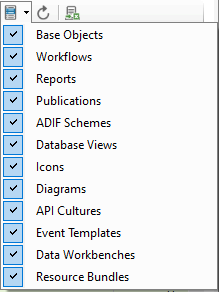
- You can use search implemented in the functionality to limit the display of objects in the table to objects matching a defined search condition.
- You can use solution tagging to mark all objects that are relevant for a specific configuration task with the same tag and search for the object in the table via the search functionality.
- To make sure that all relevant configuration objects required to merge a configured feature into a target database are added to the selection container, you can use the Show Usage for Selected Objects
 button in the toolbar of the Find Results table to see a report that informs about the usage of the selected objects within the configuration. The button is also available in the toolbar of the selection container to view a report about the usage of all configuration objects already added to the selection container.
The report displays the selected objects on the x axis and the path to the location in the configuration referring to the selected objects on the y axis.
On top of the report, a filter allows you to limit the information to configuration relevant for a defined object class.
- The results of the search displayed in the table can be exported to a Microsoft® Excel® file to provide information about selection of objects to people that do not have access to Alfabet Expand or to archive the content of an AMM file in a readable format. To save the content of the Find Results table, click the Export to Excel
 button in the toolbar of the table.
- You can restrict the number of categories displayed in the table. Select or de-select areas of configuration in the sub-menu of the Restrict Configuration Object Types To Be Searched For button in the toolbar of the Find Results table:
- The Selection Container table is displayed below the Find Results table. In the toolbar above the Selection Container table, click the Add Selected Objects from Find Results to Selection Container
 button. The objects which you selected in the table are added to the selection container. To remove a subset of the selected objects from the selection container, select the objects in the selection container and click the Remove Selected Objects from Selection Container
  button in the toolbar of the selection container. To remove all selected objects from the selection container, click the Remove all objects from the Selection Container
  button in the toolbar of the selection container.
You can save the configuration in the selection container in a Microsoft® Excel® file or in an XML file. This feature may be useful to generate reports about the configuration update, compare different stages of configuration, or to archive different stages of configuration. In the toolbar of the selection container, click the Export to Excel
button and select Create XML File to save the information about the configuration elements in the selection container as XML output. Click the Export to Excel button and select Create XML File to save the information about the configuration elements in the selection container as XML output. - If the selection includes object classes, you can optionally change the update mode in the target database for each object class from Merge to Replace . Select the required update mode in the drop-down list in the UpdateMode column.
If you merge a class configuration, new custom properties are added to the object class in the target database and changes to object class properties are applied, but custom object class properties that have been removed in the configuration saved to the AMM file are not deleted in the configuration of the target database.
- In the toolbar of the selection container, click the Create Configuration Update File
 button and select Create AMM File. The Create Configuration Meta-Model Update editor opens.
 - Select the file name and location for storing the information in the field Select Output File.
- Provide a meaningful name and description for the update performed by the AMM file when applied to the target database in the fields Name and Description in the section General. The name and description are displayed in the Update Meta-Model dialog box when the AMM file is used to update the configuration in a database. It informs the person performing the update about the content of the configuration in the AMM file.
- The objects that were added to the selection container are already added to the AMM file. Optionally, you can select additional configuration parts that you want to add to the AMM file in the Meta-Model Content tab:
- Save Icons: Select the checkbox to save the icons uploaded to the Alfabet database. If the checkbox is not selected, the configuration is saved without icons. If icons have been added to the selection container, the option is deactivated.
- Save Culture Settings: Select the checkbox to save the content of the Cultures and API Cultures explorer nodes of the Meta-Model tab of Alfabet Expand. If the checkbox is not selected, the configuration is saved without the configured culture settings.
- Save Translation: Select the checkbox to save the custom translation of strings displayed on the Alfabet user interface that are customized via the Translation Editor in Alfabet Expand. If the checkbox is not selected, the configuration is saved without translations.
- Select the following options, if applicable for your configuration:
- Automatically Migrate Affected Workflows: This checkbox is only selectable if you have included workflow template configuration in the AMM file. Select the checkbox if you want the workflow templates to be automatically migrated to the target database.
Migration of workflows is currently only described in the workflow documentation of Alfabet 10.15.
- Provide comma-separated tags to find objects to be removed: Enter the name of a solution tag or a comma-separated list of multiple solution tag names to delete all public (customer-defined) configuration objects tagged with the specified tag name(s) from the target database prior to updating the configuration with the configuration in the AMM file. This option is useful if a tagged configuration has been changed in a way that includes the deletion of objects. The obsolete objects can be removed from the target database as well.
Make sure that all objects required for the tagged solution are available in the AMM file when setting this option. All objects with the solution tag not included in the AMM file will be deleted from the target database.
If the tag name(s) that shall be used to remove objects is also used in the database you are currently connected with to tag configuration objects, you can select the tag name(s) from a multi-select combo-box instead of typing them in the field. Click the button on the right of the field to open the multi-select combo-box and select the checkbox of all tags in the current configuration for that all configuration objects shall be deleted in the target database prior to import of the configuration objects in the AMM file.
- Automatically Migrate Affected Workflows: This checkbox is only selectable if you have included workflow template configuration in the AMM file. Select the checkbox if you want the workflow templates to be automatically migrated to the target database.
- In the Reference Data tab, select configuration relevant object data to add it to the AMM file. Independent of the setting of the Replace Entire Existing Configuration field in the Meta-Model tab, they are always merged with the existing configuration in the target database.
Select the type of object in the Select Class field and click the cell in the Save column of the table for all configuration objects of the selected type that are to be saved to the AMM file:
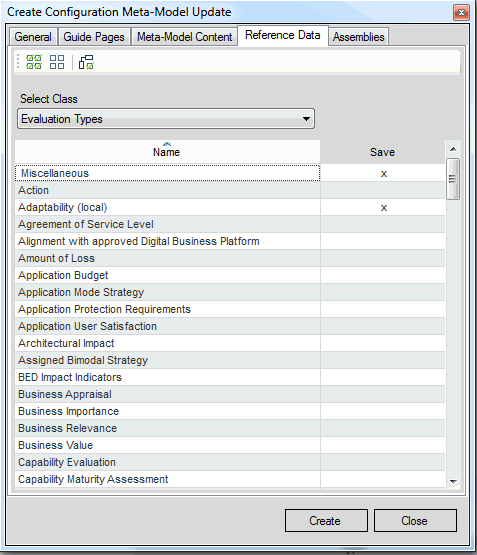
To save all configuration objects or user profiles currently displayed in the table to the AMM file, click the Check All
 button. Click the Uncheck All
  button to clear the selection of all objects in the table.
Select the Check Dependent Objects
 button to select objects that depend on other objects that you have currently selected in the list. When you click the button, the dependent objects will be automatically selected:
- For each evaluation type currently selected in the list, the following dependent objects are also selected:
- all prioritization schemes to which the evaluation type or any of the indicator types assigned to the evaluation type are assigned
- all IT portfolios to which the evaluation type or any of the indicator types assigned to the evaluation type are assigned
- all diagram views to which any of the indicator types assigned to the evaluation type are assigned
- class configurations to which the evaluation type is assigned
- For each prioritization scheme currently selected in the list, the following dependent objects are also selected:
- all IT portfolios to which the prioritization scheme is assigned
- class configurations to which the prioritization scheme is assigned
- For each IT Portfolio currently selected in the list, the following dependent objects are also selected:
- class configurations to which the IT portfolio is assigned.
- For each evaluation type currently selected in the list, the following dependent objects are also selected:
- Click the Create button to generate the AMM update file. A message will be displayed once the AMM has been successfully created.
A customer configuration may have a high number of configuration objects. To ease the selection of objects in the Find Results table, you can search for objects:
- Click anywhere inside the Find Results table to open the attribute window of the Find Results table.
- In the attribute window, define your search condition. Set any or a combination of the following attributes:
- Creator: Enter the user name of a Alfabet user to find all objects that the user created. The user logged in to Alfabet Expand when the configuration object was created is stored as creator.
- Creation Date After: Select a date from the calendar to find all objects created after that date.
- Creation Date Before: Select a date from the calendar to find all objects created before that date.
- Last Update After: Select a date from the calendar to find all objects last updated after that date.
- Last Update Before: Select a date from the calendar to find all objects last updated before that date.
- Last Update User: Enter the user name of a Alfabet user to find all configuration objects last updated by the user. The user logged in to Alfabet Expand when the configuration object was saved the last time is stored as last update user.
- Name: Enter the name or part of the name of a configuration object to find all objects with a Name attribute matching the defined search string. An asterisk can be used as wildcard.
- Version: Enter the version or part of the version information to find all objects with a Version attribute matching the defined string. An asterisk can be used as wildcard.
- Tags: Open an editor for an attribute . In the toolbar, click the Rescan Tags
 button to update the display of available tags in the list. Select one or more of the listed tags to find all objects that are tagged with at least one of the selected tag names. .
You can only select or de-select tags in the Meta-Model Tags window. If you try to write content directly to the Tags field or delete the field content, an error message will be displayed that informs you that the field content is invalid. To correct this error, click Cancel in the error message. The old content is displayed and can be altered via the Meta-Model Tags window.
- Survey: Select a survey from the drop-down list of available survey configurations to find all objects configured for the survey. If you add a configuration object belonging to a survey configuration to an AMM file, the survey will be created in a target database updated with the AMM file, but it will only contain the added configuration object. Make sure to add all configuration objects belonging to the survey to the AMM file to take over the correct survey definition.
Surveys are currently not supported in Alfabet 11.x releases.
- Unsaved Objects: Select True to find only configuration objects that have not been saved in the current configuration and therefore have not been saved to the Alfabet database. Select False to view both saved and unsaved configuration objects.
- In the toolbar, click the Refresh Find Results button. The display of objects in the Find Results table is limited to the objects matching the defined search criteria.