Check the success of meta-model updates
After update of the meta-model, check whether issues occurred during update.
- A log file is created during update of the meta-model. The log file is written to the directory that contains the AMM file and has the name <Name of the AMM file>_<Time Stamp>.log. You can consult the log file to view any issues that occurred during update.
- You can use the Compare Configurations functionality of Alfabet Expand to view the differences between the configuration in the AMM file with the configuration of the target database that you are planning to replace or merge.
- After update, you should check the consistency of the update with the standard meta-model. A consistency check can be performed via Alfabet Expand. For more information, see in the reference manual Configuring Alfabet with Alfabet Expand.
The structure and content of the Alfabet database tables must be in accordance with the meta-model of the current Alfabet release.
To ensure database consistency with the meta-model, use only Alfabet software and interfaces for external access when performing changes to the Alfabet database. Any changes performed directly on the database with third-party mechanisms can lead to database corruption and data loss.
To make sure that the current database is in accordance with the current meta-model, Alfabet Expand provides a test mechanism that checks consistency issues.
To check the database consistency:
- Open the tool Alfabet Expand with a server alias.
- In the menu, select Meta-Model > Check Meta-Model for Database Consistency. The check will be performed, and a message will display information about the results. If an inconsistency is found (for example, a database table with an invalid name), an error message will be displayed that providing information about the error and advising you to contact Alfabet Support.
In Alfabet Expand, you can either compare the configuration of the current Alfabet database with the configuration stored in an AMM file or the configuration stored in one AMM file with the configuration stored in another AMM file.
- In the menu of Alfabet Expand, select Meta-Model > Compare Configurations. The Meta-Model Comparison window opens.
- In the toolbar of the Meta-Model Comparison window, click the Select Meta-Models
 button to open the meta-model editor.
 - Select the meta-models that shall be displayed on the left side of the report and the right side of the report of the meta-model comparison:
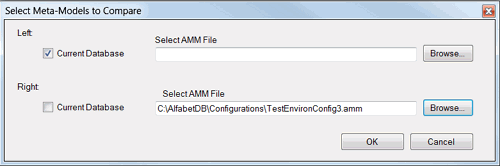
- To select the meta-model configuration of the Alfabet database you are currently working with, activate the Current Database checkbox.
- To select a meta-model configuration stored in an AMM file, click the Browse button and select the file from the local file system.
- Click OK. The comparison is executed. This may take some time. The summary of the comparison is displayed in the Meta-Model Comparison window:
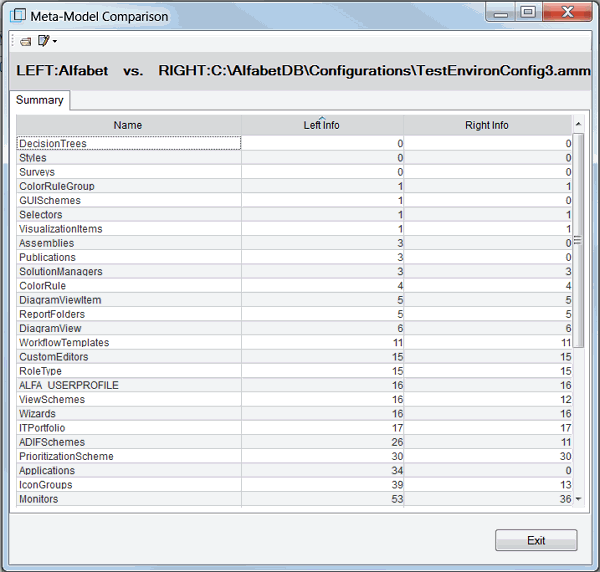
- On top of the Summary tab, you can see which meta-model configurations are selected for the left and right side of the comparison.
- The Name column lists the configuration object types that are part of the Alfabet meta-model.
- For each configuration object type, the number of configuration objects available in the respective meta-model is given in the Left Info and Right Info column.
If the number of objects is identical in the Left Info and Right Info column, that does not indicate that the configurations are identical. If configuration objects are substituted by other configuration objects or changed, this does not change the overall number of configuration objects. To view the actual changes in the configuration, open a detail view:
- Double-click a configuration object type in the table. A new tab opens that displays the differences between the two selected configurations for the selected configuration object type:
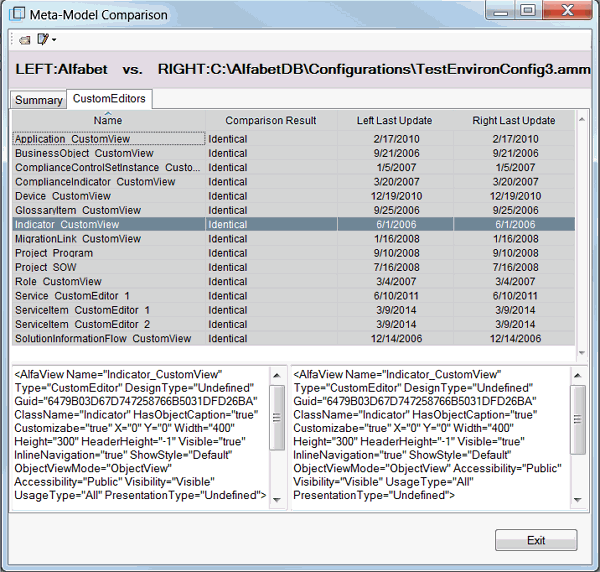
For each configuration object of the selected type that is part of either of the compared configurations, the following information is displayed
- Name: The name of the configuration object.
- Comparison Result: Indicates whether the configuration object is identical or different for the compared meta-model configurations:
- Identical: The object exists in both configurations and is identical.
- Different: The object exists in both configurations and the configuration has changed. The respective rows are displayed in red.
- Left Only: The object exists in the configuration represented by the left column only. The respective rows are displayed in yellow.
- Right Only: The object exists in the configuration represented by the right column only. The respective rows are displayed in yellow.
- Left Last Update: The date when the configuration of the object was last changed in the meta-model selected for the left column.
- Right Last Update: The date when the configuration of the object was last changed in the meta-model selected for the right column.
- If you click a row in the table, the configuration of the object in the left and right column are displayed as XML. You can check in the XML which changes have been applied.
- To limit the display to the relevant information about objects that have been changed, you can hide objects with a selected comparison result value from the list. In the toolbar, click the Hide button and select one of the options in the sub menu to hide either objects identical in both databases or objects that are specific for one of the configurations and are not available in the other one. You can repeat the action to select another of the hide options. Both hide options are then applied. Clicking an already selected option will de-select the option.