Update the meta-model
Prior to updating the meta-model, ensure that no Alfabet components are currently connected to the Alfabet database and that replication mechanisms that target the Alfabet database are shut down.
If the functionality for update of the meta-model is not working, please check the alias configuration of Alfabet Expand. The option File-Based Update Permitted must be activated in the Expand tab of the alias configuration editor. This option is activated by default.
- Open the tool Alfabet Expand without logging in to a database.
- In the menu bar in Alfabet Expand, select Meta-Model > Update Meta-Model. A new window opens.
- Select a server alias for connection to the Alfabet database that you want to update and click OK. A window for login to the database opens.
- Enter the user name and password defined for login to the Alfabet database or, if Windows sign on is configured for connections to the Alfabet database, click OK without entering a user name and password.
- Click OK. A new window opens:
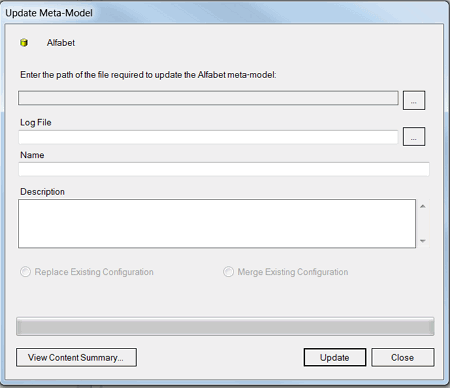
- Click the Browse
 button next to the field Enter the path of the file required to update the Alfabet meta-model. An explorer opens.
 - Navigate to the folder where the AMM file with your saved configuration is located and click Open. The path to the update file is displayed.
The following information about the selected file is displayed after the file was selected:
- If a name was specified during the creation of the update file, it will be displayed in the Name field.
- If a description was specified during creation of the update file, it will be displayed in the Description field.
- The relevant field of the options Replace Existing Configuration or Merge Existing Configuration is automatically selected depending on whether a merge or replace action is being executed.
- To view a summary of the content of the file, click View Content Summary. A new window opens that provides information about the options selected during creation of the file. Verify that the correct update file is being used and click Close.
- Information about the configuration language of the source database is stored in the AMM file. Update of the meta-model via the AMM file will fail if the settings for the configuration language are different in the AMM file and the target database. If you merge the configuration of databases with different configuration languages, the original configuration of the target database will contain configurations in two different languages which leads to translation problems. Nevertheless, you can deactivate the configuration language check with the option Ignore configuration culture validation. If the option is selected and the AMM file includes culture definitions, the Primary Culture settings will be taken over to the target database, but the Configuration Culture setting will not be changed.
- Optionally, you can change the location for the log file created during the update process in the field Log File. By default, the log file is stored in the directory of the AMM file used for the update. The default log file is automatically specified in the field Log File.
- Click Update. The configuration stored in the update file replaces or merges with the configuration of your current database.
After the update of the configuration, all ADIF import schemes that are available in the target database after the update and have the attribute Auto-Run set to True will be automatically executed in the order specified via the context menu of the root node of the ADIF explorer in Alfabet Expand. For more information about automatic execution of ADIF schemes, see the ADIF documentation provided for Alfabet 10.15.
- A message is displayed informing you about the success of the update action and advising you to check the log file. Confirm the message and open the log file to see whether the changes performed via the update conflict with any of the existing objects or configurations in your database. The messages also inform about translation issues caused by changes of strings during update.
- After applying a configuration to an Alfabet database, it is recommended that you review the Alfabet database for consistency with the meta-model.