
A collaboration capability is available that enables free-form exchange of information and ideas about the data in Alfabet among members of the user community. This capability supports user-generated content in a style similar to social media. Users can create multiple collaboration topics for an asset or view, and all invited participants can contribute posts to that topic. Each topic can be expanded or collapsed, making it easy to focus on a single discussion or switch between several in parallel. This makes it simple to spark dialogue, accelerate decision-making, and leverage the collective expertise of the organization.
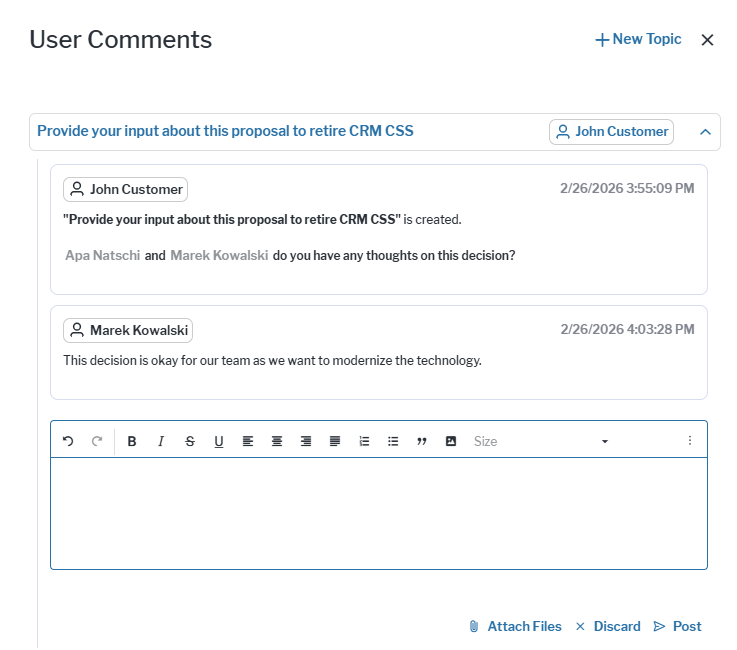
Any user with either ReadOnly or ReadWrite access can start a topic from any data workbench, content area, guided data view, or business question. Alfabet users with an email address can be invited into a conversation via @mentions, which will trigger an email containing a direct link to the topic as well as a an entry in the user's notification panel. The link in the email is associated with the user profile of the user who triggered the email. Only users with the same user profile can access the linked view. Users with the appropriate access permissions can then navigate directly to the discussion and contribute. Only users invited via @mentions can contribute to a collaboration. Multiple posts can be made per topic using an HTML editor and attachments may be uploaded to the posts.
For on-premise customers: Your system administrator must set the Enable Collaboration setting in the Server Settings of the server alias to make the user collaboration functionality available in the user interface.
Create a topic. Go to any data workbench, content area, guided data view, or business question. Click the  3-dots button > User Comments. Any existing topics will be displayed in the window. Click New Topic to start a new conversation. Provide a title for the topic, enter your first post in the HTML editor, and click Create Topic. The new topic is shown in the pane. Click the arrow to expand the topic to add new posts.
Add a post to a topic. Navigate to the view with the topic that you want to contribute to and click the 3-dots button > User Comments. Expand the topic that you want to add a post to, enter your comment in the HTML editor field, and click Post.
- Use the HTML editor to style the post.
- Invite users to participate in the discussion via @mentions. (Example:@John Customer)
- Click Add Attachments to upload a document to the post.