
- Set filters for a content area
- Add or remove content in a page in a content area
- Save content to the content repository
- Change the settings for a content item
- Change the size of a content item in a content page
- Change the order of content items in a content page
- Add a new content page to a content area
- Remove a view from a content page
- Remove a page from the content area
- Delete a content page
- Export a content page
- Restore the default content page
- Share content with your colleagues
- Manage your content repository
A content area is customizable and you can decide which information you want to see and how you want it to be arranged. You can add or remove content and decide on the layout of the content area so that it is optimal for your screen size and reflects the information relevant to your needs. Entire tabbed pages in a content area can be created or hidden from view and the layout of the content displayed in a page can be customized by changing the size of content items, moving them around, or removing them from the page. Any content that you save to your content repository can be shared with other individual users or all users in user groups. Your layout is saved for future sessions.
Solution designers may change a content area that you have already modified in terms of its content or layout. If this is the case, the changes will be merged to your layout. Please note that if content is removed by an administrative user, it will be removed from your content area.

If content has been added by your solution administrator, the new content will be marked with a dot in the upper-right corner and added to the bottom of the content area. You can proceed to modify the content area as needed.
Change the overall size of content in the content area. You can change the size of all graphics and text in the content area to adapt the display to your screen size. Click CTRL and + on your keyboard to increase the size or CTRL and - to reduce the size.
Set filters for a content area
Global filters can be set for a content area if the content area includes assets that have relevant attributes referenced by the filter. The filter will apply to all content in the content area. The global filter will be saved and automatically set for other business questions until you change the filter in another business question.
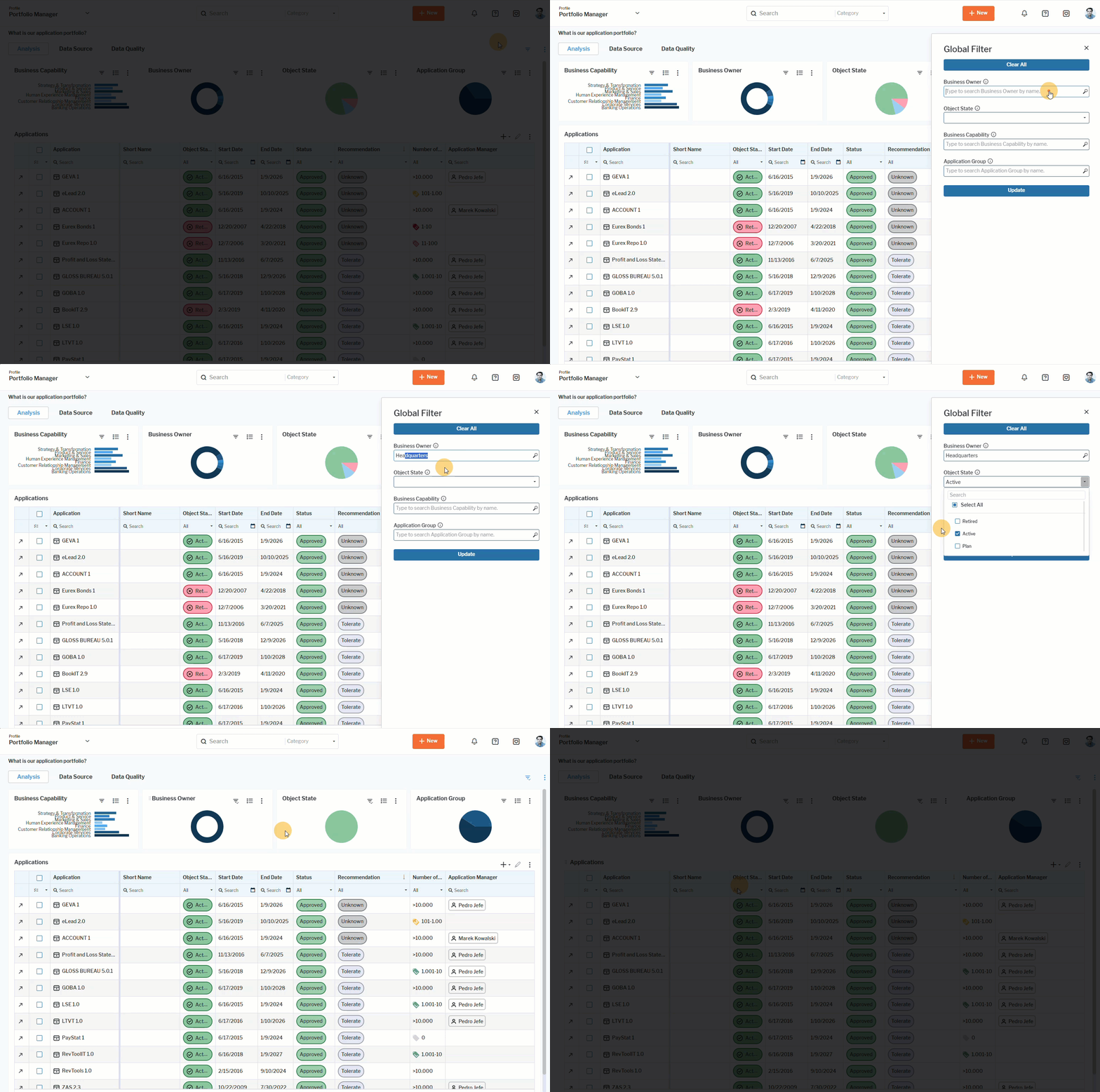 Click here to see how.
If the Object State filter is set to Active for the business question What is our application portfolio?, then only the active applications are considered in the results of the business question.
Add or remove content in a page in a content area

Any content that exists in your content repository can be added to a page in your content area as well as removed. The content may have been added to your content repository by you, a colleague, or an administrative user. Any of the following types of content can be added to a content page in a content area:
 |
Attribute Groups: A box with a predefined set of attributes for a specific asset. These are only available for content areas displaying information for a single asset. |
 |
KPI/Metrics: Cards with indicators or other metrics. Cards with indicators are configured by the portfolio administrator. Click for details about how to configure cards to display indicators. Navigation from these cards is only available if configured by the portfolio administrator. You can create cards with other metrics via the data workbench > Visualize > Card. |
 |
Graphic Views: Preconfigured views to update and analyze data. |
 |
Data Workbenches: Visualizations typically created by users and saved in the context of data workbenches. The visualization is displayed with the filter and visualization settings that were specified when it was saved. Click to find out how to save visualizations in data workbenches Go to KPI/Metricsto find card visualizations including those created in the context of a data workbench. |
|
Business Functions: Preconfigured explorers and views to update and analyze data. Click the caption of the content item to navigate to the business function. In the content item, either a placeholder image or placeholder view is displayed. |
|
|
Content Areas: Click the caption of the content item to navigate to another content area. In the content item, either a placeholder image or placeholder view is displayed. |
|
|
Categorized Visual Items: A card that is a placeholder for a content area, view, data workbench, or explorer. Users can click the caption of the content item to navigate to the target view. A categorized visual item contains a description explaining which view is linked to the card. |
|
 |
Application Portfolio, Business Portfolio, Information Portfolio, Investment Portfolio, Technology Portfolio, or Service Portfolio: These categories allow you to find categorized visualize items targeting business questions to add to Home > Business Questions. Set a checkmark for the content item you want to include it or clear a checkmark to remove a content item. Click Update |
Click the  3-dots button for the entire content area and click Manage Content on Page. In the Item Type filter select the category of content to make it easier to find the content you want to add. Set a checkmark for the content item you want to include or remove a checkmark and click Update.
 Click here to see how.
Save content to the content repository
You can save a variety of analytics about the IT architecture as well as detailed information about a single asset in the IT portfolio. You can add views, data workbenches and their graphic visualizations, attribute groups, cards showing KPIs, and any content you save to the content repository to create your own start page or to add to existing content area pages. For example, you could add content to the My Dashboard page, add content to the standard Overview page of an application content area, or even create your own page and add content to that.
Some content items may already be in the content repository and can be added to a content area. But typically you will add the content that interests you to the content repository. You can add anything that is available in the content repository to a content area.
To view all content items and content pages that you add to the content repository, click your user icon in the upper right corner of the screen and select My Content Items.
Add a data workbench or data workbench visualization to the content repository.
- Go to the data workbench and specify the visualization you want to save. You can save the data workbench with filters settings or you could save a visualization such as a Gantt chart or pie chart derived from the data workbench. Click for details about how to define the data you want to see in a data workbench.
- Once the data workbench visualization is specified, click the 3-dots button of the visualization and click Add to Content Repository.
- Define a name and a description for the visualization. The configuration name is used in the content area as caption for the visualization.
- If you want to share the content item with another user, specify the users to share it with. The content item will be available in the selected user's content area via > Add to Content Repository. When you add the content item later, you can search for it by setting the Item Type field to Data Workbenches.
Users can drill-down to a data workbench by clicking a section of a business chart such as a slice of a pie or doughnut chart or bar of a bar chart. A data workbench showing the assets represented by the business chart section will open in a separate browser tab.
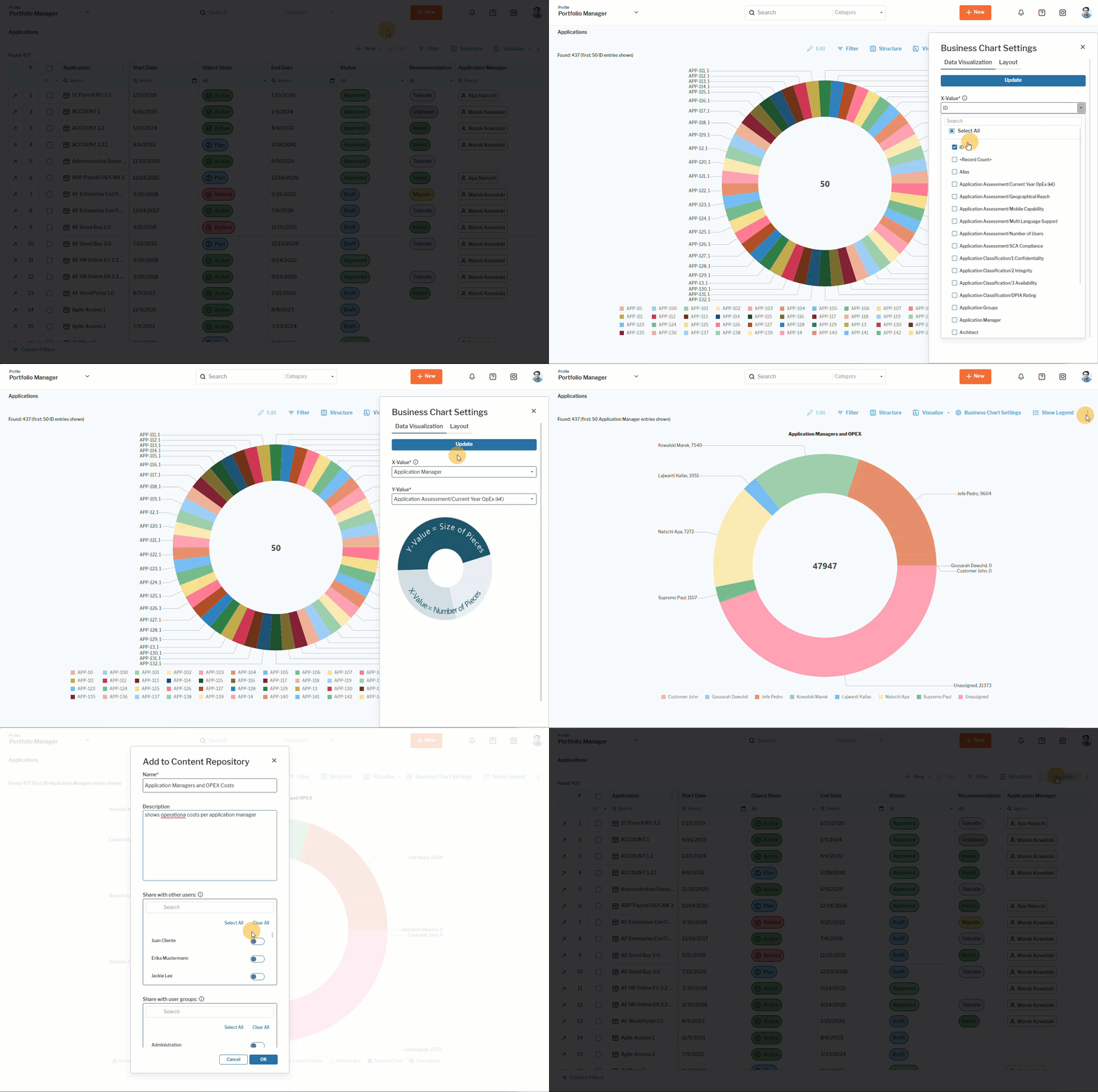 Click here to see how.
Change an existing content item and add it to the content repository. You may want to use an existing content item that is already displayed in the content area, modify it, and use it in another content area.
- Go to the content item, click the 3-dots button for the content item and click Navigate to View to drill-down to the content item.
- Make the changes as needed for the view.
- Click the in the 3-dots button and click Add to Content Repository. Define the name and description and specify users to share it with.
Add a view to the content repository. You can add a standard view, report, or diagram as content to the content repository.
- Go to the content area where the view is located (for example, the Asset Relations view or Responsibilities view in the application content area.
- Click the
 3-dots button for the view and click Navigate to View to drill-down to the view.
- Specify any filters if necessary and click the 3-dots button and click Add to Content Repository. Define the name and description and specify users and user groups to share it with. When you add the view later, you can search for it by setting the Item Type field to Views.
Add a content page to the content repository. You can add an entire content page to the content repository. It can then be reused, modified and shared with others.
- Go to the content page and click the 3-dots button and click Add to Content Repository. . When you add the content page later, you can search for it by setting the Item Type field to Content Area.
Change the settings for a content item
You can slice-and-dice data in a content item that is based on a data workbench. This allows you to look at the data from different perspective. You can either change the content item directly in the content area via the  button, whereby it will be automatically saved based on the new settings.
You can also click the 3-dots button for the content item and click Navigate to View to drill-down to the content item. Change the filter settings and click 3-dots button > Save Changes to save the view.
In both cases, the changed content item can be restored back to its original settings via 3-dots button > Restore Content Item if needed.
Change the size of a content item in a content page
You can change the size of a content item by dragging any border or corner. Grab a border or corner of the content item until the drag arrow is displayed and drag it to the size you want. The other content items will automatically re-adjust their position in the content area.
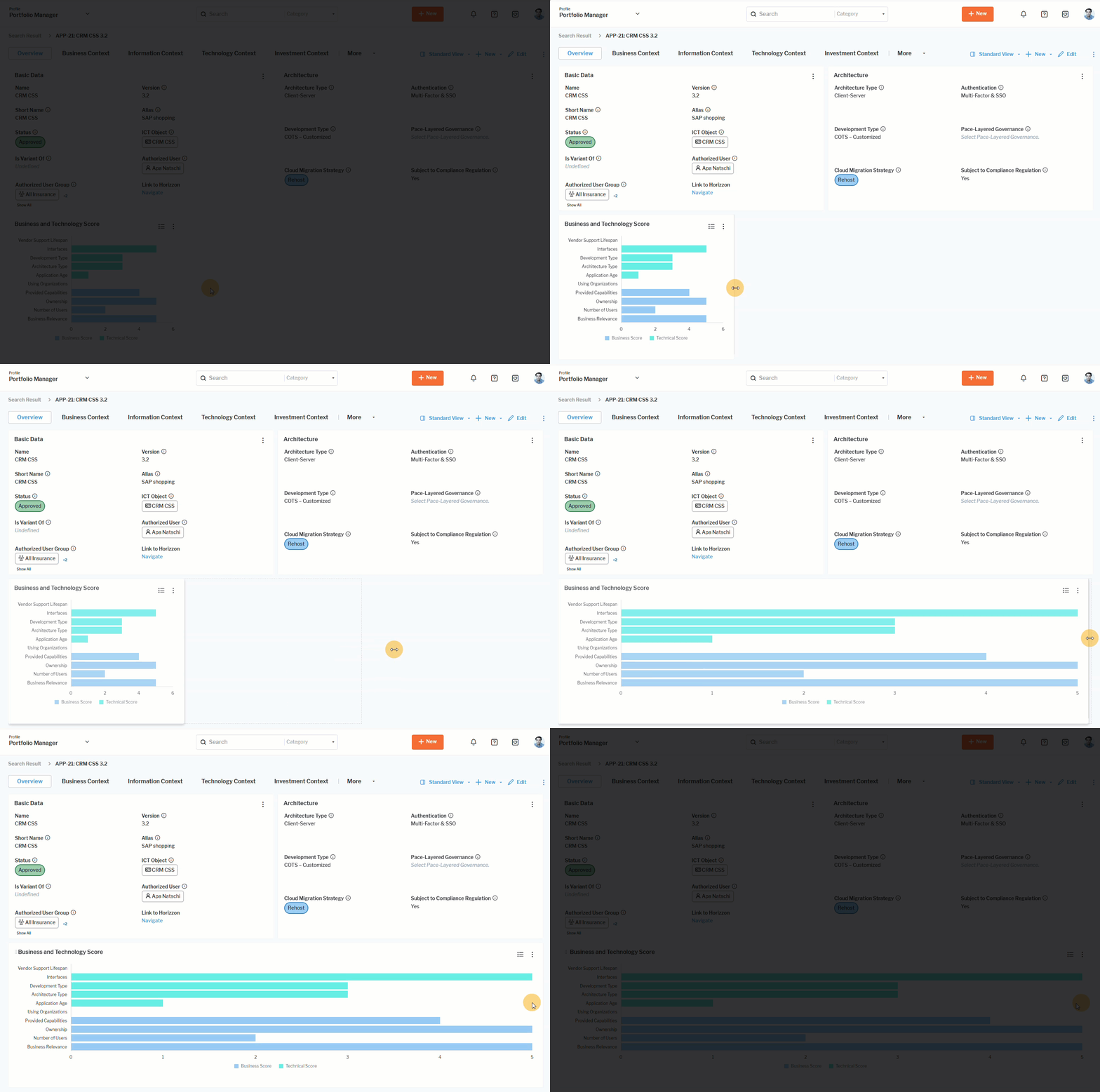 Click here to see how.
Change the order of content items in a content page
You can easily move a single content item in the content page. Click the  6-dots symbol to the left of the view caption and drag the view to the place you want. The other views will automatically re-adjust their position in the content area.
Add a new content page to a content area
You can add a new page to a content area and add content items to it. The new page will be available in the content area for all of your assets based on the same class. The new page can be shared with other users.
- Click the 3-dots button > Add New Page. Provide a caption for the page and click Update.
- To share the page, click the 3-dots button > Add Current Page to Content Repository. If you want to share the page with other users, you can specify the users or user groups to share it with. The page will be available in the selected user's content area via the 3-dots button > Show/Hide Page button. The page can only be added to a content area that is of the same as the class that it was created for.
A page must be added to the content repository via
3-dots button > Add Current Page to Content Repository before you hide it in order to be able to return it to the content area later.
Remove a view from a content page
To remove a view from a page in the content area, click the 3-dots button in the view and select Hide View.
A page must be added to the content repository via 3-dots button > Add Current Page to Content Repository before you hide it in order to be able to return it to the content area later.
To return the view, click the 3-dots button for the content area, click Add Content and select the checkbox for the view you want to restore.
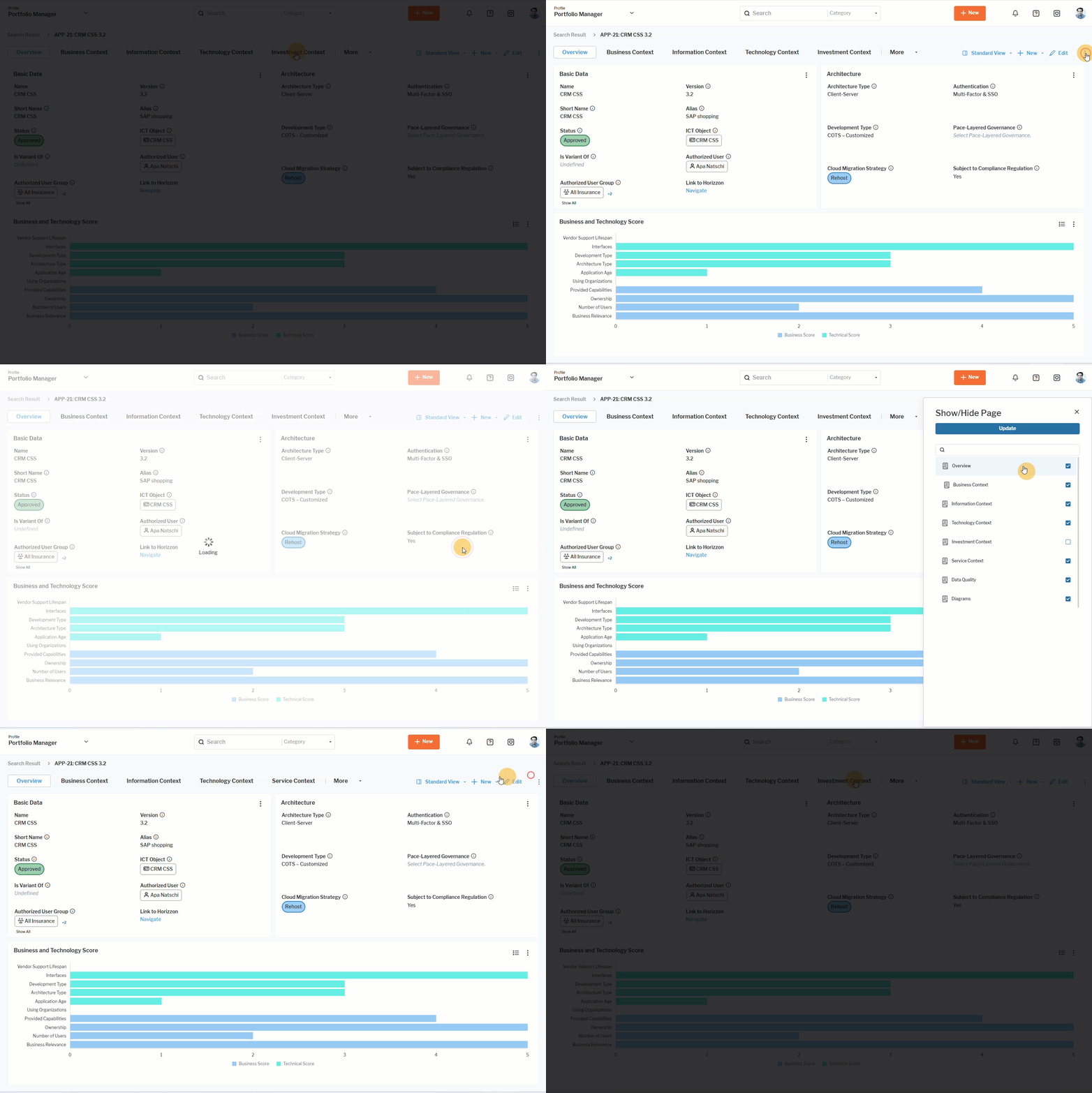 Click here to see how.
Remove a page from the content area
A page includes the tab and the views associated with the tab. Click the 3-dots button for the entire content area and click Show/Hide Page. Clear the checkbox of the page to remove it from the content area. Select the checkbox to return the page to the content area.
You can also resequence content pages. To do so, click the 3-dots button in the content area and select Show/Hide Page. Click on the symbol to the left of the content page caption and drag it up or down to specify the order in the content area.
 Click here to see how.
Delete a content page
The creator of a content page can delete the pages they create. Click the 3-dots button > Delete Page.
Export a content page
Content pages can be exported to PNG or SVG format. Click the 3-dots button > Export Page. The export includes all content items currently displayed in the page as well as context information about the exported page. If the exported page is in a class-based content area, the file will include the ID and name of the asset and the page name. For pages exported from content areas that are not class-based, the file includes the content area name and the page name.
Restore the default content page
You can revert to the default content page. All of your changes to the layout of the content page will be lost.
Click the 3-dots button for the entire content area and click Restore Content Page to restore the standard view of the page you are currently seeing.
 Click here to see how.
Share content with your colleagues
You can share content such as data workbenches and views as well as entire content area pages that you have created. Some indicator cards may also be shared if they are configured to display indicators in content areas . You must add the content you want to share to your content repository. Content can be shared with individual users or all users in a user group. Whenever content is shared with a user, the recipient will receive a message via Notifications  . The notification includes the name and type of content that was shared and a timestamp of when the content was shared.
To view all content items and content pages that you have added to your content repository, click your user icon in the upper right corner of the screen and select My Content Items.
Share content with other users. Navigate to a content page you have created or navigate to a view that you want to share. Go to 3-dots button > Add to Content Repository. In the Add Content dialog, edit the name and description if needed and specify the individual users or user groups you want to share it with.
Add content that others have shared with you. You can add a shared content page or content item to a content area based on the same class as the class that the shared page or content item was created for.
-
Add a content item such as a data workbench or view to your content area. Go to 3-dots button > Manage Content on Page and select the content item you want to add.
-
Add a content page to your content area. Go to 3-dots button > Show/Hide Page. The following symbols are displayed next to the shared content page in the Show / Hide Page panel:
 : The content page is in the content repository but not shared with anyone.
 : The content page has been shared.
 : The content page has been shared with you.
 : An administrative user has shared the content page with you.
Manage your content repository
All content items in your content repository are displayed in the My Content Items view. These content items may have been created by you, a colleague, or an administrative user.
Click your user icon in the upper-right corner of the screen and select My Content Items to open the view. The dataset shows the content you have added to the repository. You can edit a content item to change the caption or share it with individual users or all users in a user group, or you can delete the content item if you want to remove it from your content repository and all content pages.
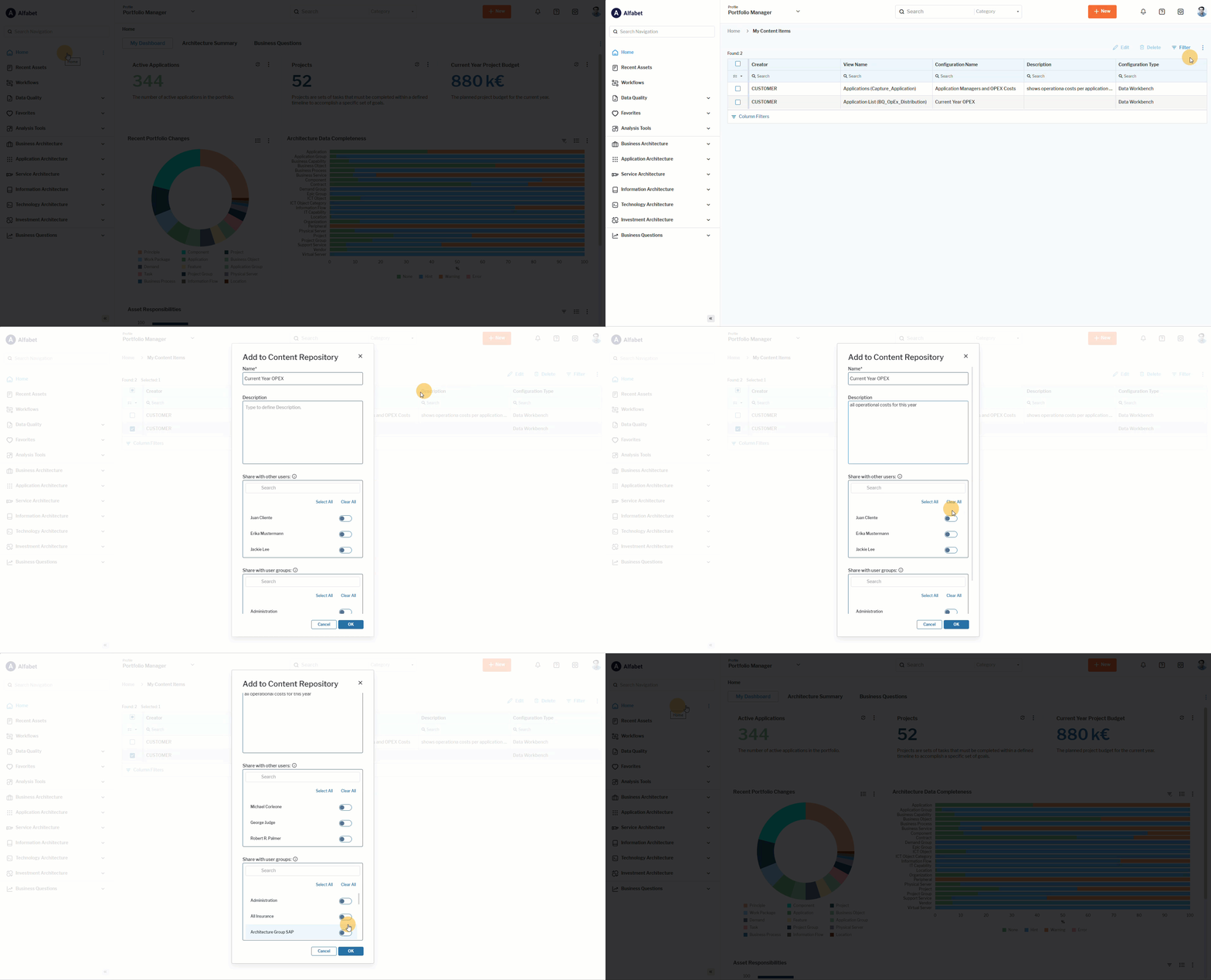 Click here to see how.