
Data quality assessments are available throughout Alfabet to ensure decision-making is based on reliable and precise information. Each user has a dedicated view listing the data quality rule violations for the assets that they are responsible for with links that open the location where the data quality issue can be fixed. Click Data Quality Issues in the left navigation panel to open a report listing all areas where you can improve the data for the assets that you are responsible for. Set filters to focus on the assets you are most interested in.
Alfabet enables you to view your data and assess the data quality at every stage of your work. Data quality issues are highlighted directly in the data workbench and content area so that critical information can be fixed via inline editing right on-the-spot. Dedicated data quality reports are also available for every business question to ensure that the value of your data is understood when making strategic decisions about the IT.
Data quality assessments are available to all users, regardless of access permissions. Users will only be able to correct data quality issues for assets if they have relevant write permissions. Right after the data is changed, the data quality rules are recalculated immediately and the data quality scores are updated in the user interface.
Improve data quality for an asset
Specify a new asset using the guided data entry view. When you create some new assets like applications or components, the editor may have a button that allows you to continue specifying the asset in a guided data entry view. First create a name for the asset in the editor, then switch to the data entry view to understand the most important data that should be defined.
Check for data quality in an asset's content area. Some content areas have a Data Entry View option that guides you through the process of providing all relevant data for the asset. It will also highlight existing data quality issues that you can fix in each content item. Click Analysis View in the toolbar and select Data Entry View to access the data entry view. In the data quality pane, click a heading to navigate to the content item in the data entry view.
Review assets in the data workbench for data quality issues. Ensure that the column Data Quality Severity is displayed in the data workbench to quickly identify which assets require attention. In the data table, click the Navigate  button for an asset that has the value Error or Warning. In the content area, fields that have a data quality issue have a colored border around them. Point to the cell to show a tooltip about how you can improve the data quality. Once the data quality issue is resolved, the color border will no longer be displayed.
In the content area of an asset, fields that have a data quality issue have a colored border around them. Point to the cell to show a tooltip about how you can improve the data quality. Once the data quality issue is resolved, the color border will no longer be displayed.
You can also go to the Data Quality page to view a data quality report with all data quality issues that need to be resolved for the asset. Click the links in the Resolution column to navigate to the location where the pending issue can be fixed.
 Click here to see how.
Improve the data quality for a business question
In a data table for a business question, go to the Data Quality page to view the data quality report.
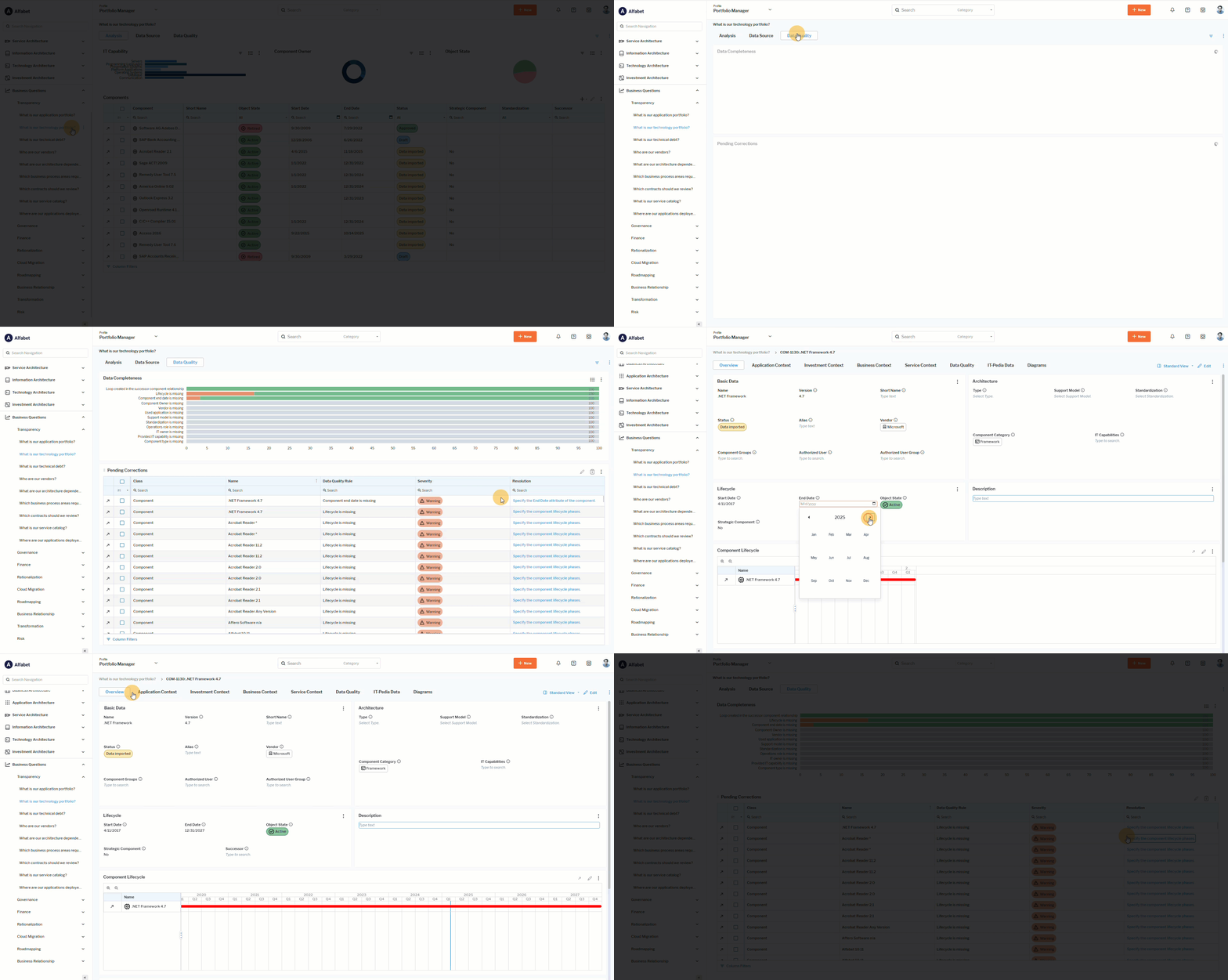 Click here to see how.