
Diagram settings determine various aspects of the canvas and diagram items in the diagram including whether your connections are straight lines of have angles.
In the Diagram Designer, click the  Diagram Settings button in the toolbar, or right-click in the canvas and select Diagram Settings.
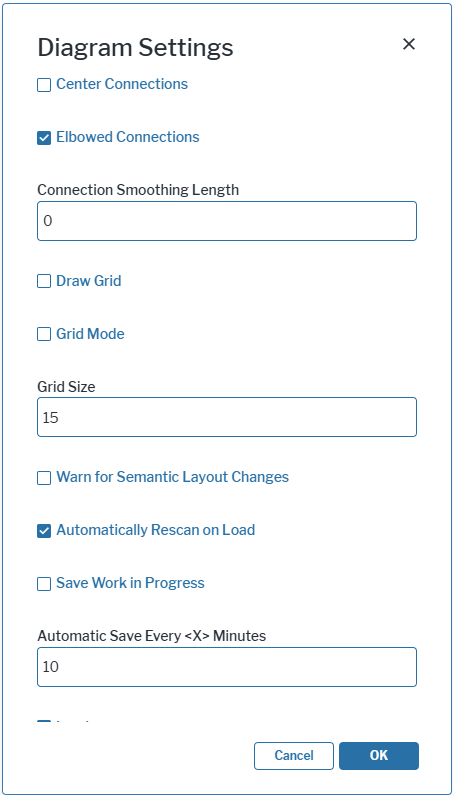
Specify elbow connections vs. straight connections
Right-click in the canvas and select Diagram Settings to change the default diagram settings. Set the following attributes to specify how connections for information flows are drawn. You can specify whether the connections are drawn as straight lines or as elbowed connections and how curved the elbow connections are.
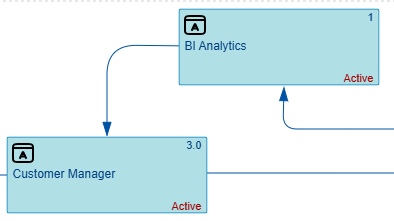
- Elbowed Connection: Set a checkmark if the connections should automatically have 90° angles. Users will be able to grab a handle on a connection to drag it to change the angle degree as well as add more angles. Clear the checkbox if you want information flows to be added as straight lines. Straight lines cannot be changed to have angles.
- Connection Smoothing Length: Enter an integer higher than 0 to define a curved angle for elbowed connections. The higher the number, the more rounded is the corner. Enter 0 to display elbowed connections with a sharp 90° angle and no curve.
- Center Connection: Set a checkmark if the end points of connection items should be automatically placed on the center of the diagram item borders. Remove the checkmark if the placement of the end points of connection items can be placed anywhere on a diagram item border.
Specify the canvas area
Right-click in the canvas and select Diagram Settings to change the default diagram settings. Set the following attributes to specify the display of a grid on the canvas.
- Draw Grid: Set a checkmark if a grid should be displayed.
- Grid Mode: Set a checkmark if the grid shall visualize alignment lines when moving and resizing shapes.
- Grid Size: Specify the size of the grid in the unit specified in the Diagram Size Unit attribute.
Specify the format of the diagram
Right-click in the canvas and select Diagram Settings to change the default diagram settings. Set the following attributes to specify landscape or portrait format as well as the paper format.
- Landscape: Set a checkmark if the diagram should use the specified paper size in landscape mode. Remove the checkmark the diagram should use the specified paper size in portrait mode.
- Format: Select the paper format to be used as the default for diagrams. If you have defined Custom Format for the Format attribute, specify the Width and Height fields. In the Diagram Size Unit, specify whether the diagram width and height should be measured in pixel or millimeter.
Manage semantic changes for objects in the diagram
Right-click in the canvas and select Diagram Settings to change the default diagram settings. Set the following attributes to specify whether a warning should changed if a relationship between objects is being changed and when these changes should be visible in the diagram view in the user interface.
- Warn for Semantic Layout Changes: Set a checkmark to display a warning message if semantic changes are made to the diagram. A semantic change would be, for example, moving an application to another application group, thus creating a new reference.
-
Automatically Rescan on Load: Set a checkmark to automatically display semantic changes made to an asset when the diagram is reloaded in the Alfabet user interface or Diagram Designer. Clear the checkmark if semantic changes shall only be updated to the diagram when the Update button in the diagram's filter panel is triggered or when the
 Refresh Diagram button in the toolbar is triggered in the Diagram Designer.
Manage the behavior of the Save action
Right-click in the canvas and select Diagram Settings to specify the save behavior.
- Set a checkmark for the Save Work in Progress checkmark to save the diagram automatically. The diagram will be saved even if a session timeout occurs. When the user returns to the diagram, a message will be displayed saying that a more recent version of the diagram exists. The user can choose whether or not to open the most recent diagram or keep the current one.
- Specify the number of minutes in order to define how frequently the diagrams shall be saved in the Automatic Save Every <X> Minutes attribute. The status message will automatically change to Saved after the automatic save occurs.