
- Access the Application Landscape Diagram
- Use the Diagram View filter for added analysis
- Add application groups to the application diagram
- Add applications to the application diagram
- Update an application group with its subordinate
- Update local components to an application
- Create information flows between applications
- Substitute an application or application group
In Alfabet , you can model application landscapes from the perspective of different asset types. Diagrams can include application groups, applications, peripherals, information flows, and local components, providing a clear view of the relationships between assets. Before you design the diagram, all relevant application groups, applications, peripherals, and local components should be in the Alfabet repository. By generating Application Landscape Diagrams for business capabilities, business processes, organizations, applications, information objects, and technology components, users can analyze dependencies, identify redundancies, understand integrations, and evaluate the impact of change initiatives.
Be sure to read the section Quick guide: Build diagrams with the Diagram Designer familarize yourself with the basics of diagram creation and design.
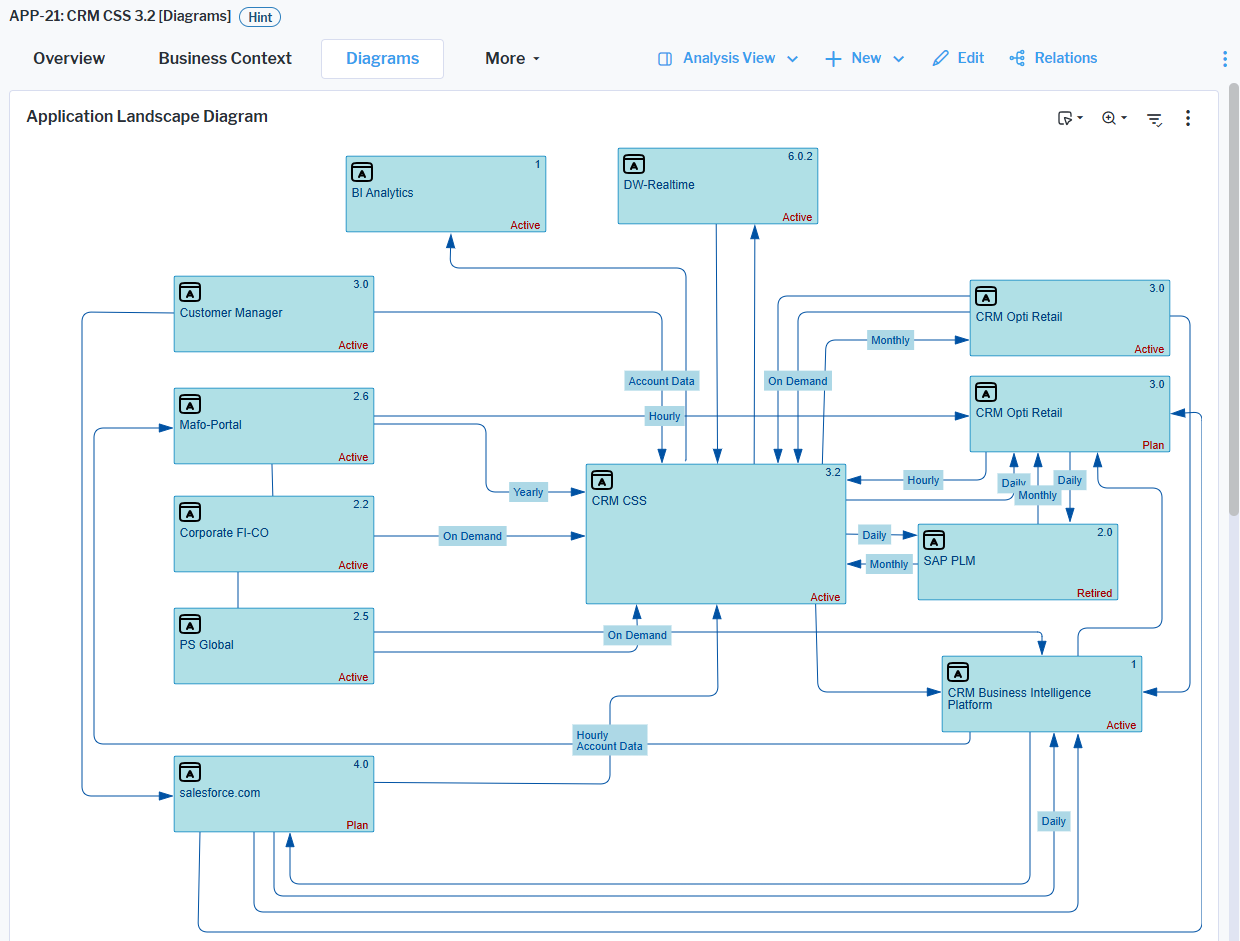
Access the Application Landscape Diagram
The Application Landscape Diagram is available for applications, application groups, business capabilities, business processes, locations, organizations, vendors, business objects, business data, demands, project groups, programs, projects, IT capabilities, components, physical servers, and virtual servers. These diagrams provide a flexible way to visualize relationships, dependencies, and architecture context from the perspective of different asset types, helping users analyze application landscapes across business, information, technology, and portfolio domains.
- Go to the content area of the asset you have access permissions for and navigate to the Diagrams page > Application Landscape Diagram. The diagram displays either a default view or a landscape diagram that has been designed by an authorized user.
When you go to an Application Landscape Diagram for the first time, the asset you are currently working with will automatically be shown per default. For example, if you are working with a business capability and no diagram has yet been designed, a default diagram showing that business capability will be displayed.
- You can edit the basic attributes of any asset displayed in the diagram that you have access permissions for.
- Click the asset to open the inspection pane, where you can edit the displayed attributes.
- Double-click the asset to navigate to the content area, where you can edit the assets attributes and relationships.
- To edit the design of the diagram, click the
 edit button > Open Diagram. This button is only be visible for users who have been granted to the Diagram Designer access via an administrative user.
Use the Diagram View filter for added analysis
Application-focused diagrams like the Application Landscape Diagram as well as the Information Flow Diagram provide a Diagram View filter that enables users to select a standard or custom diagram view. A diagram view is a configuration that adds an additional layer of qualitative information to the diagram, typically by applying color-coding rules based on the attributes set for an asset.
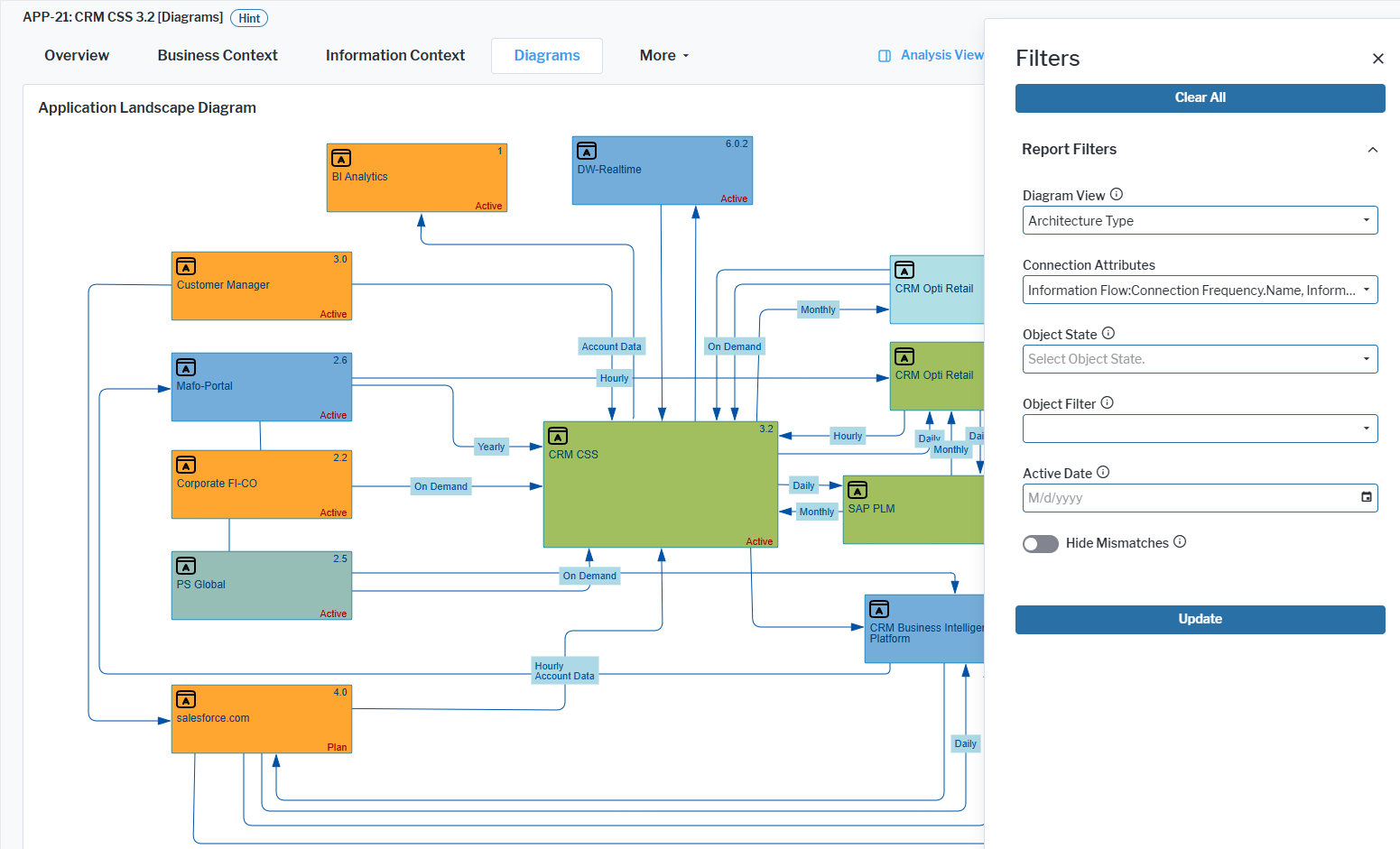
For example, in an Application Landscape Diagram, users can choose from predefined diagram views that color applications according to their Architecture Type attribute: Mainframe applications appear in blue, Distributed applications in mint, Client-Server applications in green, and Cloud-Based applications in orange.
Administrative users can create custom diagram views , which can then be selected via the Diagram View filter in Application Landscape Diagram as well as Information Flow Diagram views.
Add application groups to the application diagram
Application groups can only be added to the Application Landscape Diagram for some classes like applications, peripherals, applications groups, and projects.
- Click the Application Group symbol in the toolbox so that a vertical bar is displayed next it and drag the Application Group symbol to the diagram canvas. The mouse pointer displays a large plus symbol while you drag it to the desired position.
- The relevant selector will open. Select one or multiple application groups to add to the diagram and click OK to close the selector.
- The focus will be on the application group you added and it will be selected. If you add multiple assets at once, they will all be selected. Click anywhere in the canvas area to clear the selection.
Add applications to the application diagram
You can add one or more applications to the diagram. You can also add an application directly to an application group diagram item that is already in the diagram. Doing so means that the application is assigned to the application group and an explicit relationship between the application and the application group is created in the repository.
When two applications are added to a diagram and an information flow exists between them, the information flow is automatically displayed in the diagram. The same applies when an information flow exists between an application and a local component of an application shown in the diagram. In this case, the information flow is displayed as a connection between the two applications. The local component itself is not shown unless it is explicitly added to the diagram.
- Click the Application symbol in the toolbox so that a vertical bar is displayed next it and drag the Application symbol to the diagram canvas. The mouse pointer displays a large plus symbol while you drag it to the desired position.
- The relevant selector will open. Select one or multiple applications to add to the diagram and click OK to close the selector.
- The focus will be on the application you added and it will be selected. If you add multiple assets at once, they will all be selected. Click anywhere in the canvas area to clear the selection.
Update an application group with its subordinate
You can add all applications and application groups that are subordinate to an application group. Existing information flows between the added applications will be added automatically. Furthermore, if the information flow has been defined between an application and a local component defined for an application displayed in the diagram, this information flow will be automatically added to the diagram. Please note however that in this case, the information flow will be displayed as connecting the two applications. The local component will not be visible in the diagram unless it is explicitly added to the diagram.
Automatically adding assets for an application group with many subordinate application groups or applications assigned may result in a confusing default display with overlapping diagram items and information flows. Depending on the number of added assets and relationships, you may need to rearrange the diagram to improve readability. At any time, you can click the  Undo button to remove the assets you have updated to the diagram.
Update subordinate application groups or subordinate applications to an application group diagram item.
- Right-click the application group and select Add Referenced Objects > Add Referenced Objects.
- The selector opens and shows all applications and application groups that are assigned to the application you have clicked in the diagram. In the selector, go to the Application Groups tab and select the subordinate applications you would like to add to the diagram. You can also select applications in the Applications tab to add the applications to the diagram.
- Click OK to update the application group with the selected subordinate groups and applications.
Update all subordinate application groups or subordinate applications to an application group diagram item item.
- Right-click the application group > Add Referenced Objects > Update All Referenced Objects. An Update Group editor opens where you can define the following:
- Group Table Layout. Select the checkbox to specify the automatic formatting of the application groups and applications you are adding. If you do not select the checkbox, all application groups and applications will be placed on top of each other in the diagram and you will need to manually distribute them in the diagram.
- Organize by Rows or Organize by Columns: Select whether assets should be arranged in rows or in columns.
- Count: Enter how many rows or columns should be displayed.
- Reapply Table Layout on Rendering Diagram: Select the checkbox to specify that the layout should be rescanned upon the Update... action. If the checkbox is not selected, the current layout will not be updated with the table layout definition. In this case, the current layout of referenced application groups and applications including the positioning or removal of reference objects will not be changed.
- Click OK to apply the update.
Update all referenced assets of all assets currently displayed in the diagram. This option would add all applications to all application groups and all local components to all application groups that are already displayed in the diagram.
- Right-click anywhere in the diagram and select Add Referenced Objects > > Update References for All Objects.
- Specify the layout options in the Update Group editor and click OK to apply the update.
Update all referenced assets recursively. This action adds all assets referenced by the application groups and applications currently displayed in the diagram, as well as any assets referenced by the newly added assets. The process continues until the lowest level of the hierarchy is reached. All added objects are placed on top of each other and must be arranged manually in the diagram. Use this action with caution, as it can add a large number of assets and relationships and may require significant rework of the diagram layout.
- Right-click anywhere in the diagram and select Add Referenced Objects > Update References for All Objects.
- Specify the layout options in the Update Group editor and click OK to apply the update.
Update local components to an application
The Add Referenced Objects functionalities may result in a very complicated diagram with a confusing web of connection items. In this case, you should refer to the section Improving the Layout of Connection Items.
- Right-click the application and select Add Referenced Objects > Add Referenced Objects.
- The selector opens and shows all local components that are assigned to the application you have clicked in the diagram. Select the local components to add to the diagram.
- Click OK to update the application with the selected local components.
Create information flows between applications
If you add two applications to a diagram and an information flow has been defined between the applications, the existing information flow will be automatically added to the diagram. You can create new information flows in the repository in the context of the diagram by connecting a target and source application in the diagram. Depending on how the connections are specified in the diagram settings, information flows may be straight lines or angles.
Connection items like information flows might not be displayed correctly for diagram items placed in a shape. Solutions to this issue are being investigated.
- Click the Information Flow diagram item in the toolbox.
- Hover over the application that is the source of information flow. You will see green dots on the edges as well as the center of the application. Decide which of the green points shall be where the information flow starts.
- Click the green point and drag the information flow to a green point on the target application.
- In the editor that opens, specify the mandatory attributes as well as any other optional attributes. Click OK to close the editor.
- Click the Save Changes button to save your changes.The new information flow will be added to the repository.
- You can move the connection by grabbing its handle and dragging it. If the connection is elbowed and has angles, you can grab a handle on a connection to drag it to change the angle degree as well as add more angles.
Substitute an application or application group
You can substitute any application or application group displayed in the diagram. Right-click the application or application group you want to substitute and click Replace with Object. the selector opens where you can select the asset you want to show in the diagram instead.
If you replace an application group, the application group and all applications shown in it will be replaced by a new application group. you can then add the relevant applications as needed.