
Many diagrams in Alfabet have a Diagram View filter that allows users to select a standard or custom diagram view for the diagram. The diagram view is a configuration that adds another layer of qualitative information to the diagram. Typically, a diagram view will consist of a color rule that colors objects based on property values that they have.
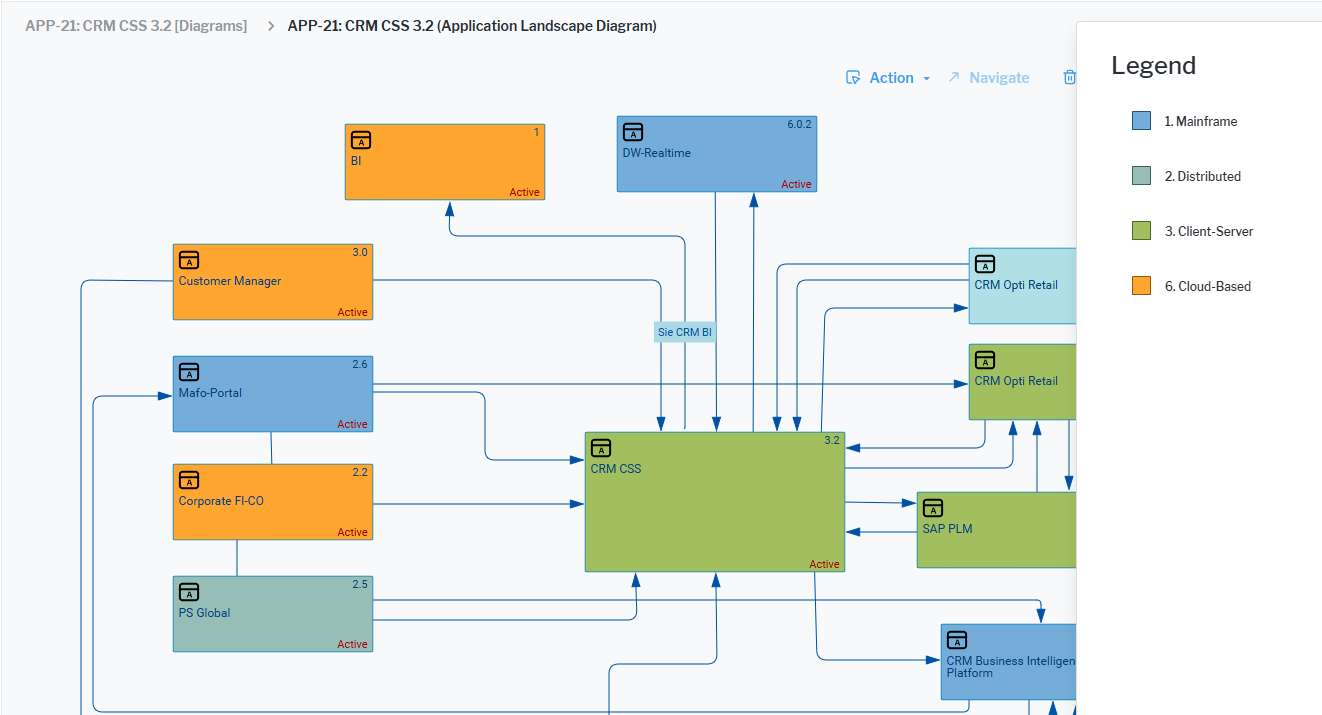
For example, in an Application Landscape Diagram, users can select preconfigured diagram views that color applications for which the Architecture Type attribute is set to Mainframe as blue, Distributed as mint, Client-Server as green, and Cloud-Based as orange.
You can configure diagram views that users can select in a Diagram View filter field in the Application Landscape Diagram and Information Flow Diagram views.
Diagram views are currently only supported for the class Application.
Each application and information flow visualized in the diagram above is a diagram view item. For applications, the diagram view item is a rectangle and for information flows the diagram view item is an arrow. The standard diagram view item for an application shows only the application name, but it is possible to specify a diagram view item for applications that shows the Name, Short Name, Version, and Object State attributes. This can be seen in the diagram above. Please note that if an attribute like Short Name or Version is not defined for an application, then those attributes will not be displayed on the diagram view item for that application.
Create a diagram view with color rules
You can create a diagram view of Type = Application that will be available in application-based diagrams such as the Application Landscape Diagram and Information Flow Diagram views. For each diagram view, you can specify the user profiles that shall have permission to the diagram view and select the color rules that shall apply to the diagram view. When the diagram view is selected in a diagram, all activated color rules will be executed and the diagram items appropriately colored.
A color rule is based on one or more Alfabet queries or native SQL queries that are configured to color a found set of objects. You can assign preconfigured color rules or custom color rules that were configured in Alfabet 10.X. and migrated to Alfabet 11.8..
All standard color rules as well the color rules your enterprise has configured can be specified. A color rule can target one property (example: Architecture Type ) to color all values of the selected property, or the color rule definition can include only one or a few selected values of a property (example: Mainframe and Client-Server) to color only applications with those values.
- In the navigation pane, expand Configuration > Reference Data.
- Click the Diagram Views page to open the view.
- Click the
 plus sign button > Create New Diagram View.
 - Name: The name of the diagram view will be displayed to users in the Diagram View filter for relevant diagrams.
- Type: Select Application.
- Show Legend Items: Set a checkmark to provide information about the colors via the Show Legend functionality.
- User Profiles tab: Set a checkmark for all user profiles that shall have see the diagram view in the Diagram View filter field.
- Color Rules: Select a property (example: Architecture Type ) to color all values of the selected property or select only one or a few selected values of a property (example: Mainframe and Client-Server) to color only applications with those values.
- Click OK to save the definition.
Specify diagram view items to show attributes on applications
The attributes Name, Short Name, Version, and Object State can be visualized on the applications displayed in Application Landscape Diagrams and Information Flow Diagram views. To show this information, a custom diagram view should be created for the class Application and a diagram view item based on the default Extended FastLane Item must be created in the Diagram View Items view of the new diagram view.
- In the navigation pane, expand Configuration > Reference Data.
- Click the Diagram Views page to open the view and click the
 navigate button to open the content area of the diagram view.
 - In the Diagram View Items view, click the plus sign button > Add Diagram View Item.
- Select the item Extended FastLane Item and click OK.