
Bizzdesign logo
  • Contact us
    Alfabet Support Hopex Support Horizzon Support Unify Support
  • Bizzdesign Community
  • Bizzdesign University
  • Bizzdesign
 
  1. Alfabet help
  2. User Interface Configuration with Alfabet Expand
  3. Change the color for data quality rule severity
  • Change the use case scope in the solution configuration
    • Activate the Advanced Data Management use case scope
    • Activate the Deployment Management use case scope
  • Adapt the user interface to your demands
  • Define the user profile and left hand navigation
    • Create a user profile
    • Create a menu for the user profile
    • Hide the Personal Info menu
    • Add a fixed header and footer text to the user profile
  • Design views for the user interface
    • Design content areas
      • Create a content area
      • Define different base objects for parts of a content area
      • Add content pages to content areas
      • Add dashboard pages to content areas
      • Add default content to content pages
      • Define the toolbar of the content areas
      • Design the layout in the content area designer
      • Define content area adaptability by users
      • Add the content area to a user profile
      • Migration from Alfabet 11.8
    • Design guided data views
      • Define a guided data view
      • Add the guided data view to content areas and editors
      • Add the guided data view to a workflow step
    • Design data workbenches
      • Create a data workbench for a single object class
      • Create a hierarchical data workbench
      • Add configured reports to data workbenches
      • Make the data workbench available on the user interface
      • Define a default layout for the data workbench
    • Design categorized visual items
      • Define categories for the categorized visual items
      • Define content repository subtypes for the categorized visual items
      • Define categorized visual items
    • Design data sources for analytic dashboards
      • Create a configured report as data source
      • Create a database view as data source
      • Add the analytics dashboard function to the user interface
  • Configure the data the user can access
    • View information about the class model
    • Create calculated properties
    • Manage the settings for an object class
      • Create class settings
      • Create a view scheme
    • Modify object class properties
      • Restrict the value range for strings
      • Restrict the value range for references
      • Display integer values as strings
      • Modify calculated object class properties
      • Assign object class properties to property groups
    • Activate runtime editors and object inspection windows
    • Modify standard editor caption and fields
    • Modify buttons
      • Modify buttons in graphic views and configured reports
      • Modify generic operations
      • Create generic operations
      • Export information about button modification
    • Modify content area content and editability
    • Modify standard editor caption and fields
    • Modify graphic view caption and filters
    • Modify configured report caption and filters
    • Change data workbench configured report groups
  • Change the design of the user interface
    • Define user interface style groups
      • Define logos and colors for the Alfabet user interface
      • Define colors for enumeration items
      • Define colors for release status values
      • Define colors for lifecycle phases
      • Change the color for data quality rule severity
      • Define colors for cards
      • Define colors for SVG preview images in content items
      • Define colors for a configured report
    • Define a custom theme
      • Create a custom theme
      • Define which custom theme is the default
      • Settings required for dark themes
    • Add the custom themes view to the user interface
    • Add and change icons
      • Add an icon to the icon gallery
      • Create an icon group
  • Provide help to end users
    • Specify a URL to the web-based online help
    • Activate the Alfabet AI Assistant
  • Enable the full-text search
  • Define a widget as a template for an indicator card
    • Implement the Standard Cards
    • Create a widget card template
    • Map the card binding expressions to content
      • Map card binding expressions to static values
      • Map the card binding expressions for single indicator cards
      • Map the card binding expressions to data workbench visualization options
  • Specify conditions
    • Define a condition based on a query result
      • Define a use case category for conditions
      • Define a configured report
      • Define a condition
      • Assign the condition to configuration elements
    • Define a condition based on filter or editor field settings
      • Create a condition
      • Configure the editor or filter fields
  • Access external URLs in the Alfabet user interface
    • Build an environment for setting external links
    • Create a link on the user interface
    • Add the link to the left navigation
    • Embed external content in a content area
  • Publish data based on templates
    • Create a Microsoft Word template
    • Map data to publication templates
      • Create a publication definition
      • Add Word templates to the publication definition
      • Define the object classes which shall be included in the publication
      • Map the object data to the template
      • Add a table of contents to the publication
      • Test the publication
      • Activate the publication
    • Create a publication environment for users
      • Define a configured report for object selection and publication
      • Define a configured report to trigger publications only
    • Localization of publications

Change the color for data quality rule severity

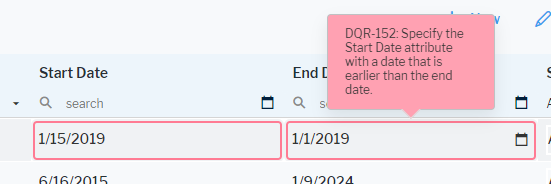
When a data quality rule violation is detected, the value which is not in accordance with the data quality rules is highlighted in the user interface with a colored frame and a tooltip is displayed:
style_dqr 

The data quality rule severity levels are based on the DataQualityRuleSeverity enumeration. The coloring of the enumeration items for theDataQualityRuleSeverity enumeration is defined in the ErrorLevel style group. Both the enumeration and the style group are private. Coloring can only be changed by adding the private ErrorLevel style group to a color theme. Change the default colors in the color theme.

For data quality rule severity levels, the Background Color is used to color the tooltip box while the Border Color is used to color the border around the offending value. The other color settings for the enumeration are ignored for data quality rule severity levels.

Alfabet Resources

  • Support
  • Learning Portal
  • Downloads
  • Announcements
  • Release Lifecycle
  • Cloud Availability

Support

  • Alfabet Help
  • Hopex Help
  • Horizzon Help
  • Unify Help
  • Knowledge Base

Resources

  • Bizzdesign Community
  • Courses and E-learning
  • Blog Articles
  • Events & Webinars
  • Resource Center

Company

  • Bizzdesign
  • Alfabet Support Policy
  • Hopex Support Policy
  • Privacy Policy
  • Code of Ethics
  • Legal Notices

Copyright © Bizzdesign