
A report assistant is available to define the content of the Sankey diagram. You can only use the report assistant if you have assigned the configured report to a template and created a configured report view for the report. In the explorer, right-click the configured report and select Start Alfabet Report Assistant to open the report assistant. In the report assistant, you must first define a native SQL query returning the nodes and the weight of the connections between nodes. In a second step, map the query results to the report assistant attributes and define the layout of the result.
Define the query of the Sankey diagram
Define the content of the Sankey diagram in the Native SQL Query or Query As Text attribute of the report assistant. The editor in the Query As Text attribute is a simple text editor while the editor in the Native SQL Query provides Alfabet -specific functionality like information about the Alfabet meta-model and help for defining Alfabet instructions.
The query must return a dataset defining the flows in the Sankey diagram.
- Each row in the query result represents one flow. A flow is connecting one source and one target.
- A flow definition includes at least three columns: the source node definition, the target node definition, and the weight of the flow.
- The column for the weight definition must return a number.
- The columns for the source and target definition can return any string. All flows with an identical value for the source definition will start at the same source, and all flows with an identical value for the target definition will end at the same target. The returned string is also used as part of the default tooltip for the nodes. The nodes are not necessarily representing objects in the Alfabet database. They can also represent, for example, all objects with a defined object class property value, a budget value, or a date.
- If the string returned as target for one flow is identical to the string defined as source for another flow, the node in the Sankey diagram will have both an incoming and an outgoing flow.
- A Sankey diagram is limited to display of 300 nodes. You can either define the query to restrict the overall number of nodes or define filters for the configured report and let the user reduce the data according to the user's demand. A message is displayed to the user if the Sankey diagram displays only a subset of the data because the limit is exceeded.
- Make sure that no cycle is created by your source and target definitions. If your query returns cyclic data, an error message will be returned.
- If nodes or links represent objects in the Alfabet database, you can return the REFSTR value of objects in a separate column of the query to enable navigation from the node to the object it represents. The content area assigned to the object class via the class settings opens for the object. To change the navigation target to any other view than the content area assigned to the object class, you can add another column to the dataset defining the navigation view. The column must return the navigation view as a string with the following syntax:
- View=ViewType:ViewName
with
- ViewType: The type of view that shall open. Allowed view types are
- Report for configured reports,
- GraphicView for standard Alfabet views,
- ContentArea for content areas,
- GuidedDataView for guided data views
- DataWorkbench for data workbenches
- ViewName: The Name attribute of the target view.
Navigation requires that a REFSTR is returned. If you want to specify navigation to a view from a node or link that does not represent a single object, you can nevertheless configure the report to open a class-independent view for that node. For example, if a node represent all objects of a specific object state, navigation from the node can open a list of objects having this object state. To configure an object independent navigation, the navigation view need to be defined and another column must return a string that looks like a REFSTR, like 0-00-00.
The query defines a sankey diagrams showing vendors and the components purchased from the vendors. The weight of the link is the number of application using the component. For both the source and the target nodes navigation is specified via a column returning the REFSTR of the object. For the source nodes, the view that shall open is also specified.
- SELECT
- CONCAT('VEND:', v.name) AS Source,
- v.refstr AS SourceRef,
- 'View=Report:VDR_ContractLifecycle' AS SourceView,
- CONCAT('COMP:', c.name) AS Target,
- c.refstr AS TargetRef,
- COUNT(DISTINCT a.refstr) AS Weight
- FROM VENDOR v
- INNER JOIN COMPONENT c ON c.vendor = v.refstr
- INNER JOIN LOCALCOMPONENT lc ON lc.component = c.refstr
- INNER JOIN APPLICATION a ON a.refstr = lc.owner
- WHERE v.country ='United States'
- AND v.NAME IS NOT NULL
- AND c.name IS NOT NULL
- AND a.name IS NOT NULL
- AND v.NAME IS NOT NULL
- AND c.name IS NOT NULL
- AND a.name IS NOT NULL
- GROUP BY v.name, v.refstr, c.name, c.refstr
Define the attributes of the Sankey diagram
Map the query columns to Sankey elements.After having defined the query for the Sankey diagram, you must map columns in the query with the following attributes in the report assistant to Sankey elements:
- Source Column: (Mandatory) Enter the name of the column returning the source node.
- Target Column: (Mandatory) Enter the name of the column returning the target node.
- Weight Column: (Mandatory) Enter the name of the column returning the weight of the flow between the nodes.
- Source Navigation Column: Enter the name of the column returning the REFSTR of the objects represented by the source nodes. Setting of this attribute activates navigation from the Sankey diagram to the objects in the source nodes. If a node is both source and target node, navigation is activated if either Source Navigation Column or Target Navigation Column is set.
- Source Navigation View Column: Enter the name of the column returning the view that shall open on navigation from a source node. If no navigation view is defined, the content area of the source object opens.
- Target Navigation Column: Enter the name of the column returning the REFSTR of the objects represented by the source nodes. Setting of this attribute activates navigation from the Sankey diagram to the objects in the target nodes. If a node is both source and target node, navigation is activated if either If a node is both source and target node, navigation is activated if either Source Navigation Column or Target Navigation Column is set.
- Target Navigation View Column: Enter the name of the column returning the view that shall open on navigation from a target node. If no navigation view is defined, the content area of the target object opens.
- Link Navigation Column: Enter the name of the column returning the REFSTR of the objects represented by the links. Setting of this attribute activates navigation from the Sankey diagram to the objects in the represented by the link.
- Link Navigation View Column: Enter the name of the column returning the view that shall open on navigation from a link. If no navigation view is defined, the content area of the link object opens.
Design the layout with the following attributes:
- Caption: Enter a caption to display on top of the diagram.
-
Color: Enter a query returning the range of colors that shall be used to render the Sankey diagram. If you do not define this attribute, colors are assigned in accordance with the current color theme for rendering the Alfabet user interface.
- SELECT '#FF0000' AS ColorCode
- UNION ALL SELECT '#0000FF'
- UNION ALL SELECT '#00FF00'
- UNION ALL SELECT '#FFFF00'
- UNION ALL SELECT '#000000'
- UNION ALL SELECT '#FFFFFF'
- UNION ALL SELECT '#FFA500'
- UNION ALL SELECT '#800080'
- UNION ALL SELECT '#808080'
- UNION ALL SELECT '#FFC0CB';
- Node Padding: Enter the padding between nodes as an integer (number of pixels).
- Node Width: Enter the width of the nodes as an integer (number of pixels).
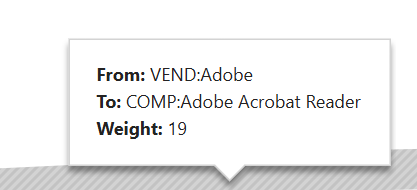
Define tooltips for the Sankey nodes and flows. Tooltips are displayed when the user hovers over the element in the Sankey diagram. The report has no legend. Nodes in the diagram show the string defined for the node. Flows show no information directly in the diagram. The number the width of the flow is based on is only included in the tooltip. In the default tooltips for flows, the values from the columns in the query defining the source node, target node, and weight of the flow are displayed after the captions From , To , and Weight:
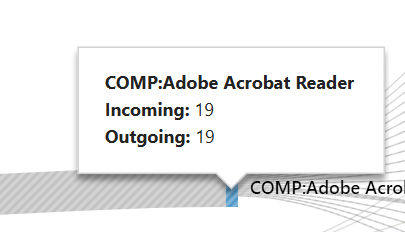
For nodes, the tooltips display the string returned by the query for the node and the number of incoming and outgoing flows with the two captions Incoming and Outgoing.
- Show Tooltip: Select True to display tooltips.
- Use Default Tooltips: Select True to show tooltips with the standard captions. If you want to change the captions in the tooltips, select False and define the captions in the expanded attributes Links and Nodes. Enter the text without a colon at the end. The colon between caption and text derived from the query results is added automatically.