Go to Analytics Dashboards > Dashboards > Configure Dashboards and click the dashboard in the explorer under My Analytics Dashboards to open the designer. After you finish designing the dashboard, you must click Save Configuration to save your changes persistently.
The analytics dashboard capability is based on the third-party DevExpress® dashboard designer. For details about designing the dashboard consult The documentation provided by the third-party vendor. The following hints on how to define the dashboard give an overview of the most basic functionality.
Define a caption for the analytics dashboard. Click the three-line menu  button in the upper left corner and select Title. An edit field opens with fields to define the title text, visibility and location, whether an icon shall be displayed in front of the text, and whether all currently set filters shall be listed under a filter icon next to the title. Click the cross next to the term DASHBOARD MENU to close the editor.
Add a graphic or table to the analytics dashboard. Dashboard items are listed on the left of the dashboard area. Click one of the items and drag it to the dashboard area to add it. You can change size and location via handles on the field. Click the link in the middle of the field to define which data shall be displayed. The options to add data depend on the type of item. You can find details about the settings in the documentation provided by the third-party vendor.
Add a filter to the analytics dashboard. To add a filter applied to all items in the dashboard, drag a filter item from listed on the left of the dashboard area to the dashboard area. Alternatively, you can define filters which only apply to one of the items in the dashboard. Click the item to open the menu of the item and click the filter icon in the menu.
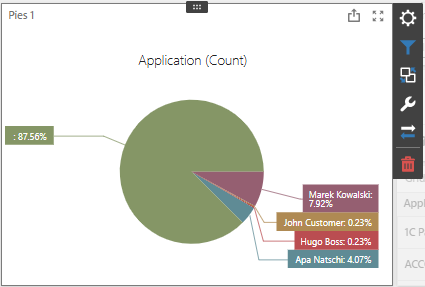
Edit or delete existing items. Click the item to open the menu of the item. The menu provides buttons for (from top to bottom) changing the data source, filtering the data in the item, defining rules for applying master filters, defining a caption, changing the type of item, and deleting the item.