
Alfabet ensures that the right people will see the right information at the right time. The following section explains the concepts behind what users can see and do in Alfabet .
- User profile: The user profile determines the set of functionality and views that a user can see as well as whether they have read-only vs. read/write permissions to the assets they see in Alfabet .
- Authorized user: The authorized user is typically the user who creates the asset in Alfabet . The authorized user has read-write permissions to their assets.
- Authorized user group: One or more authorized user groups can be specified for each asset. All users belonging to the authorized user group have the same access permissions as an authorized user.
- Role: A role describes the functional relationship that a user or organization has for an object. A person assigned a role for an asset will not have read/write permissions based on the role definition. The role is primarily for documentation purposes to provide information about stakeholders interested or responsible for the asset.
The ability for a user to create a new asset such as an application, component, business capability, etc. in the repository or edit the existing assets is managed via several rules in Alfabet . An asset can only be edited if three requirements are fulfilled:
- The user accesses Alfabet with a user profile that provides read/write permissions.
- The user is granted authorization to the asset because they are the authorized user of the asset or a member of an authorized user group that is specified for the asset.
If no authorized user or authorized user group is specified for an asset, all users will have read/write permissions to it.
- The asset has a release status that allows it to be edited. For example, an asset with a retired or sundowned release status can no longer be changed.
User profiles
User profiles are the entry point to Alfabet . Every user must access Alfabet with a user profile that has been assigned by a user administrator. Your user profile will determine the functionalities and views that you see as well as whether you have read-only vs. read/write permissions to the assets you see. The following preconfigured user profiles are available:
- The Portfolio Admin user profile is for superusers who are responsible to complete administrative tasks. They have exclusive access to views that are required for user and account management, data import, administrative jobs, and configuration and have read/write permissions to all data in the repository regardless of object authorization.
- The Portfolio Manager user profile is for users who are responsible to input, maintain and analyze data relevant for IT portfolio management. Users can view all assets in the repository and have read/write permissions to all assets that they have authorized access to via the authorized user or authorized user group definition.
- The Application Manager user profile is for users who are responsible for capturing and maintaining data relevant for application portfolio management.
- The Technology Manager user profile. is for users who are responsible for capturing and maintaining data relevant for technology portfolio management.
- The Portfolio Analyst user profile is for users who are interested in seeing up-to-date analytics about the IT portfolio in order to understand the most business-relevant questions and make informed strategic decisions. Users can view all business questions and have read-only access permissions to all assets in the repository.
- The Resource Manager user profile is for users that are responsible for maintaining the data relevant offered and requested resources in order to manage the availability and consumption of skills by organizations, teams, and projects.
- The Team Member user profile allows users who are specified to provide skills and resources to manage those tasks and their timesheets.
Change your user profile. Users may have more than one user profile depending on their areas of responsibility in the company. Change to another user profile at any time via the Profile menu.
 Click here to see how.
Specify your default user profile for easy log in. You can specify the user profile to use per default when you log in to Alfabet .
- Click your user icon in the upper right corner of the screen and select User Settings.
- Change the Default User Profile field. If no default user profile is specified, the last user profile you were working with will be used.
Authorized users and user groups
The assets that you can see in Alfabet will depend on the user profile that you access the product with. But the ability to add and edit assets depends on the authorization defined for the asset. The user who adds an asset to the repository is the authorized user by default. This can be changed at any time to another user by the current authorized user.
More users can be given read-write permissions to an asset by specifying one or more authorized user groups. All users belonging to the authorized user group have the same access permissions as an authorized user.
To change the authorized user or specify one or more authorized user groups, open the panel to edit an asset and scroll to the Authorized User or Authorized User Group fields to change the asset's authorization.
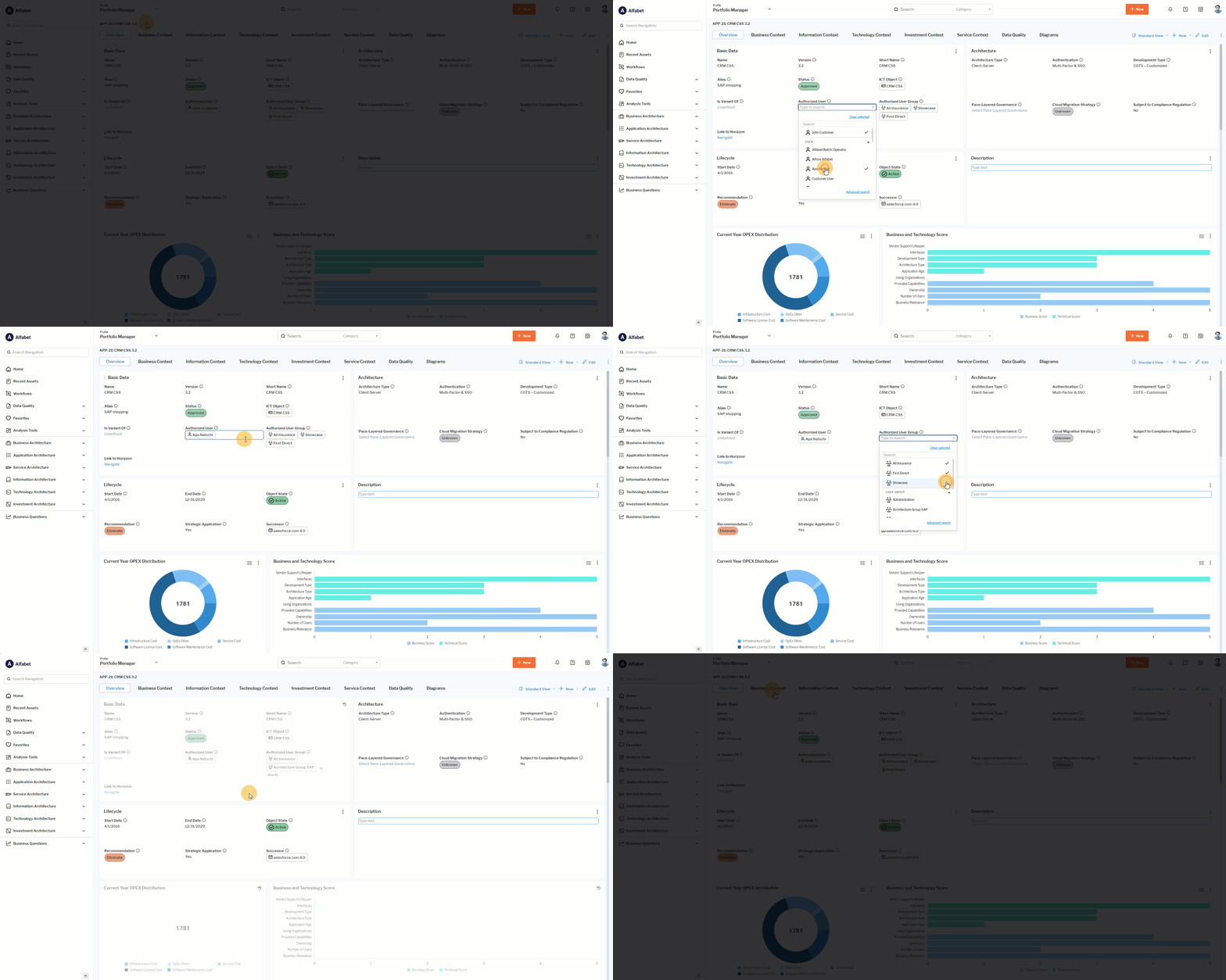 Click here to see how.
Roles
Assigning users and organizations to roles is critical to understanding responsibility for assets in the IT and is required to answer the business question Who is responsible for our assets? A role describes the functional relationship that a user or organization has for an object. Users as well as organizations can be specified to have a role for each asset in the IT portfolio. A user assigned a role for an asset will not have read/write permissions based on the role definition. The role is primarily for documentation purposes to provide information about stakeholders interested or responsible for the asset. To change data about the asset, a user must be specified as an authorized user or member of an authorized user group.
Alfabet provides out-of-the-box role types that enable you to understand who is responsible for your IT assets in your IT portfolio. A user with an administrative user profile may also configure custom role types.
-
- Application Manager: A person who is the subject matter expert for the application from a functional and technical point of view.
- Architect: A person who is responsible for the governance of the asset.
- Asset Owner: A person or organization who legally owns the asset. These users and organizations are responsible for making asset allocation decisions based on strategic and operational objectives.
- Business Owner: A person or organization who owns the asset and is responsible for managing the functional requirements.
- Capability Owner: A person who is responsible for the business capability/IT capability.
- IT Owner: A person or IT organization owning the asset and thus typically responsible for approval decisions.
- Operations: An IT organization responsible for the operations of the asset.
- Project Manager: A person who is responsible for planning, organizing, managing, and executing projects from beginning to end including the project's budget, resources, and scheduling.
- Staffing Manager: A person who is responsible to allocate and balance the human resources required for a project.
- Stakeholder: A person or organization that has an interest in the assets and therefore requires read-only access permissions.
Your portfolio administrator may configure additional role types that are relevant for your company. The role types available for an asset will depend on the object class that the asset is based on.
An application might have the following roles defined:
- Architect: 1 user
- Business Owner: 1 user and 1 organization
- Operations: 1 organization
- Stakeholder: multiple users and multiple organizations
In contrast, an application group might have following permissible roles:
- Application Manager: multiple users
- Architect: multiple users
- Stakeholder: multiple users and multiple organizations
Roles can be specified in an asset's content area > Overview > Responsibilities section.
- Click in the relevant role field to open the selector.
- Expand the ORGANIZATION or USER sections in the selector and select the person or organization fulfilling the role.
- Click OK to save the role definition and close the selector.
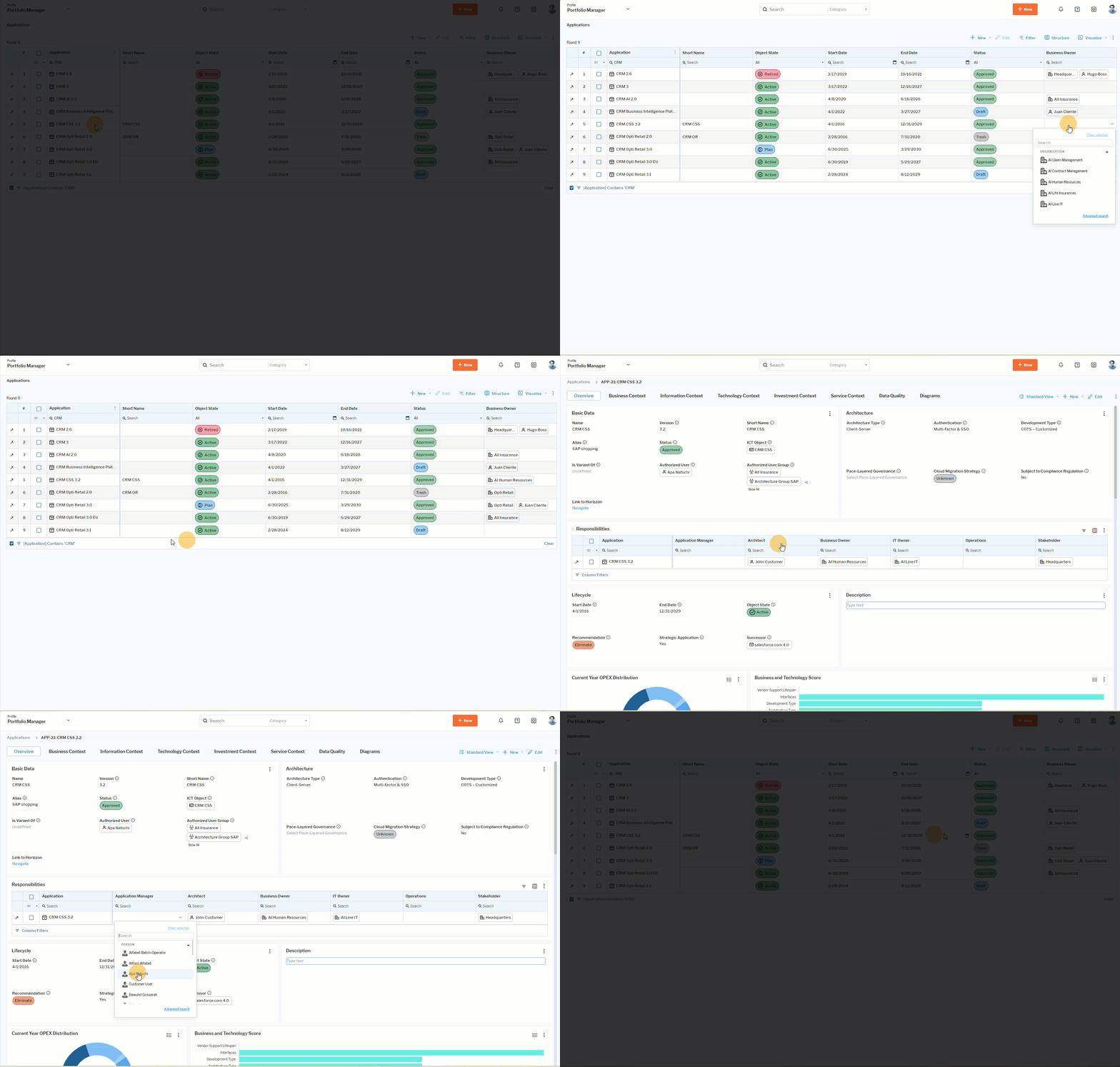 Click here to see how.