
You can decide which information you want to include in any data workbench. Add and remove columns as needed to change the information that is displayed. All attributes that you want to create visualizations for must be included in the data table.
Ensure that you are working in the data table. Click Visualize > Data Table.
Add or remove columns in the data table. Click Structure to open the panel where you can change the columns in the data table. Columns that are included in the dataset are first in the list of columns.
- Enter text in the search field to find a column.
- Set a checkmark to include a column in the data table. Clear the checkmark to remove the column.
- Click Update to apply the column changes to the data workbench.
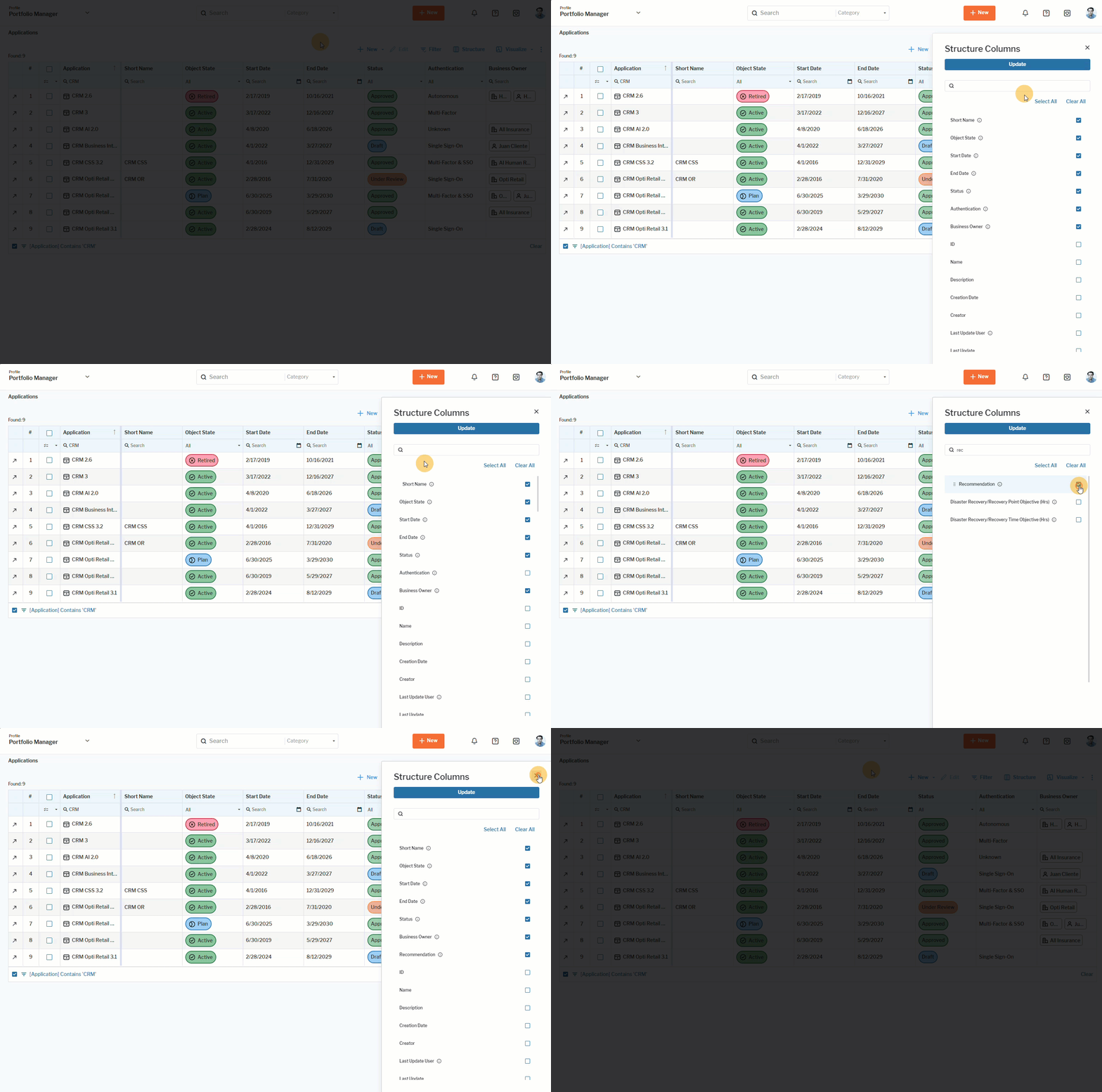 Click here to see how.
Reorder columns
There are a number of ways that you can change the order of columns in the data table:
Change the order in the Structure pane.Click Structure to open the panel where you can change the columns in the data table. Drag-and-drop a column to change the order of the columns.
Move columns with the Move... options. Right-click the column border that you want to move and select Move to the left or Move to the right.
Drag-and-drop the columns. Click the column header, drag the column, and drop it in the location you want to place it.
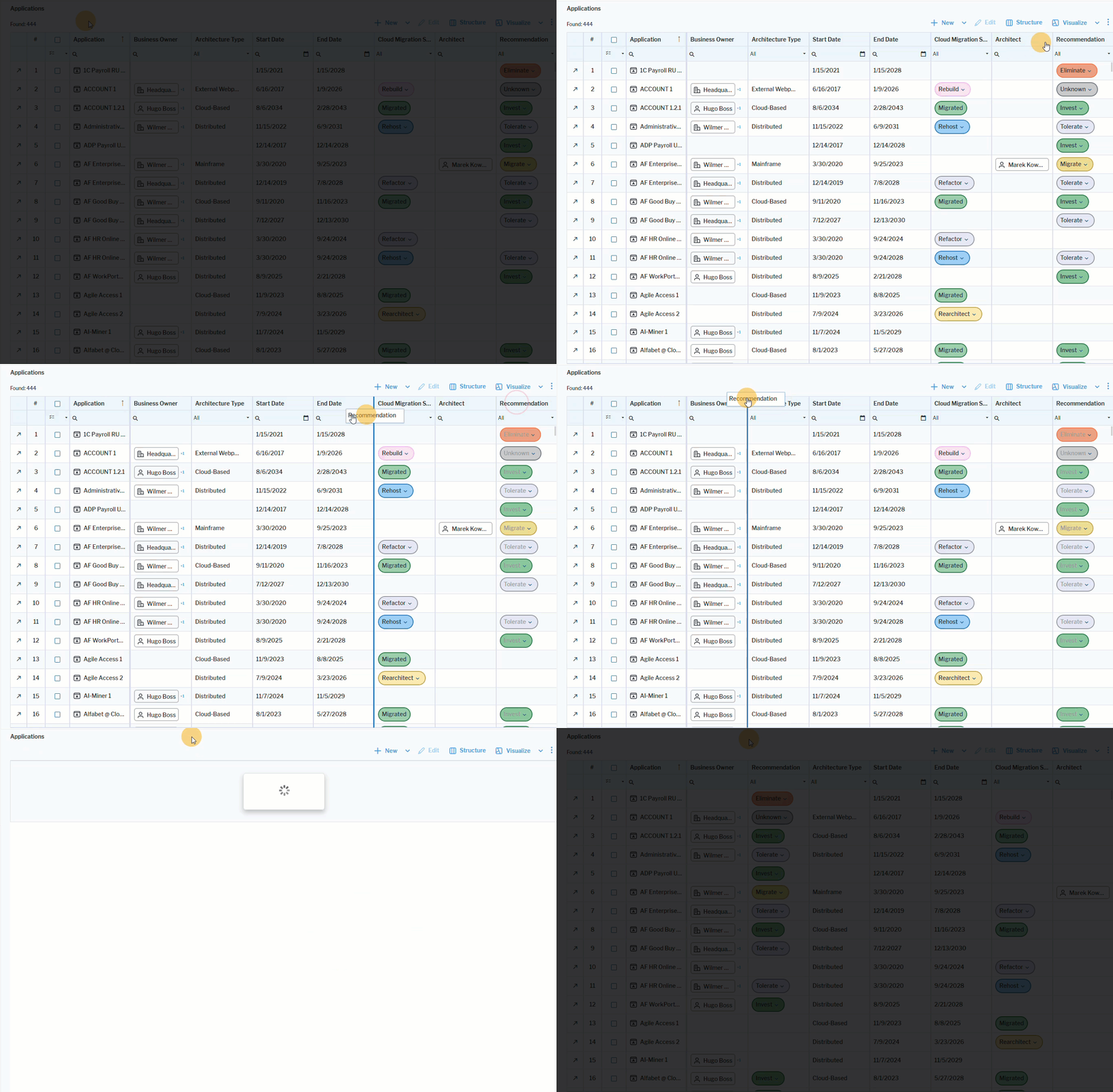 Click here to see how.
Set the fixed column position and remove freeze
The Set Fixed Position option allows you to pin a column so that it remains visible while horizontally scrolling through the table. This is especially useful for keeping key identifier columns (such as Name, ID, or Status) in view when working with wide datasets.
Right-click the column border that you want to pin and select Set Fixed Position > :
- Left: Freezes the selected column on the left side of the grid. The column remains visible while scrolling horizontally to the right.
- Right: Freezes the selected column on the right side of the grid. The column remains visible while scrolling horizontally to the left.
- Sticky: Keeps the column visible in its current position while scrolling. The column does not move out of view, but unlike the options Left or Right, it is not repositioned to an edge of the grid.
To remove the fixed position definition, right-click the column border and select Remove Freeze.
Reorder the data in columns
Click the column header to switch the order of the data using the up arrow (ascending) and the down arrow (descending).
You can also right-click the column border that you want to pin and select Sort Ascending and Sort Descending.
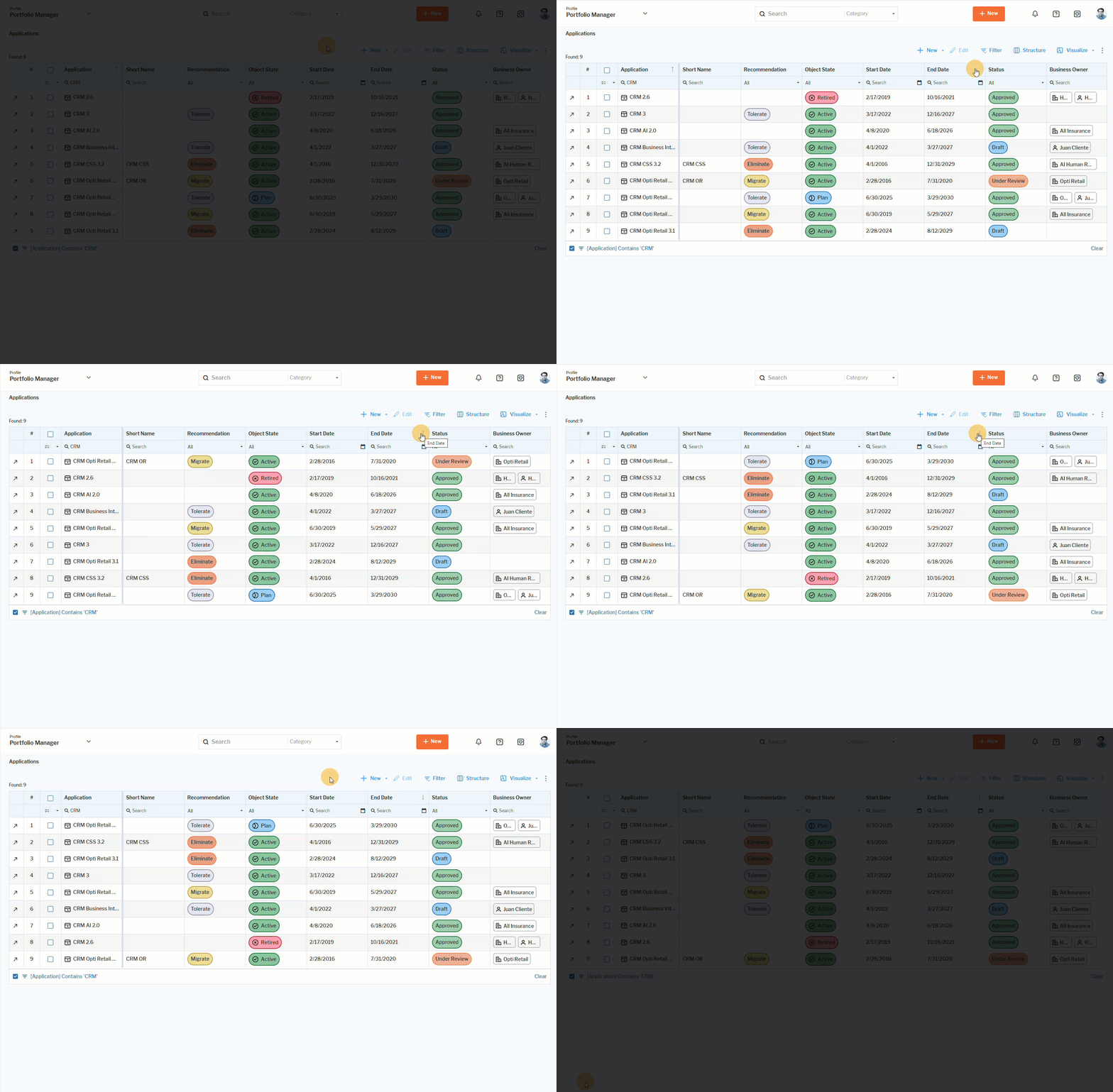 Click here to see how.