
Alfabet provides powerful diagramming capabilities for visualizing and managing enterprise architecture through model-based diagrams. Unlike conventional drawing tools, Alfabet diagrams are directly linked to the underlying architecture repository, ensuring that visualizations remain connected to the data they represent. As architecture data evolves, related diagrams, viewpoints, and analyses can be updated accordingly, enabling consistent and accurate representations of the enterprise landscape. This repository-driven approach supports traceability across business strategies, applications, technologies, projects, and transformation initiatives while facilitating impact analysis, roadmapping, governance, and portfolio management activities.
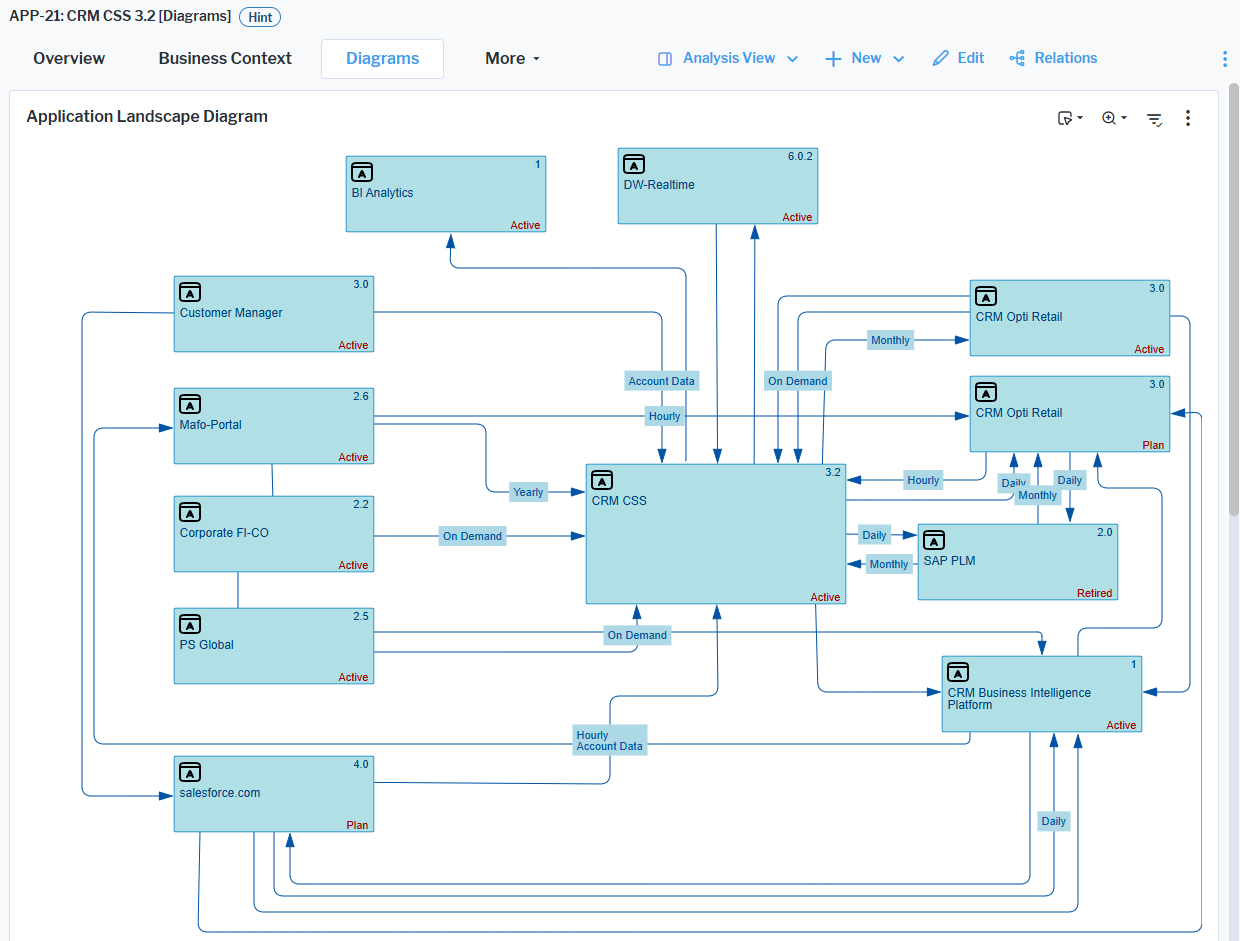
Using Alfabet's Diagram Designer, architects and portfolio managers can create a wide range of architecture visualizations that reflect different perspectives of the IT landscape. Application landscape diagrams can be modeled from the viewpoint of applications, application groups, business capabilities, business processes, demands, epics, projects, components, vendors, servers, and organizations. In addition, Alfabet supports business process modeling through BPMN diagrams and provides numerous ArchiMate viewpoints for illustrating business, application, data, and technology architectures. These capabilities enable stakeholders to communicate complex architectural relationships effectively, analyze dependencies, and align enterprise architecture with strategic business objectives.
Some diagrams such as the Information Flows Diagram views are automatically generated and display an up-to-date diagram created at runtime. Dynamically-generated diagrams cannot be manually designed or edited in the Diagram Designer and are not discussed in this section.
Open the diagramming tool
Access to the Diagram Designer is limited to the users that have been granted access to the Diagram Designer. If a user has permissions to design and edit diagrams, the Open Diagram button available will be available via the  edit button. The Open Diagram button is only visible for users who have been granted access via an administrative user.
- Go to the diagram you want to design. For example, for an application, go to the application's content area, navigate to the Diagrams page, and go to either Application Landscape Diagram or ArchiMate Viewpoints. You will either see a default diagram or a diagram that has been designed by a user with access permissions to the Diagram Designer.
- To edit the design of the diagram, click the edit button > Open Diagram. The Diagram Designer opens displaying a toolbar, toolbox on the left, and canvas area in the center where the diagram is designed.
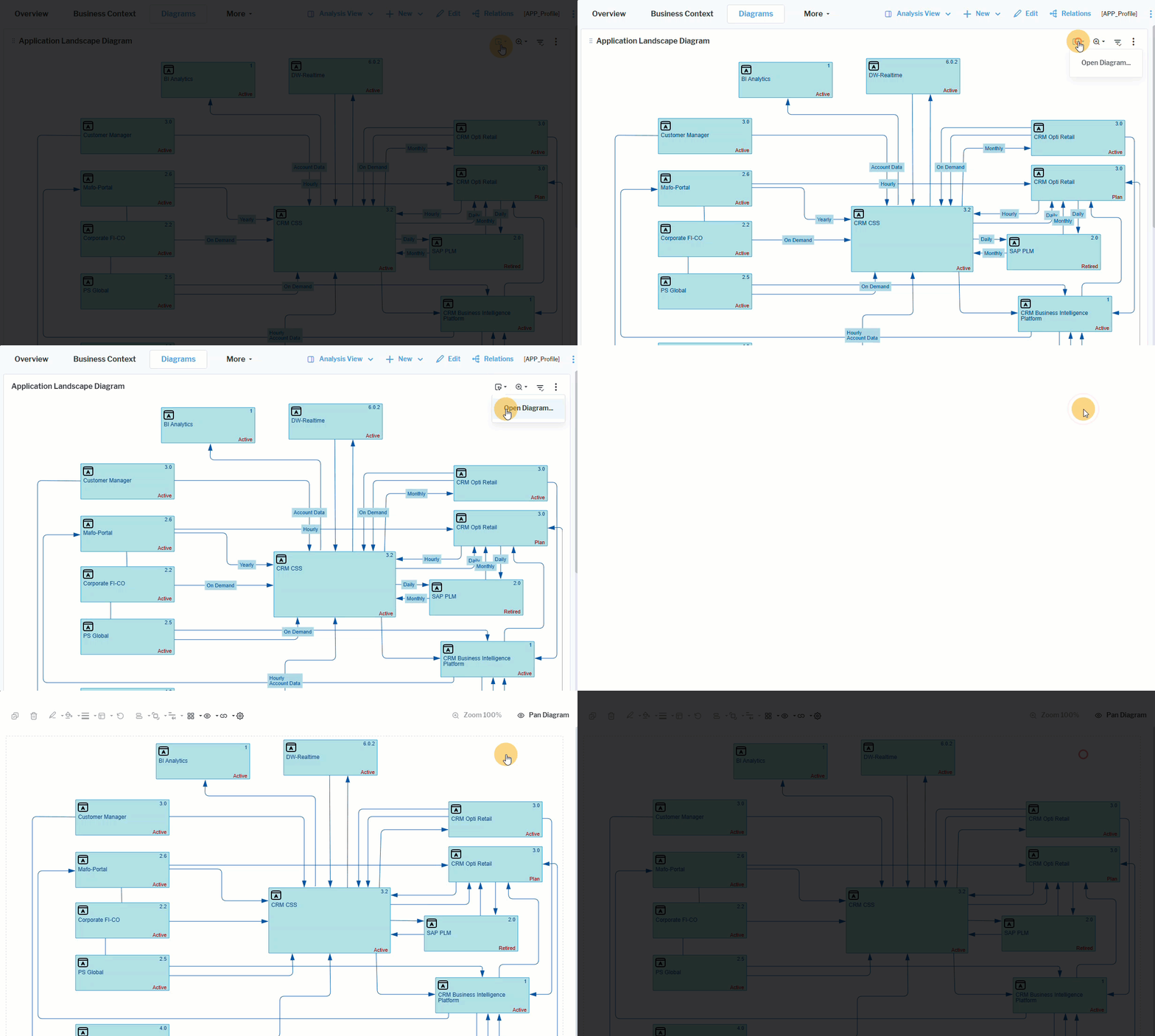 Click here to see how.
Save the diagram
You can leave the diagramming tool at any time and later come back to continue designing the diagram. The saved diagram will be visible in the diagram displayed in the user interface (for example, in the Application Landscape Diagram view).
All changes made in the context of the diagramming tool are saved to the repository. If a diagram is modified by another user while you are editing it, saving the diagram may overwrite the changes made by that user.
- A status message on the left side of the toolbar displays Not yet saved when the diagram contains unsaved changes. You can undo any changes via the
 as long as the diagram is not saved via the Save Changes button.
 - To save the diagram, click Save Changes in the lower-right corner of the diagram. The status update in the from Saving to Saved. To close the diagram after saving your changes, click X in the upper-right corner. The Diagram Designer closes and the updated diagram is displayed in the user interface.
- To close the diagram without saving your changes, click the Cancel button in the bottom right of the diagram. The Diagram Designer closes and any unsaved changes are discarded.
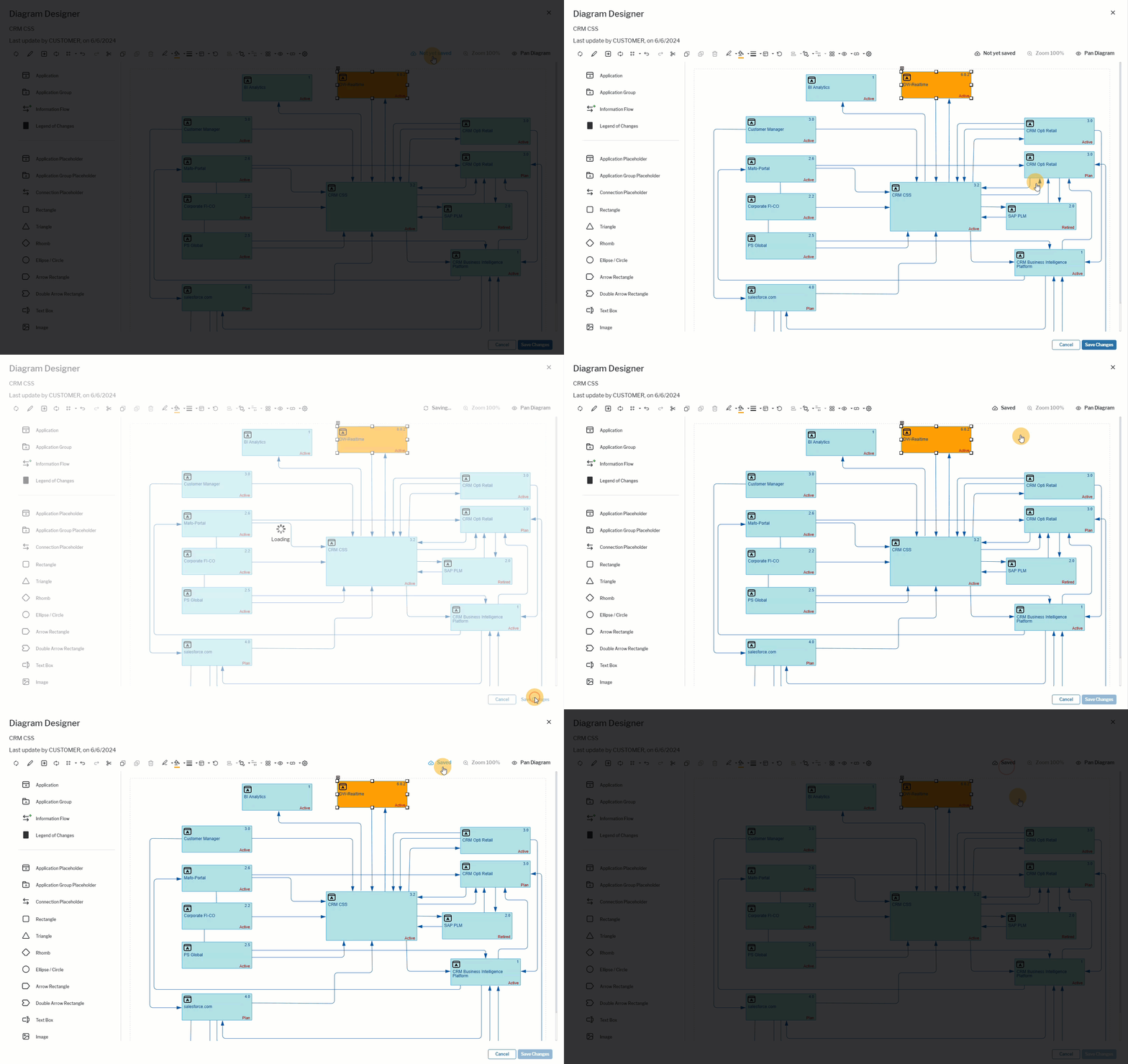 Click here to see how.