The Notifications  button displayed in the upper right corner of the toolbar displays a blue dot if notifications are available for you.
Click on the notification icon to open the notification panel. You will see all unread notifications in the tab All. To view only notifications for a single activity, switch to the tab with the name of the activity type. Notifications of the type Content Repository, Workflow, or Mention will give you information relevant to your daily tasks in Alfabet. Tabs for Data Capture, ADIF, and Job Schedule notifications are displayed only for users logged in with an administrative profile.
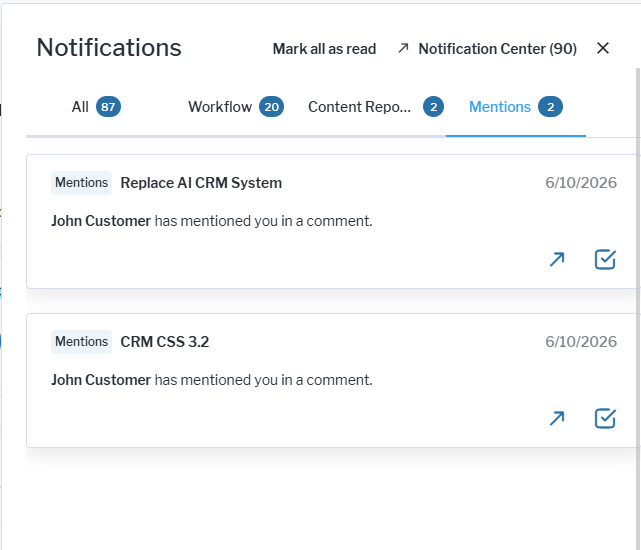
Mark the notifications as 'Read'. Once a checkmark is set in the  Mark as Read checkbox or the user navigates to the related object (for example, via an @mention), the notification is considered read. Alternatively, click the Mark all as read button to checkmark all notifications. Once all notifications have been read, the blue indicator dot automatically disappears.
View notifications from previous sessions. Click Notification Center in the upper corner to see all notifications and view the full notification history.