
A connection is typically an information flow between applications although there may be other semantic connections available for other combinations of objects. Connections may be straight lines or angles depending on how the connections are specified in the diagram settings.
If information flows already exist between applications or application groups that have been added to the diagram, the information flows will be automatically displayed as arrows. The arrow will start with the diagram item that is the source of the information flow and point to the target of the information flow.
Whereas new assets like applications cannot be created in the context of the diagramming tool, connection items such as information flows are an exception. If you add an information flow and connect a target and source application in the diagram, a new information flow will be created and added to the repository.
Connection items like information flows might not be displayed correctly for diagram items placed in a shape. Solutions to this issue are being investigated.
- In the left panel, click the Information Flow diagram item.
- Hover over the application that is the source of information flow. You will see green dots on the edges as well as the center of the application. Decide which of the green points shall be where the information flow starts.
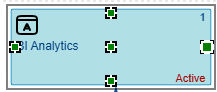

- Click the green point and drag the information flow to a green point on the target application.
- In the editor that opens, specify the mandatory attributes as well as any other optional attributes. Click OK to close the editor.
- Click the Save
 button to save your changes.
 - You can move the connection by grabbing its handle and dragging it. If the connection is elbowed and has angles, you can grab a handle on a connection to drag it to change the angle degree as well as add more angles.