View your notifications
The Notifications  button displayed in the upper right corner of the toolbar displays a red dot if notifications are available for you.
Click on the notification icon to open the notification panel. You will see all unread notifications in the tab All. To view only notifications for a single activity, switch to the tab with the name of the activity type. Notifications of the type Content Repository or Workflow will give you information relevant to your daily tasks in Alfabet. Other notifications, such as those of the type ADIF and Job Schedule provide information about administrative jobs that are automatically triggered by for application maintenance.
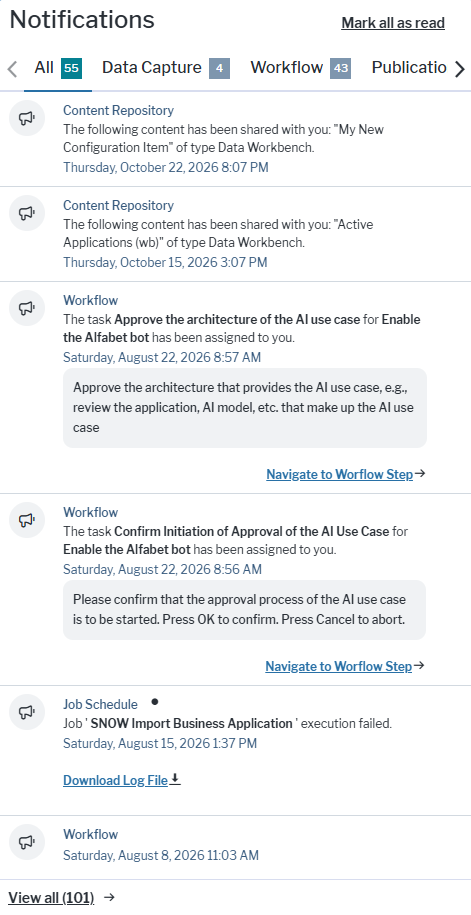
To view all notifications including unread notifications that do not fit in the notification panel and notifications that have been read, click the View all link on the bottom of the notifications panel to open the Notifications Center.
Mark the notifications as 'Read'. The red dot on the notification icon will disappear when all notifications have been checkmarked as read. Notifications checkmarked as read will only be displayed in the notification window during the current session. Click the circle that is visible on the right when hovering over a notification to set a checkmark that the notification has been read.
Alternatively, click the Mark all as read button to checkmark all notifications.
View notifications from previous sessions. lick the View All Clink at the bottom of the notification window to open the Notification Center. To download a log file or a data capture template from one or multiple notifications, checkmark the notification and click the Download Files link.