Navigate through the user interface
You can navigate through the user interface to drill down to the specific information you are interested in. Here's how you can navigate forward through Alfabet
- Click any view, data workbench or business question in the sidebar navigation to open it in the content area.
- Click the
 button in the data table of a data workbench to navigate to the content area for that asset. The content area allows you to further document and analyze the asset.
 - Double-click a referenced asset in a data workbench, editor, content area, guided data view, business question, or report to navigate to its content area.
- Single-click a referenced asset in a data workbench, editor, content area, guided data view, business question, or report to open the object inspection preview of the asset. You can review the details and edit fields if you have access permissions. It is not possible to single-click a referenced asset in the object inspection to open another object inspection preview.
- In Kanban and matrix reports, click-and-hold to drag an item across columns.
- Click the hyperlinked caption of views and business questions to drill-down in access further editing capabilities.
- Click interactive elements such as bubbles in portfolio charts, bars in bar charts, or slices in doughnut charts to access a report about the assets that the element represents. If the interactive element represents a single asset, you will open its object inspection preview.
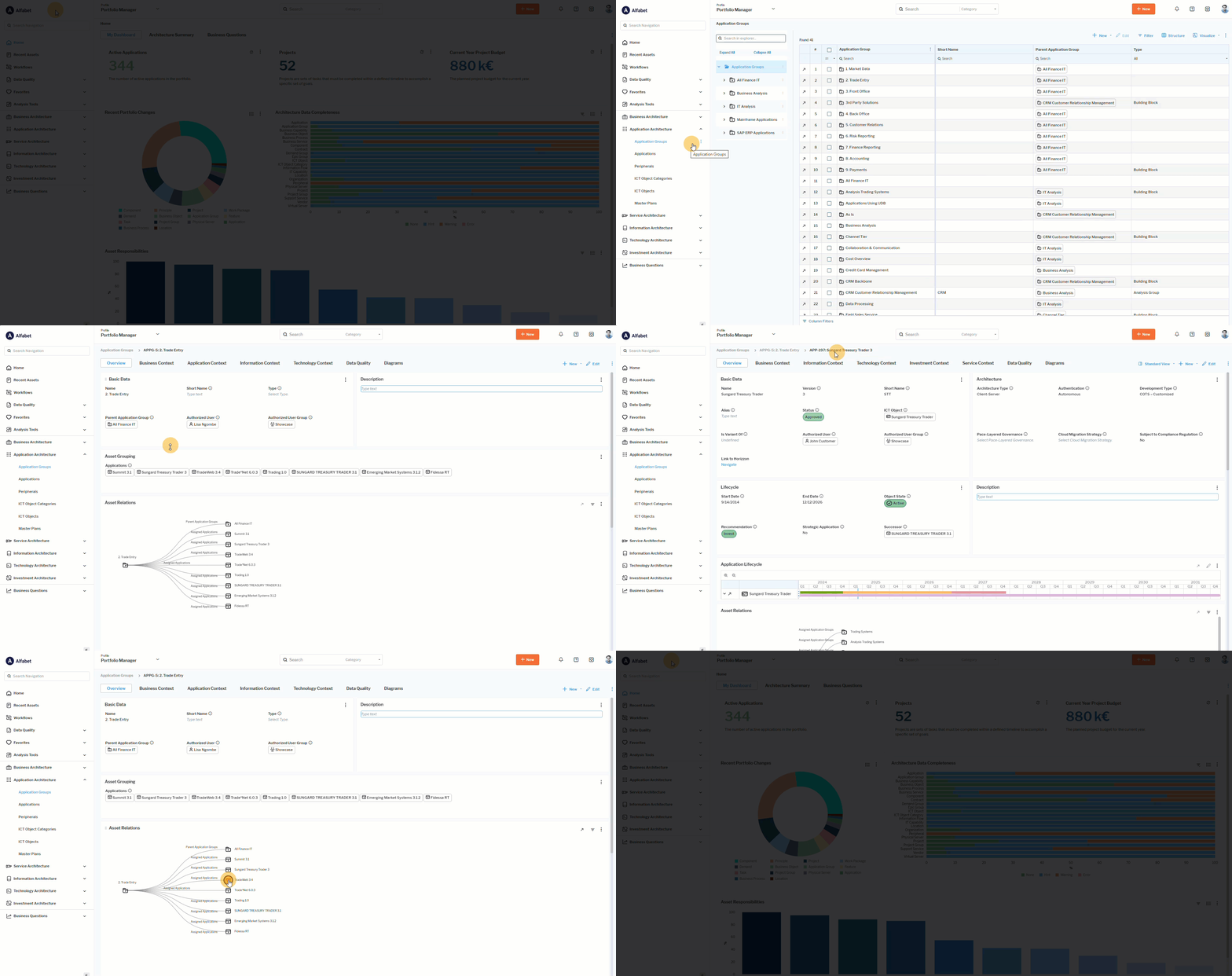 Click here to see how.
Breadcrumbs displayed at the top of the page show your navigation path with your current location visualized in black text. Click any breadcrumb to return to a previous point in your navigation path. A view with a long name will be truncated with an ellipsis (...). Point to the breadcrumb in order to display a tooltip showing the complete view name.