Application will only be synchronized with ServiceNow® if the Linked to ServiceNow object class property of the application is set to true. This is a hidden Boolean property which is not accessible via data workbenches or content areas. It is only visible for portfolio administrators in the Portfolio Admin user profile under Integrations > ServiceNow > Applications Linked to ServiceNow. By default, you can only set this attribute in this view. Alternatively, you can define a method for setting the object class property automatically, for example, when the application reaches a defined release status or is approved by defined users.
Manually mark applications for export
- In the left navigation of the Portfolio Admin user profile, go to Integrations > ServiceNow.
- Click Applications Linked to ServiceNow.
- In the table, select the applications that shall be exported to ServiceNow®.
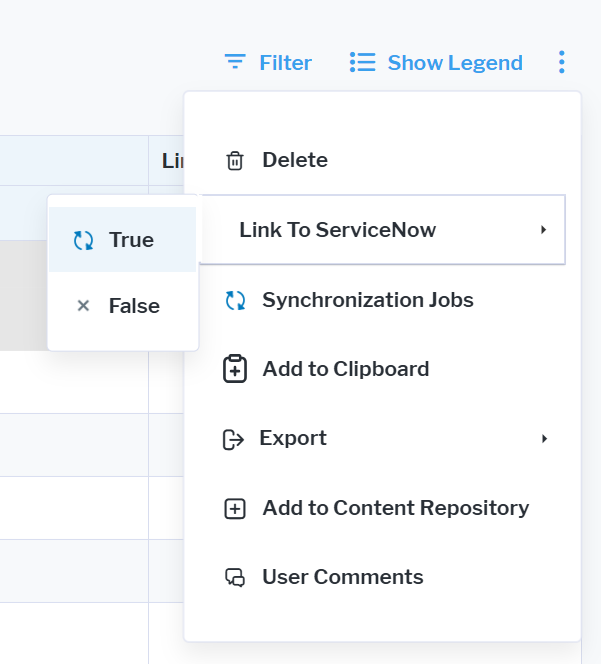
- In the three-dots menu, select Link to ServiceNow > True.
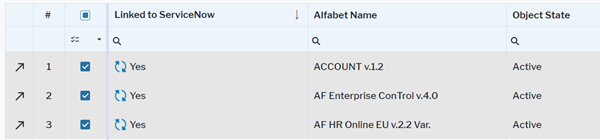
In the table, you can now see the link symbol in the Linked to Service Now column of all selected applications:
Automatically mark applications for export
To mark new applications as linked to ServiceNow, you can define a data-triggered action to set this object class property. Usually, application data is sent to ServiceNow when the application is approved. You can, for example, define a data triggered action rule to set the Linked to ServiceNow attribute to true when the release status of the application is changed to Approved. Create a data-triggered action of the type SQL which sets the SAG_SNOW_LINK attribute to true and which is only triggered if the release status is Approved. Then define a data triggered action rule for execution of the data-triggered action whenever the release status of the application is changed. The example below guides you through this process.
Alternatively, you can define an indicator type for the application which states whether the application shall be linked to ServiceNow. Users can set the indicator, and a data-triggered action will then set the SAG_SNOW_LINK attribute to true on setting of the indicator to relevant for ServiceNow. This method enables you to include applications which are already approved when starting the integration.
If you have access to the configuration tool Alfabet Expand, you have more options to trigger setting of the Linked to ServiceNow object class property. You can, for example, create a workflow for application approval and define a post-condition to automatically set the attribute when the approval is done in a workflow step.
If you want to use a workflow to set the object class property and do not have access to Alfabet Expand, send an implementation request to Alfabet Support.
Applications shall be marked as relevant for data export to ServiceNow when the release status is set to Approved. This is handled via a data-triggered action.
Create a data-triggered action setting the application to relevant for ServiceNow integration when the release status is set to Approved.
- Go to Configuration > Data-Triggered Actions > Data-Triggered Action Groups.
- In the explorer, click the data-triggered action group that should host the data-triggered action and click Data-Triggered Actions.
- Click + New > Create a Data Action.
- Define the data-triggered action in the editor.
Mandatory attributes:
- Technical Name: Define a unique technical name for the data-triggered action.
- Name: Define a caption for the data-triggered action. The caption will be displayed in the views for defining data-triggered action rules.
- Action Type: Select SQL Query.
- SQL Query Definition: Define the native SQL query to update the SAG_SNOW_LINK attribute of the current application:
- UPDATE APPLICATION
- SET APPLICATION.SAG_SNOW_LINK = 1
- FROM APPLICATION
- WHERE APPLICATION.REFSTR = @BASE
- Qualifying Query: If you define a qualifying query, the data-triggered action is only executed if the qualifying query returns a result. The data-triggered action should only be executed if the release status set for the application Approved:
- SELECT REFSTR, NAME,VERSION
- FROM APPLICATION
- WHERE APPLICATION.REFSTR = @BASE
- AND APPLICATION.STATUS = 'Approved'
Optional attributes:
- Description: Enter a description that will inform administrators creating data-triggered action rules about the meaning of the data-triggered action.
- Execute in Background: If the checkmark is selected, the SQL query is executed in the background, and the user interface is not blocked during execution. By default, this option is checked. Only deselect the checkmark for very simple queries like updating of another attribute of the asset currently changed.
Create a data-triggered action rule for the change of the release status.
- Go to Configuration > Data-Triggered Actions > Data-Triggered Action Rules.
- Click + New.
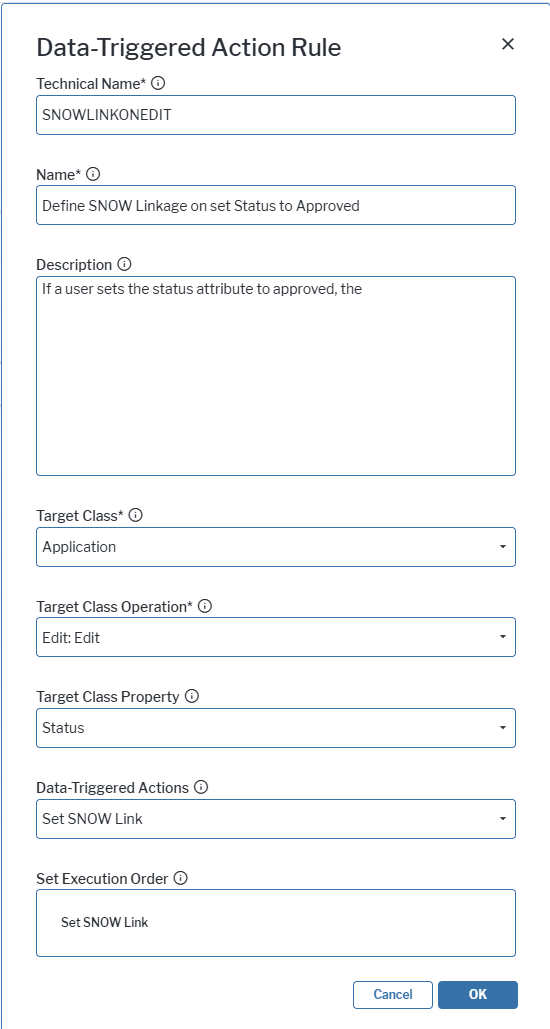
- Define the data-triggered action rule in the editor.
Mandatory attributes:
- Technical Name: Define a unique technical name for the data-triggered action rule.
- Name: Define a caption for the data-triggered action.
- Target Class: Select Application.
- Target Class Operation: Select Edit: Edit.
- Target Class Property: Select Status.
- Data-Triggered Actions: Select the data-triggered action for setting the ServiceNow relevance.
If you have managed initial setting of the ServiceNow link via an indicator setting, you can define an additional data-triggered action setting the indicator when the release status is set to approved. You can select this additional data-triggered action as well. If a user changes the release status of an application to Approved, the Link to ServiceNow (SAG_SNOW_LINK) attribute is set and at the same time, the indicator is changed to mark the Application as relevant for ServiceNow for all users working with the application.
Optional attributes:
- Description: Enter a description that specifies the meaning of the data-triggered action.
- Set Execution Order: If you have defined multiple data-triggered actions, you can change the order of execution in this field. Execution follows the specified order from top to bottom. Click the handle that appears when you hover over an entry and drag the entry in the execution order.