
Data synchronization is triggered via scheduled synchronization jobs. The SNOW Export Business Application job creates and updates business applications in ServiceNow® based on the application data in Alfabet and sets the required synchronization parameters for the applications in Alfabet. The job SNOW Import Application Service Integration imports application services defined for business applications in ServiceNow as deployments to Alfabet and links the deployments to the correct applications. For existing application services already synchronized data is updated.
The jobs can either be triggered manually for one-time execution or scheduled for regular execution by an administrative user in the Portfolio Admin user profile.
Trigger one-time execution
- In the left navigation of the Portfolio Admin user profile, go to Integrations > ServiceNow.
- Click ServiceNow Import/Export Administration.
- In the table, expand the ADIF Export Job Schedule row.
- Select the checkbox of the SNOW Export Business Application row.
- In the toolbar, click Job Schedule > Execute Job Schedule.
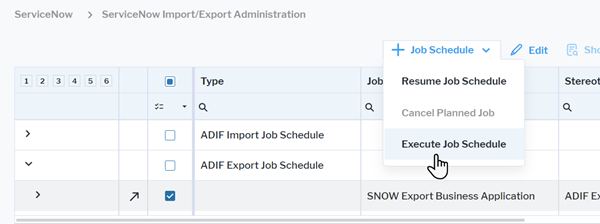
You can also access the ServiceNow Import/Export Administration view directly from the ServiceNow Import/Export Administration view after having selected the applications which shall be synchronized. In the three-dots menu of the ServiceNow Import/Export Administration view, click Synchronization Jobs.
Configure regular synchronization
- In the left navigation of the Portfolio Admin user profile, go to Integrations > ServiceNow.
- Click ServiceNow Import/Export Administration.
- In the table, expand the ADIF Export Job Schedule row.
- Select the checkbox of the SNOW Export Business Application row.
- In the toolbar, click Edit.
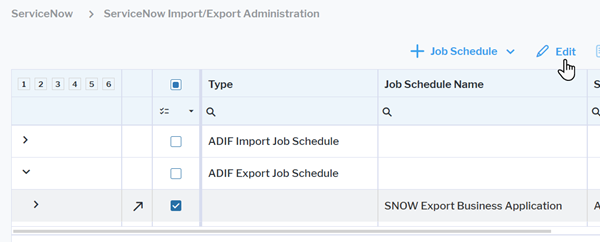
- Go to the Schedule tab.
- In the Start Time field, define at which time of the day the job shall be executed. If the job shall be executed daily, weekly, or monthly, this is the execution time for each recurrent execution. If the job shall be executed hourly, the execution starts at the specified time and is then repeated in the interval specified for the recurrence pattern.
- Define one of the following recurrence patterns:
Hourly recurrence
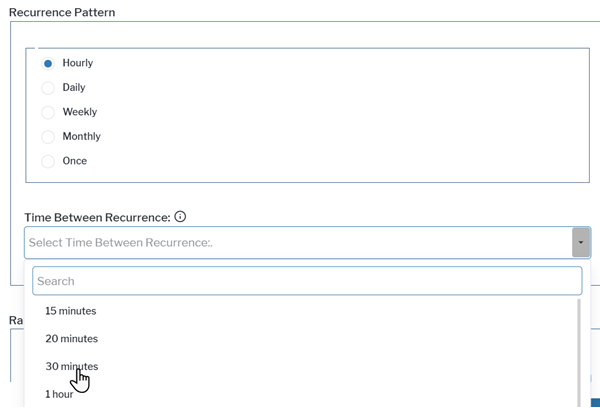
- Recurrence Pattern: Select Hourly.
- Select the time between executions in the Time Between Recurrence field.
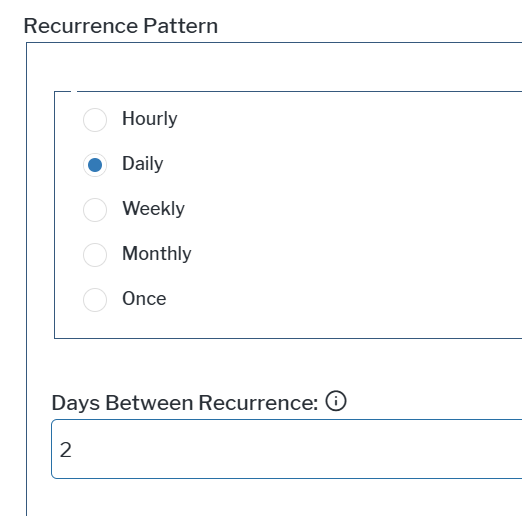
Daily recurrence, including gaps of multiple days between occurrences.
- Recurrence Pattern: Select Daily.
- Enter the number of days between executions as integer in the Days Between Recurrence field.
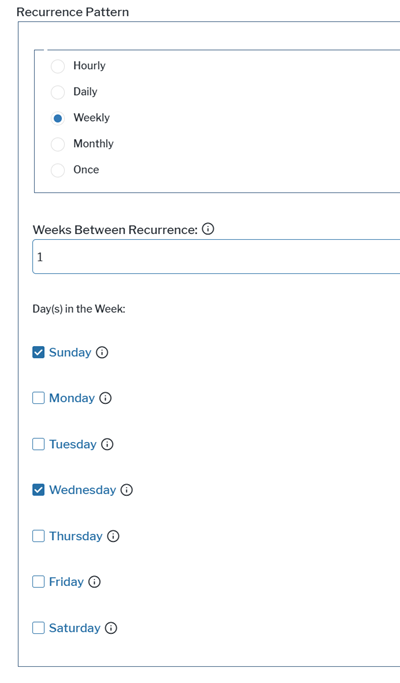
Weekly recurrence including gaps of multiple weeks between occurrences and multiple recurrences each week at defined days of the week.
- Recurrence Pattern: Select Weekly.
- Enter the number of weeks between executions as integer in the Week Between Recurrence field.
- Select one or multiple weekdays at which the job shall be executed in the Day(s) in the Week field.
Monthly recurrence including gaps of multiple months between occurrences. Execution is limited to one time per month.
- Recurrence Pattern: Select Monthly.
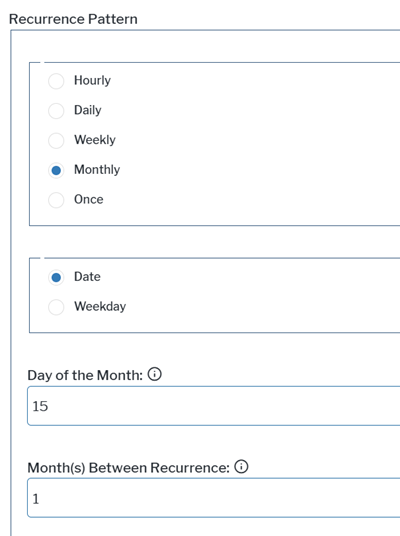
- Select Date to schedule job execution at a specific day of the month, like, for example, the second day of each month. You need to specify the following two fields in the Recurrence Pattern box:
- Day of the Month: Enter the day of the month the job shall be executed with an integer between 1 and 31.
- Month(s) Between Recurrence: Enter the number of months between executions as integer.
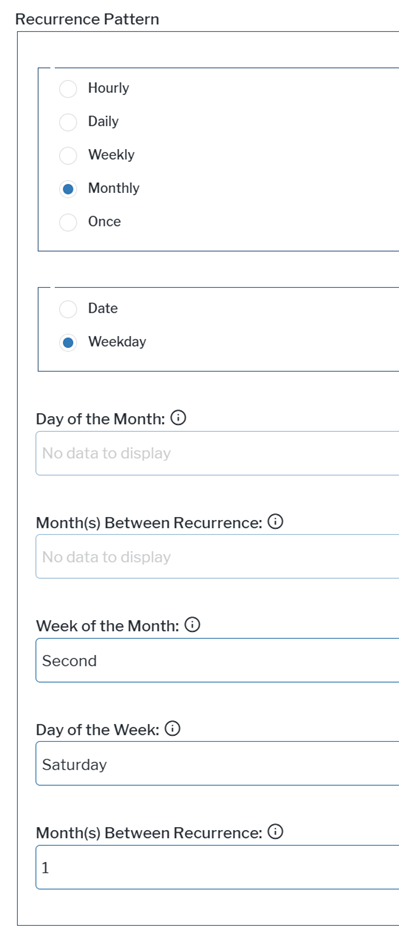
- Select Weekday to schedule job execution at a specific weekday of a specific week of the month. Execution is limited to once per month or every few months. You need to specify the following three fields in the Recurrence Pattern box:
- Week of the Month: Select which week of the month the job shall be executed.
- Day of the Week: Select the weekday the job shall be executed.
- Month(s) Between Recurrence: Enter the number of months between executions as integer.
- Select the start date for job execution in the Range of Recurrence > Start Date field.
- Define how long the job schedule shall be executed in the Range of Recurrence box.
- If you would like to end execution on a specific date, select End on and select the end date in the End Date field.
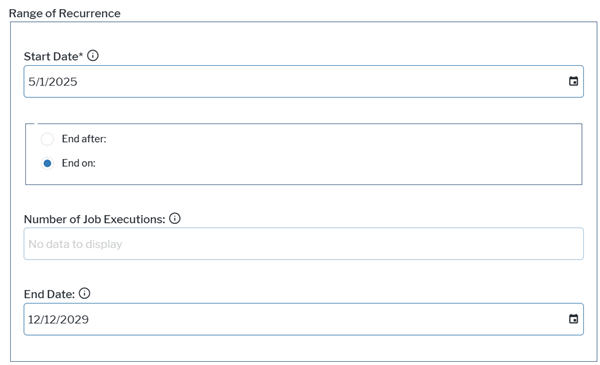
- If you would like to end execution after a defined number of recurrences, select End after and specify the overall number of recurrences as integer in the Number of Job Executions field.
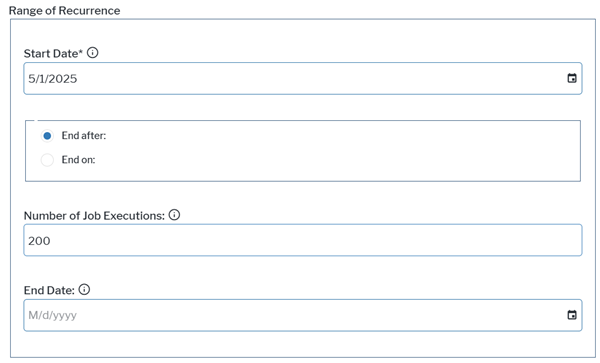
- If you would like to end execution on a specific date, select End on and select the end date in the End Date field.
- Click OK to close the editor.
- In the table, de-select the checkbox of the SNOW Export Business Application row.
- Expand the ADIF Import Job Schedule row.
- Select the checkbox of the SNOW Import Application Service Integration row, click Edit, and repeat the schedule definition for this ADIF job schedule.