
The license package Enterprise Architecture Management is required to work with standard platforms. The use case Architecture Governance must be activated.
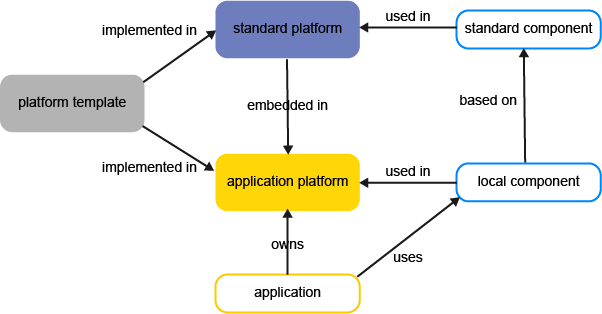
Standard platforms serve as a kind of blueprint architecture or architecture pattern and can be used as building blocks to create and structure other more complex standard platforms that can be used when specifying application platforms. A standard platform is a platform defined outside of the scope of a concrete application. The standard platform is based on a platform template that has platform tiers and platform layers that visualizes a matrix to define the platform architecture. The standard platform architecture bundles standard technology components. The standard platform including its components can be embedded in application platforms to improve interoperability, performance, scalability, and reliability. Standard platforms can be used to represent technical platforms (for example, Windows Client Platform) as well as business platforms (for example, Digital Business Platform). By means of standard platforms, you can assess the overlap and degree of standard compliance of application platforms with the company's guidelines.
Standard platforms have versions and lifecycles and can even consist of other standard platforms. Standard components can be developed and managed independently of the standard platforms and applications that use them, and the lifecycle of a standard component can be different from its lifecycle in the context of a standard platform or application platform.
Add standard platforms to the repository
In the navigation panel, click Technology Portfolio > Standard Platforms. Per default, the data workbench displays only a set of basic attributes. You can add more columns to capture other attributes directly in the data workbench or you can navigate to a standard platform's content area and define it in more detail there. Click to learn about how to use data workbenches.
Create a new standard platform from scratch. Click New > Standard Platform. Specify the standard platform's attributes as well as the relationships that the standard platform has to other assets in the repository. All mandatory fields must be defined to create the standard platform and save it.
Edit the attributes and relationships for a standard platform. Click the Navigate  button next to a standard platform to open its content area . Specify the standard platform's attributes as well as the relationships that the standard platform has to other assets in the repository.
Try to capture as much information as possible about the standard platform because complete data considerably improves the results of business questions and other analytics.
Specify the standard platform's attributes
Once a standard platform is in the repository, you can define more details about it in the Standard Platforms data workbench . Or specify and analyze the standard platform in detail in its content area.
Per default, the data workbench displays a limited set of basic attributes. You can add more columns via the Structure column to capture other attributes directly in the data workbench.
- Name: (Mandatory) Enter a unique name for the standard platform so that users can recognize its purpose.
- Version: Enter a version number for the standard platform. The name and version number of the standard platform should be unique.
- Start Date and End Date: Specify the period when the standard template should be actively used.
-
Status: This is an approval status and typically indicates the level of quality of the information about the standard platform. The release status determines whether a standard platform can or cannot be deleted. Possible values are:
- Draft: The standard platform has only mandatory data defined.
- Under Review: The standard platform is documented and being reviewed. A standard platform with this release status cannot be deleted.
- Approved: The standard platform has been approved by the responsible stakeholders. A standard platform cannot be deleted when it has an approved release status. A standard platform with this release status cannot be deleted.
- Data imported: The data regarding this standard platform has been imported from an external system. Additional changes may be required to improve the data quality. A standard platform with this release status can be deleted.
- Trash: The standard platform is no longer valid and can be deleted.
- Platform Template: Select the platform template for the standard platform. The platform template consists of platform tiers and platform layers that constitute the matrix to define the platform architecture
- Standard Platform Category: Select a standard platform category to assign the standard platform to. The standard platform can only be assigned to one category.
- IT Capability: Specify the IT capability that the standard platform supports in the IT architecture.
- Authorized Access tab: The user who creates the standard platform is the authorized user per default. This can be changed. Select one or more authorized user groups that shall have write permissions to the object. All users in the authorized user group can edit the standard platform.
Define the users and organizations that have a role for the standard platform
A role represents a functional responsibility that a user or organization has for the standard platform. Assigning users and organizations to roles is critical to understanding responsibility for assets in the IT and is required to answer the business question Who is responsible for our assets?.
Responsibilities are based on preconfigured role types. Your company may also configure custom role types via the Portfolio Admin user profile. Depending on the role type, a specified user and/or a specified organization may fulfill the responsibility for the standard platform. A user assigned responsibility via a role has read-only permissions to the standard platform. To change data about the standard platform, they must also be specified as an authorized user or member of an authorized user group.
Roles can be assigned to a standard platform in the Standard Platforms data workbench or the standard platform content area via Overview > Responsibilities. A person or organization can have one of the following roles or a custom role added by your company:
- Architect: A person who is responsible for the governance of the standard platform.
- IT Owner: A person or IT organization that owns the standard platform and thus typically responsible for approval decisions.
- Stakeholder: A person or organization that has an interest in the standard platform and therefore requires read-only access permissions.
To specify responsibilities for the standard platform:
- Click in the relevant role field to open the selector.
- Expand the ORGANIZATION or USER sections in the selector and select the person or organization fulfilling the role.
- Click OK to save the role definition and close the selector.
Assembling the standard platform with components
Standard platforms serve as a kind of blueprint architecture or architecture pattern and can be used as building blocks to create and structure application platforms. A standard platform bundles approved standard technology components. Each component embedded in the standard platform is considered a standard platform element with its own lifecycle that can be different than the component it is based on. Standard platforms can also consist of other standard platforms in order to build more complex standard platforms.
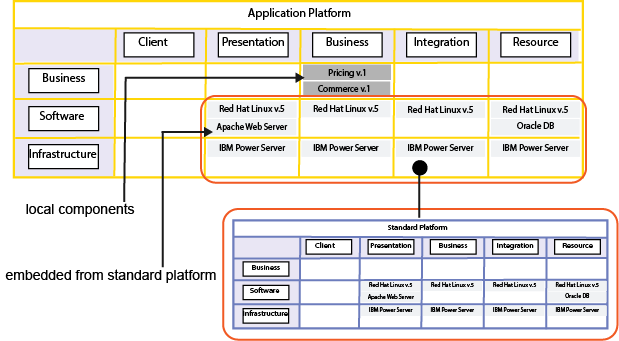
The standard platform can be embedded in an application platform as shown above. The architect of the application platform architect can then remove embedded standard components as well as add other local components when documenting their application platform.
There are two methods to assemble a complex standard platform:
- Structure the standard platform component by component. Add individual standard components or add the standard components assigned to another standard platform.
- Structure the standard platform by adding existing standard platforms. Add an existing standard platform as an entire package including all of its standard platform elements that are derived from components. This method should be used if all relevant communication between the components takes place within the standard platform.
The platform architecture is structured by the preconfigured platform layers and platform tiers. Add individual standard components to a specific platform layer/platform tier combination and embed other standard platforms that have already been defined to build the standard platform. In this case, you can detach unwanted components and add other components to create standard platforms that users can later use to specify application platforms. The components in the standard platform architecture can be added to the relevant platform tier/platform layer of an application platform or another standard platform.
Go to the standard platform's content area > Overview > Standard Platform Architecture.
Add components to the standard platform. Click the matrix cell where you want to add a component and click the  button. Select the component in the selector to add to the standard platform architecture.
Add components from an existing standard platform. Click the  plus sign button > Copy Elements from Other Standard Platform and select the standard platform whose components you want to add. The individual components are added to the standard platform and are shaded orange. You can remove any components via
  3-dots button > Delete. To delete all components added via the standard platform, select a component in the matrix > Delete All Platform Elements Derived from the Standard Platform.
Embed all components from an existing standard platform. Click the plus sign button > Add Existing Standard Platform and select the standard platform whose components you want to add. The embedded standard platform itself is not an element in the selected standard platform - only its platform elements are assigned to the selected standard platform. Embedded components are shaded grey and cannot be deleted from the standard platform. To remove all components from the embedded standard platform, select an embedded component > plus sign button > Detach Associated Standard Platform.
Specify a component as mandatory. If you specify a component as mandatory, it will be highlighted with a yellow flag in the bottom right corner. When the standard platform is embedded in an application platform, users will see that the component is marked as mandatory. you can specify any platform element to be mandatory except for those that are part of an embedded standard platform.
Select a platform element in the standard platform and click 3-dots button >  edit button. In the editor, set a checkmark in the Is Mandatory Component checkbox and click OK.
Delete a component from the standard platform.You can delete a component from the standard platform if it has been added as an individual standard component or via Copy Elements from Other Standard Platform. When you delete it, you are deleting the platform element from the standard platform. The standard component will not be deleted from the repository. Select an orange platform element and click 3-dots button > Delete.
Hide a platform layer or platform tier. To remove a platform tier or layer that is not relevant for the architecture of the standard platform, select the platform layer or platform tier in the matrix axis and click the plus sign button > Hide Selected Platform Tier/Platform Layer. Or click plus sign button > Axes Quick Editor and select/deselect the platform tier and platform layers in the editor to specify the matrix.