
The license package Enterprise Architecture Management is required to work with ICT objects. The use case Architecture Governance must be activated.
ICT objects provide a controlling and planning view to the IT architecture. An ICT object (ICT = Information and Communication Technology) is an abstract object that represents applications regardless of their versioning and is a means to plan and control costs related to the application and its infrastructure. The ICT object is owned by an organization that is usually responsible for the budget of the applications assigned to the ICT object.
ICT objects are key to master planning. Using ICT objects is advantageous because it allows the application portfolio to be planned without initially committing to a certain version of the application. By means of the ICT object, portfolio managers can understand the operating costs of the application. Later, at the stage of detailed planning, the ICT object can be replaced by a specific concrete application version.
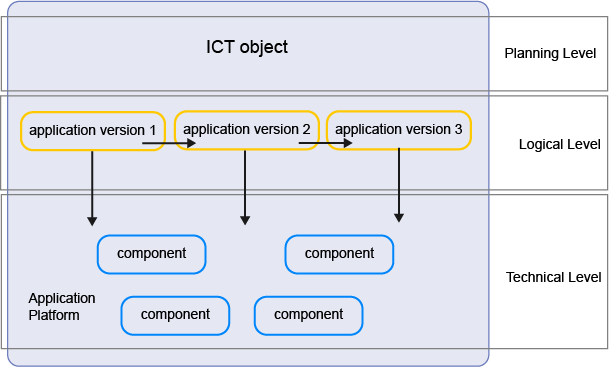
You can structure the ICT object in ICT object categories in order to evaluate various aspects of ICT objects.
Add ICT objects to the repository
In the navigation panel, click Application Portfolio > ICT Objects. Per default, the data workbench displays only a set of basic attributes. You can add more columns to capture other attributes directly in the data workbench or you can navigate to an ICT object's content area and define it in more detail there. Click to learn about how to use data workbenches.
Go to Application Portfolio > ICT Objects and specify the basic data.
Create a new ICT object from scratch. Click New > ICT Object. Specify the ICT object's attributes as well as the relationships that the ICT object has to other assets in the repository. All mandatory fields must be defined to create the ICT object and save it.
Edit the attributes and relationships for an ICT object. Click the Navigate  button next to an ICT object to open its content area . Specify the ICT object's attributes as well as the relationships that the ICT object has to other assets in the repository.
Try to capture as much information as possible about the ICT object because complete data considerably improves the results of business questions and other analytics.
Specify the ICT object's attributes
Once an ICT object is in the repository, you can define more details about the ICT object in the ICT Objects data workbench . Or specify and analyze the ICT object in detail in its content area.
Per default, the data workbench displays a limited set of basic attributes. You can add more columns via the Structure column to capture other attributes directly in the data workbench.
- Name: (Mandatory) Enter a meaningful name for the ICT object that is known by the users in your enterprise.
-
Status: This is an approval status and typically indicates the level of quality of the information about the ICT object. The release status determines whether an ICT object can or cannot be deleted. Possible values are:
- Draft: The ICT object has only mandatory data defined.
- Under Review: The ICT object is documented and being reviewed. An ICT object with this release status cannot be deleted.
- Approved: The ICT object has been approved by the responsible stakeholders. An ICT object cannot be deleted when it has an approved release status. An ICT object with this release status cannot be deleted.
- Data imported: The data regarding this ICT object has been imported from an external system. Additional changes may be required to improve the data quality. An ICT object with this release status can be deleted.
- Trash: The ICT object is no longer valid and can be deleted.
- ICT Object Category: The category that classifies the ICT object based on its content. Assigning the ICT object to an ICT object category allows the ICT objects to be organized and analyzed for costs and architectural complexity.
- Owning Organization: The organization that owns the ICT object and has budget responsibilities.
- Authorized Access tab: The user who creates the ICT object is the authorized user per default. This can be changed. Select one or more authorized user groups that shall have write permissions to the ICT object. All users in the authorized user group can edit the ICT object.
Assign applications to an ICT object
All applications that are assigned to an ICT object are displayed in the ICT object's content area > Overview > Applications. This view is read-only. The relationship between ICT objects and applications is specified in the application's content area.
- Go to Application Portfolio > Applications.
- Click the Navigate button to open the application's content area.
- Go to the Overview > Basic Data > ICT Object field and select the ICT object that you want to assign the application to.
Define the users and organizations that have a responsibility for the ICT object
A role represents a functional responsibility that a user or organization has for the ICT object. Assigning users and organizations to roles is critical to understanding responsibility for assets in the IT and is required to answer the business question Who is responsible for our assets?.
Responsibilities are based on preconfigured role types. Your company may also configure custom role types via the Portfolio Admin user profile. Depending on the role type, a specified user and/or a specified organization may fulfill the responsibility for the ICT object. A user assigned responsibility via a role has read-only permissions to the ICT object. To change data about the ICT object, they must also be specified as an authorized user or member of a n authorized user group.
Roles can be assigned to an ICT object in the ICT Objects data workbench or the ICT object content area via Overview > Responsibilities. The following roles as well as custom roles added by your company can be defined for an ICT object:
- Business Owner: A person or organization that owns the ICT object and is responsible for managing the its requirements.
- Stakeholder: Multiple persons and organizations who have an interest in the ICT object and therefore require read-only access permissions.
To specify responsibilities for the ICT object:
- Click in the relevant role field to open the selector.
- Expand the ORGANIZATION or USER sections in the selector and select the person or organization fulfilling the role.
- Click OK to save the role definition and close the selector.
Check the data quality of the ICT object
At any point in time, you can check the data quality of the ICT object you are defining to see where gaps exist.
In the data table, click the navigate button of the ICT object you want to define. Go to the ICT object's content area > Data Quality > Data Quality Details. Expand the table in order to review the data quality issues. Click the link in the Resolution column to navigate to the location where you can correct the data quality issue.