
A role consists of the relationship between an asset, the responsible person/organization, and the role type that the role is based on.
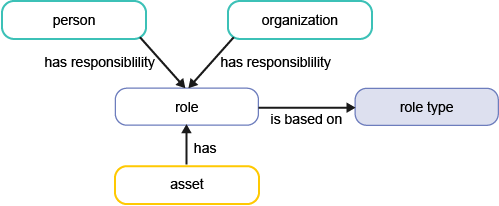
In Alfabet, responsibilities are documented via the concept of roles , whereby each role is based on a preconfigured role type or a custom role type defined by your company. In contrast to an authorized user who has read/write permissions, a person assigned a role for an asset will not have read/write permissions based on the role definition. The role is primarily for documentation purposes to provide information about stakeholders interested or responsible for the asset. If the user should have read/write permissions, they must either be the authorized user of the asset or assigned to an authorized user group associated with the asset.
Alfabet provides out-of-the-box role types that enable you to understand who is responsible for your IT assets in your IT portfolio. Additional role types that are relevant for your company can also be added.
Typical preconfigured role types for persons include: Application Manager, Architect, Business Owner, IT Owner, Stakeholder. Typical role types for organizations are: Business Owner, IT Owner, Operations, Stakeholder. However there are many other preconfigured role types available for specific classes that are relevant for various use cases.
In order for users to be able to specify roles for an object, you must create role types and assign them to the relevant object class. Only the role types that have been configured for the object class of the selected object will be available for the role definition. A role type may be defined for either a person and/or organization. The configuration of the role type will also determine whether only one person or organization or multiple persons or organizations may be defined per role type for the selected object. Preconfigured role types are available. They cannot be deleted. You can define additional role types to address the needs of your company.
Create role types.
- In the navigation pane, expand Configuration > Reference Data > Role Types.
- Click the
 plus sign button to create a new role type.
 - Specify a name for the role type, which will be displayed to end users when the create a new role for an asset, and a technical name. Provide a description of the role type to help end users understand the purpose of the role.
Assign role types to a class.
- After a role type is created, go to Configuration > Class Configuration and select the class that the role type shall be assigned to.
- Click Role Types to open the view.
- Click the plus sign button > Add Role Type to add the role type to the class.
- Select a role type in the data table and click Edit to define how the role may be defined for the objects. The Role Type field shows the name of the role type and the Class Configuration field shows the class that you are configuring the role type for.
- Property Group: Select a property group if you want the role to be displayed and editable in a selected property group in the content area of the object class.
- Manage Transitions: Specify whether the transition of the roles based on the role type shall be governed or not. No = The role transition is not governed. Mandatory = The user may change the Proposed Person/Organization field. Optional = The user may change the Person/Organization, Role Type, and Proposed Person/Organization fields.
- Workflow for Role Transitions: If the transitioning of roles is to be managed, select a configured workflow template that shall be triggered if a user attempts to change a role based on the role type.
- Person Available: Select if roles based on this role type are fulfilled by a person.
- Person Plurality: Select if multiple persons may be defined for roles based on this role type.
- Organization Available: Select if roles based on this role type are fulfilled by an organization.
- Organization Plurality: Select if multiple organizations may be defined for roles based on this role type.
- Disable Deletion: Select the checkbox if roles based on the role type may not be deleted. The Delete button will be disabled for roles based on the role type.
Specify a default role type for a class. You can specify a default role type so that whenever an asset of that class is created, the default role type wil be automatically assigned for the user who has created the asset.
- Go to Configuration > Class Configuration and select the class to configure.
- Go to Default Role Types and select the role type that should be assigned by default for the class you are configuring. Only the role types assigned to the class are displayed in the selector. The default role type will be automatically assigned to the user when they create a new asset of that class.