- Install .NET Desktop Runtime 10 and ASP.NET Core Runtime 10. You can download it from https://dotnet.microsoft.com/en-us/download/dotnet/10.0.
If you have not installed the .NET framework components prior to starting the Alfabet installer, the installer will ask you to install .NET and provide you with a download link. Both components are requested separately by the installer. After download and installation of .NET Dessktop Runtime, the installer need to be restarted to provide the download link for ASP.NET Core Runtime.
- On the database server host, install Microsoft® SQL Server 2019 or 2022, if not already in use.
- On the web server host, make sure that roles and features for Microsoft Internet Information Services® 10.0 and ASP.NET Core 10 runtime match current requirements:
- On the Web Server host, click the Start
 icon that appears when you move the mouse to the lower left corner and click the Server Manager
  icon to open the Server Manager.
 - In the menu in the upper right of the Server Manager, select Manage > Add Roles and Features.
- In the Add Roles and Features Wizard, select the installation type and the web server host in the first three pages of the wizard and proceed to the Server Roles page, using the button Next of the wizard.
- In the Server Roles page, expand Web Server (IIS):
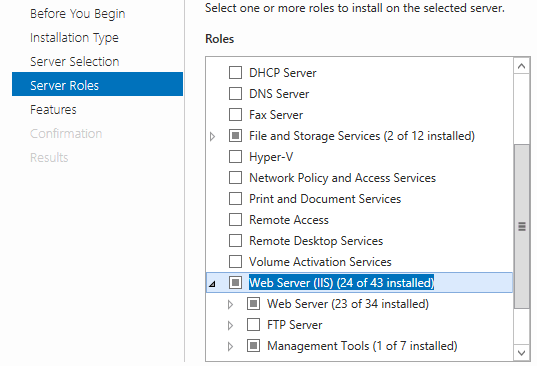
- Make sure Common HTTP Features/Web DAV Publishing is disabled.
- Activate the checkboxes of at least the following roles:
- [X] Web Server installed
- [X] Common HTTP Features
- [X] Default Document
- [X] HTTP Errors
- [X] Static Content
- [X] HTTP Redirection
- [X] Health and Diagnostics
- [X] HTTP Logging
- [X] ODBC Logging
- [X] Performance
- [X] Static Content Compression
- [X] Dynamic Content Compression
- [X] Security
- [X] Request Filtering
- [X] Application Development
- [X] .NET Extensibility 4.8
- [X] ASP.NET 4.8
- [X] ISAPI Extensions
- [X] ISAPI Filters
- [X] Common HTTP Features
- [X] Management Tools
- [X] IIS Management Console
- [X] Web Server installed
- In the section Web Server installed > Security, select the Windows Authentication (SSO) check box to use Windows sign-on or Basic Authentication to use standard login.
- Click the Next button to proceed to the Features page.
- Activate the checkboxes of at least the following features:
- [X] Web Server installed
- [X] .NET Framework 4.5 Features
- [X] .NET Framework 4.5
- [X] ASP.NET 4.5
- [X] .NET Framework 4.5 Features
- [X] Web Server installed
- Click Next.
- Click Install. The roles and features are installed.
- Click Close to close the wizard.
- In the menu of the Server Manager, click Tools > Internet Information Services (IIS) Manager.
- In the explorer of the IIS Manager, select the Web Server and click Restart in the Manage Server pane on the right.
- On the Web Server host, click the Start
