- Log in to the Alfabet Performance Evaluation application with the login method implemented by your company. If you are the administrative user defined in the configuration of the Alfabet Performance Test application, enter your user name and password and click LOGIN. If Microsoft Account Entra ID login is implemented, click MICROSOFT ACCOUNT / ENTRA ID.
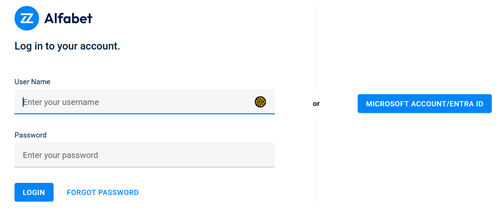
The FORGOT PASSWORD button is for future use only and currently not providing any functionality.
- In the user interface, select the server alias used for the Alfabet Web Application and click START TEST.
- During the test, you can see the progress on the user interface. Already performed tests are displayed in green:

- After the test run, the results are displayed graphically with the duration for each step listed on the right of the graphic. Results are listed separately for connection to the browser and to the database. For the database connection, details about the transaction are available on hover over the graphic as tooltip:

- If you want to save the test result in a PNG or JSON file, click SAVE AS IMAGE or SAVE AS JSON respectively.
- If you want to repeat the test, click REPEAT TEST.
- If a previous test run is available for the same server alias, a comparison with the last test run results is displayed beneath the test results. In addition, you will see a graphic informing about the overall performance of all previous tests.
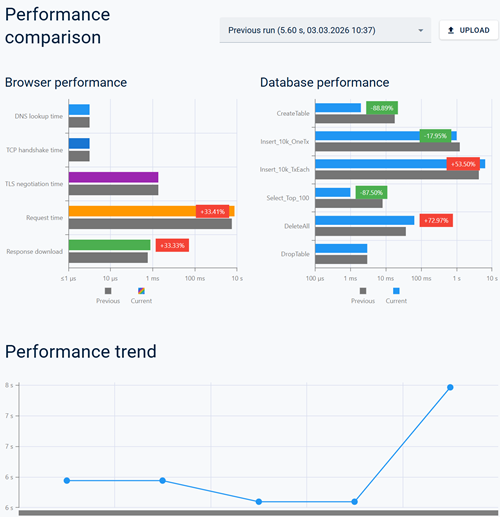
- In the drop-down list on top right of the performance comparison graphic, you can alternatively select the best or worst previous result to compare it with the current test result. In addition, you can compare the current test results with any test result stored as JSON file. Click UPLOAD to select the test result you would like to run a comparison with.
