
The first step to set up a publication is the definition of at least one publication template in Microsoft Word® DOT or DOTX format.
To define a Microsoft Word template:
- Open the Microsoft Word program installed on your computer.
- Create a document that matches the desired publication in content and style and save it as Word template (*.dot or *.dotx). If your company is using sensitivity level settings, make sure that the document has the sensitivity level Public.
- Add bookmarks to the document wherever you want Alfabet data to be added as follows:
- Add the name of the bookmark as text to the document.
- Mark the bookmark name in the text and add a bookmark that is applied to the text with a name identical to the marked text.
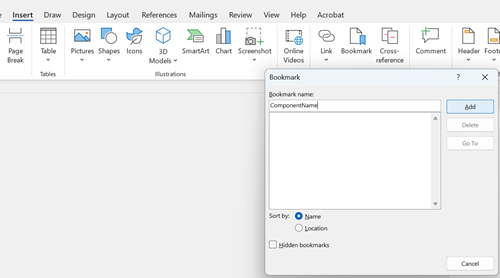
Note the following about adding bookmarks to the document:
- The Word template can only be used in the Alfabet Publication Framework (APF) if the text and the name of the bookmarks match identically.
- If you want to add a configured report or standard Alfabet page view including a legend to the document, you must add separate bookmarks for the configured report/page view and for the legend of the configured report/page view.
- If you add a configured report or page view via a bookmark, the report will be inserted as a graphic. The image is resized to fit the document width. If the length of the graphic supersedes the space available on the page, the lower part of the image may be hidden behind the footer defined for the document. This is the standard graphic import behavior of Microsoft Word and cannot be changed.
- Other than the table of contents feature, you must not use any other Microsoft Word bookmark field functions in the document.
- You can optionally insert a table of contents in the document by defining the hierarchy of heading levels that are to be included. You can add a table of contents to your template via two methods:
- Use the Microsoft Word mechanisms to add a table of contents anywhere in the Word template. The publication will have a table of contents at the specified position that reflects the current content. This mechanism can only be used if the formatting of the headings is based on styles with a heading level.
- If you create the Word template without a table of contents, you can configure the publication definition in Alfabet Expand to add a table of contents to the document during publication. The table of contents will be inserted before the Word template. This method is not recommended for templates containing a title page because the table of contents will be located before the title page.
For either method, the table of contents will not be automatically filled during document creation. When a user opens a publication, he/she will see the text 'TOC' where the table of contents has been added. The user must update the table of contents manually to view the contents. To do so, the user must click the word 'TOC' and press F9 on his/her keyboard.