
Activate sharing and embedding of Alfabet content
Shareable links make it easy for users to quickly distribute and access views, improving collaboration and transparency. The Share Link option in the three-dot menu of views enables users to generate two types of links:
- Direct links that can be shared via email. Depending on the server alias security configuration, these shareable links can be accessed either by anonymous visitors or restricted to named users. The view is displayed with masthead and navigation. Security settings in the server alias of the Alfabet Web Application define whether users have full access or only read-only access and which user profile is used to open the view.
- Embed links that can be embedded in web sites and third-party applications, allowing views to be seamlessly integrated into other contexts. These embedded views always display up-to-date information retrieved at runtime, while preserving the filter settings applied at the time the link was created. The view is presented in read-only mode without masthead or navigation, and access from external sites is limited to explicitly allowed URLs defined in the alfasettings.json security configuration.
It is recommended to use sandboxing to separate content embedded via an iframe in a web site.
- <iframe id='AlfabetContent1' src='https://Alfabet/ExternalAccess.aspx?AccessType=EmbeddedLinks6Bookmark=1A79123B45US3456F' sandbox='allow-scripts allow-same-origin'<</iframe>
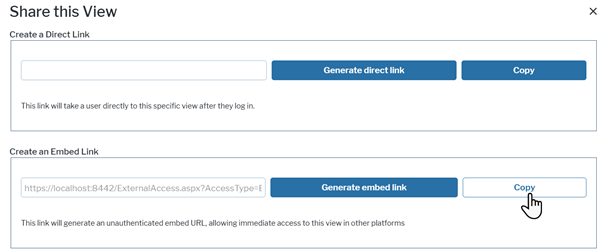
You must activate the feature in the server alias settings of the Alfabet Web Application and configure the required security settings to provide the feature to the users.
- Open the Alfabet Administrator.
- Open the server alias editor of the server alias used by the Alfabet Web Application.
- Go to the Server Settings > Security tab.
- Select the Allow Sharable Links checkbox to enable the Share Links menu option on the Alfabet user interface.
- Select the Allow Anonymous User checkbox to allow access to Alfabet views from direct and embed links. If you deselect the checkbox, access will be denied for all users including named users and content cannot be displayed in embedded views.
- Select the way the interface will open if someone accesses the Alfabet user interface via a shared link in the External Access field. The following options are available:
- Not Allowed: Access to the Alfabet user interface via both direct and embed links is disabled.
- Allowed as Visitor: The user interface opens with read-only access with the temporary user Visitor as the login user, even if the recipient of a direct link in an email is a named user. The Use Recipient's User Profile for External Links attribute in the server alias is ignored, and the view always opens with the user profile for anonymous users.
- Allowed as Authenticated User: Login to the user interface is required. Anonymous users can only log in if single sign-on is used for login. With standard login, a login screen is displayed and a user name and password for a named user is required. The user profile for opening the view is evaluated via the Use Recipient's User Profile for External Links attribute.
This setting is only relevant for direct links. For embedded links, the temporary user Visitor is always used for display of the view regardless of the External Access setting.
- If you selected Allowed as Authenticated User for the External Access setting, go to the Server Settings > General tab and define which user profile shall be used to open direct links sent via email. User profiles have a significant impact on the available functionality of a Alfabet view. For example, attributes of object classes can be visible and editable in one user profile and hidden or non-editable in another user profile. Set the Use Recipient's User Profile for External Links to decide on the user profile usage for opening of views:
- Use Recipient's User Profile for External Links is selected: The view opens with a user profile of the recipient. If the user profile used for sending the view is available for the user opening the view, this user profile is used. Otherwise, if the recipient has more than one user profile assigned, the user profile the user selected as default user profile in the user settings is used to open the view. If no default user profile is defined, the first user profile with edit permissions in the list of assigned user profiles is used. If no user profiles of the user provide edit permissions, the view opens with a read-only user profile. For anonymous users, the user profile defined as the default user profile for anonymous access will be used to open the view. If no user profile is defined for anonymous login, anonymous users cannot open the view.
Opening the view with the recipient's user profile might change the content of the view according to the permissions and settings that apply to the recipient's user profile, but it will not prevent access to the complete view that has been sent via email. For example, a configured report that is configured to be visible for a specific user profile only can be opened via the link with other user profiles. It is the intention of the express view functionality to provide a view to a colleague for a specific reason even if this view is normally not in the range of the colleagues' responsibilities.
- Use Recipient's User Profile for External Links is selected: The view opens with the user profile of the sender, even if this user profile is not assigned to the recipient.
It is recommended that the Alfabet Web Application is configured to open Alfabet views using the recipient’s user profile to prevent violation of access permissions. For example, if you are logged in with an administrative user profile while sending an email link to another user, and the Alfabet view opens with the sender’s user profile, the recipient will have administrative permissions and can edit objects regardless of the configured access permissions in Alfabet and will see all objects regardless of the mandate settings.
- Use Recipient's User Profile for External Links is selected: The view opens with a user profile of the recipient. If the user profile used for sending the view is available for the user opening the view, this user profile is used. Otherwise, if the recipient has more than one user profile assigned, the user profile the user selected as default user profile in the user settings is used to open the view. If no default user profile is defined, the first user profile with edit permissions in the list of assigned user profiles is used. If no user profiles of the user provide edit permissions, the view opens with a read-only user profile. For anonymous users, the user profile defined as the default user profile for anonymous access will be used to open the view. If no user profile is defined for anonymous login, anonymous users cannot open the view.
- Click OK to save your changes.
- In the toolbar, select Tools > Configure alfasettings.json.
- Click the three-dots button on the right of the Web Folder field and select the physical folder of the Alfabet Web Application. The alfasettings.json file in the config subfolder opens.
- Change the information in the following fields in the AlfabetWebConfig JSON object:
- 'ContentSecurityPolicyValue': Add the root URL of the web sites and web applications that shall be able to show embedded Alfabet views to the web sites listed under frame-src.
- 'ContentSecurityPolicyValue': 'default-src 'self' 'unsafe-eval' 'unsafe-inline'; img-src 'self' data:; media-src 'self'; object-src 'self'; frame-src 'self' https://localhost:8449 https://*.sharepoint.com https://*.horizzon.cloud',
- 'SetSameSiteOrigin': Set to false if you want to embed links to web sites and web applications located on another Web server than the Alfabet Web Application. Set to true if both the site with the embedded content and the Alfabet Web Application are installed on the same Web server.
- 'ContentSecurityPolicyValue': Add the root URL of the web sites and web applications that shall be able to show embedded Alfabet views to the web sites listed under frame-src.
- Click Save.
Both embed links and direct links restricted to visitor access with the External Access attribute access the view with a user session of the Visitor system user. However, if a user is already logged in with an active session when opening the link or the external URL, the active session is maintained, and the view opens for the current user instead of the visitor user. The user can then edit objects in the range of the access permissions assigned to this user and switch to other user profiles.
If the embedded content or link opens first and a user tries to log as a named user to Alfabet in the same browser, a message is displayed that the current visitor session is still running and the user will then be directed to the login page while the session for display of the embedded content or link target is terminated. The user must refresh the page with the externally accessed Alfabet content to re-load the information with the current user session.
In addition to session handling, the visitor session also has an impact on display of views limited to display data for the current user. For example, a standard view or configured report may be configured to show objects for which the current user has read-write access permissions. Views referring to the current user will not display any content if embedded or opened via direct links defined to provide access as visitor. The Visitor user is a system user with no object assignments. However, if a user is already logged in with an active session when opening the link or the external URL including the embedded content, the view will show content for this user. The content will not be identical to the content displayed to the user sharing the view.