Schedule automatic updates of ServiceNow data in regular intervals
You have done a first import data from ServiceNow , marked data for update of Alfabet asset data and updated Alfabet asset data with the ServiceNow data at least once.
After primary import of data from ServiceNow to the Alfabet internal ServiceNow repository, you can either execute a net change import for an asset class manually on demand whenever you want to update the data, or you can schedule the ADIF job for net change import to be executed automatically in regular intervals.
- Go to Administration > Job Schedules
- Expand the ADIF Import Job Schedule node in the table.
- Select the checkbox of the Import <Asset Name> Net Change Data from ServiceNow ADIF job in the list. Some Alfabet assets are mapped to more than one ServiceNow CI class. For these assets, you can alternatively update only data from one of the mapped CI class tables selecting the Import <Asset Name>:<ServiceNow CI Class Name> Net Change Data from ServiceNow ADIF job instead of the Import <Asset Name> Net Change Data from ServiceNow ADIF job.
- Click Edit.
- Go to the Schedule tab of the editor.
- In the Start Time field, define at which time of the day the job shall be executed. If the job shall be executed daily, weekly, or monthly, this is the execution time for each recurrent execution. If the job shall be executed hourly, the execution starts at the specified time and is then repeated in the interval specified for the recurrence pattern.
- Define one of the following recurrence patterns:
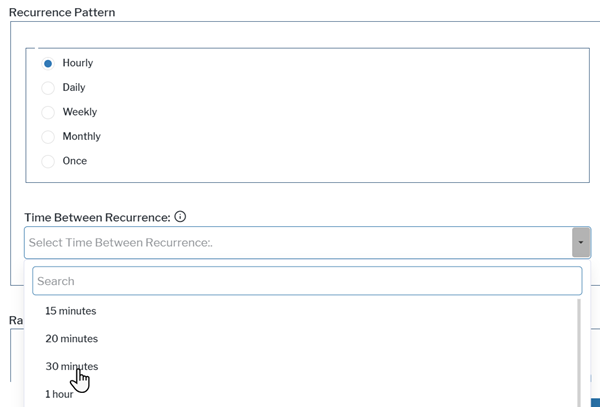
Hourly recurrence
- Recurrence Pattern: Select Hourly.
- Select the time between executions in the Time Between Recurrence field.
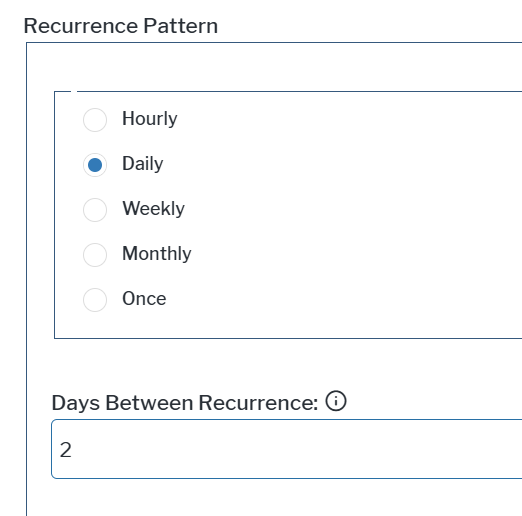
Daily recurrence, including gaps of multiple days between occurrences.
- Recurrence Pattern: Select Daily.
- Enter the number of days between executions as integer in the Days Between Recurrence field.
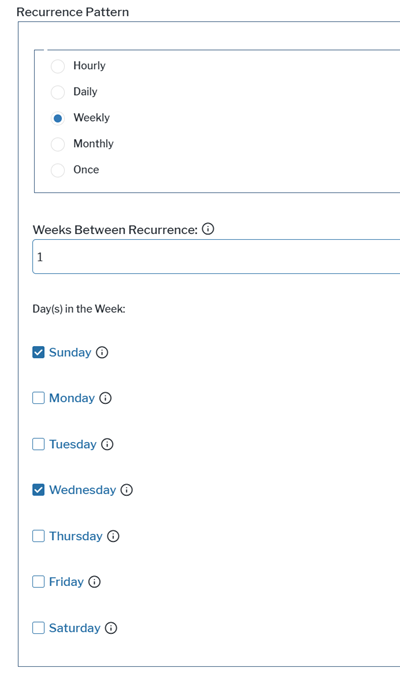
Weekly recurrence including gaps of multiple weeks between occurrences and multiple recurrences each week at defined days of the week.
- Recurrence Pattern: Select Weekly.
- Enter the number of weeks between executions as integer in the Week Between Recurrence field.
- Select one or multiple weekdays at which the job shall be executed in the Day(s) in the Week field.
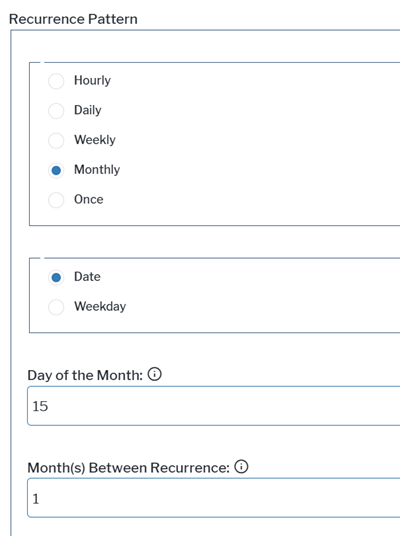
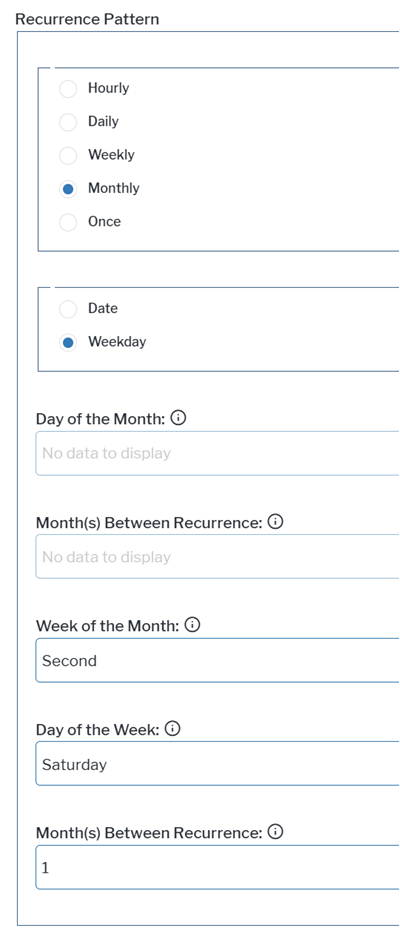
Monthly recurrence including gaps of multiple months between occurrences. Execution is limited to one time per month.
- Recurrence Pattern: Select Monthly.
- Select Date to schedule job execution at a specific day of the month, like, for example, the second day of each month. You need to specify the following two fields in the Recurrence Pattern box:
- Day of the Month: Enter the day of the month the job shall be executed with an integer between 1 and 31.
- Month(s) Between Recurrence: Enter the number of months between executions as integer.
- Select Weekday to schedule job execution at a specific weekday of a specific week of the month. Execution is limited to once per month or every few months. You need to specify the following three fields in the Recurrence Pattern box:
- Week of the Month: Select which week of the month the job shall be executed.
- Day of the Week: Select the weekday the job shall be executed.
- Month(s) Between Recurrence: Enter the number of months between executions as integer.
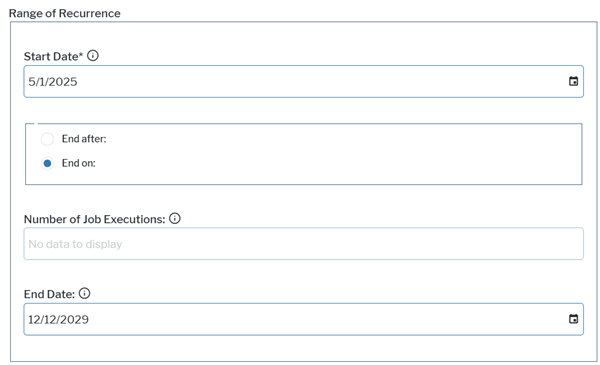
- Select the start date for job execution in the Range of Recurrence > Start Date field.
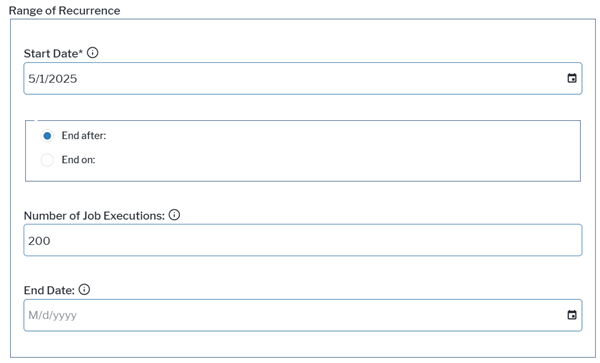
- Define how long the job schedule shall be executed in the Range of Recurrence box.
- If you would like to end execution on a specific date, select End on and select the end date in the End Date field.
- If you would like to end execution after a defined number of recurrences, select End after and specify the overall number of recurrences as integer in the Number of Job Executions field.
- If you would like to end execution on a specific date, select End on and select the end date in the End Date field.
Do this for each asset type you want to import from ServiceNow.